
Pandora Tool is one of the most powerful phone servicing tools available right now for MediaTek, Unisoc, and SPD-based devices. If you are dealing with FRP locks, IMEI issues, bootloader problems, or need to flash firmware on a device that other tools simply won’t touch, Pandora Tool is likely what you need. This guide covers everything about Pandora Tool in 2026, what it does, how to get it, how to activate it, and how to actually use it.
All download links are at the bottom of this page.
Disclaimer
The tools and methods shared on this page are provided for educational purposes only. Please make sure you’re using them on a device that you own or have permission to work on.
Bypassing FRP or removing a Google account from a device that isn’t yours can be illegal and may lead to serious consequences. Always follow Google’s policies and your device manufacturer’s guidelines when performing any kind of modification.
Rise ROM does not encourage or support any misuse of these tools. Use them responsibly.
What is Pandora Tool, and who is it for
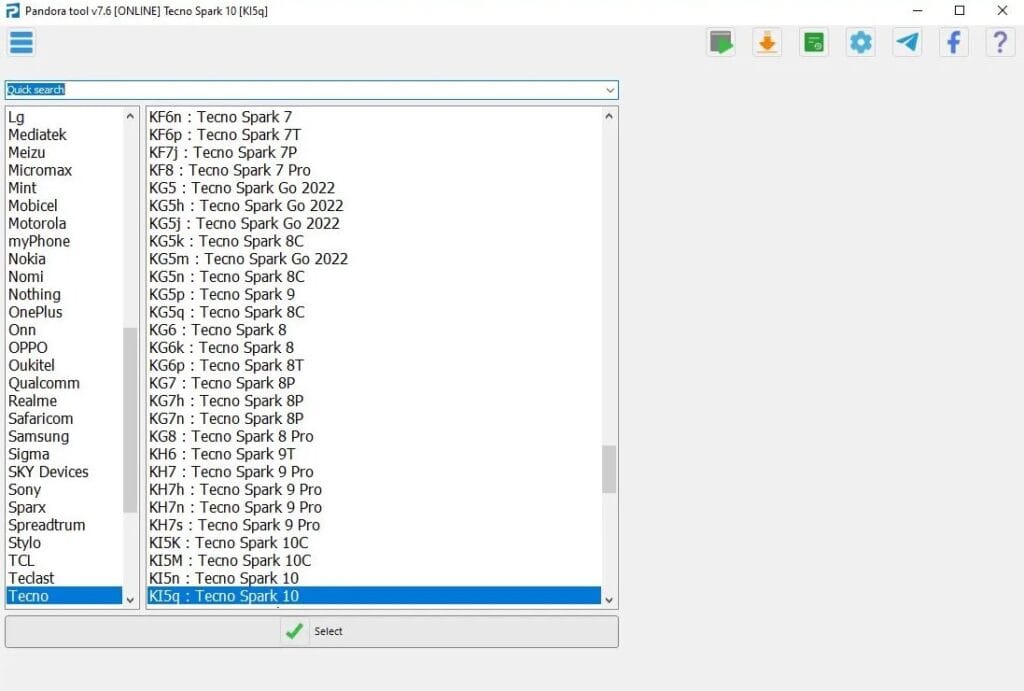
Pandora Tool is a professional phone servicing software developed by Z3X Team, the same company behind the well-known Z3X Box for Samsung devices. While Z3X Box focuses on Samsung, Pandora Tool is built specifically for devices running MediaTek, Unisoc, and SPD chipsets. These chipsets are found in a huge range of budget and mid-range Android phones from brands like Xiaomi, Oppo, Realme, Vivo, Motorola, Nokia, and many others.
The tool handles a wide range of tasks that go beyond simple FRP bypass. We’re talking firmware flashing, IMEI repair, bootloader unlocking, factory reset, pattern lock removal, and more. It’s the kind of tool repair shops reach for when a device needs serious work rather than a quick fix.
One thing to know upfront: Pandora Tool is not completely free. The software itself is free to download, but using it requires either a physical Pandora Box or an online license purchased from Z3X Team. We’ll explain the difference between these two options in the next section, so you know exactly what you’re getting into before downloading anything.
Physical Box vs Online License
This is the part that confuses most people, and almost no guide bothers explaining it properly.
Physical Pandora Box: The Pandora Box is a USB dongle you purchase from Z3X Team or an authorized reseller. You plug it into your PC alongside the phone you’re working on, and it activates the software automatically. The box comes with a set number of credits depending on the package you buy. Each operation on a device costs a certain number of credits. For repair shops doing high-volume work, the physical box is the more economical long-term option.
Online License: If you don’t want to buy the physical box, Z3X Team offers online license credits you can purchase directly through their website at z3x-team.com. You buy credits, log into the software with your Z3X account, and use them the same way you would with the physical box. This is the more accessible option for people who only need to use the tool occasionally or want to try it before committing to the hardware.
Which one should you get? If you’re a repair shop handling multiple devices daily, the physical box pays for itself quickly. If you just need to fix one or two devices, the online credits are the more practical choice. Either way, the software download is the same, and the functions are identical regardless of which activation method you use.
What Pandora Tool Can Do
Most people only know Pandora Tool for FRP bypass, but the functions list goes much further than that. Here’s a full breakdown organized by what the tool can handle:
FRP and Account Removal
- Remove FRP lock on MediaTek devices
- Remove FRP on Unisoc and SPD chipsets
- Remove Google account verification after factory reset
- Bypass pattern and PIN lock on supported devices
Firmware and Flashing
- Flash stock firmware on MediaTek devices
- Flash scatter files directly
- Write and read firmware partitions
- Repair bootloop and soft brick situations
- Format user data and cache partitions
IMEI and Network
- Read and repair IMEI on supported chipsets
- Fix network registration issues caused by a corrupted IMEI
- Write the EFS partition for IMEI restoration
Bootloader
- Unlock bootloader on supported MediaTek devices
- Relock the bootloader after flashing
- Bypass bootloader authentication on certain chipsets
Factory Reset and Recovery
- Perform a factory reset in recovery mode
- Hard reset via EDL or download mode
- Wipe user data without a PC on some models
Read and Backup
- Read device information and chipset details
- Backup and restore partitions
- Read the security version and patch information
Misc
- Enable USB debugging remotely on some devices
- Fix charging issues caused by firmware corruption
- Repair devices stuck in download or EDL mode
Supported Brands and Chipsets
Pandora Tool works on devices running MediaTek, Unisoc, and SPD chipsets. Here’s a breakdown of supported brands and what you can do on each:
| Brand | Chipset | FRP Remove | Flash Firmware | IMEI Repair | Bootloader Unlock |
|---|---|---|---|---|---|
| Samsung | MediaTek | Yes | Yes | Yes | Some models |
| Xiaomi | MediaTek | Yes | Yes | Yes | Yes |
| Oppo | MediaTek | Yes | Yes | Yes | Some models |
| Realme | MediaTek | Yes | Yes | Yes | Some models |
| Vivo | MediaTek | Yes | Yes | Yes | Some models |
| Motorola | MediaTek | Yes | Yes | Yes | Yes |
| Nokia | MediaTek / Unisoc | Yes | Yes | Yes | Some models |
| Tecno | MediaTek / Unisoc | Yes | Yes | Yes | Yes |
| Infinix | MediaTek / Unisoc | Yes | Yes | Yes | Yes |
| Itel | Unisoc / SPD | Yes | Yes | Some models | Some models |
| Huawei | MediaTek | Yes | Yes | Some models | No |
If you’re unsure which chipset your device uses, download CPU-Z from the Play Store and check the SoC section. If it shows MediaTek, Unisoc, or SPD then Pandora Tool supports your device.
What You Need Before Starting
Keep this simple. Here’s everything you need before downloading or running Pandora Tool:
A Windows PC running Windows 10 or 11. The tool does not work on Mac or Linux.
A working USB data cable. Not a charging-only cable. If your PC doesn’t detect the device, the cable is almost always the reason.
MediaTek, Unisoc, or SPD drivers are installed on your PC. Without the right drivers, the tool won’t detect your device, regardless of anything else. Download them from our drivers page.
A Pandora Box or Z3X online credits. The software is free to download, but you need an activation to use it. Purchase credits at z3x-team.com or get the physical box from an authorized reseller.
Your device is charged to at least 30%. The process involves restarts, and you don’t want the device dying halfway through an operation.
Microsoft Visual C++ 2015 or above. Most Windows installs already have this. If the tool throws an error on launch, this is usually why. Download it for free from Microsoft’s official site.
Download Pandora Tool
The latest version as of 2026 is Pandora Tool V9.23, released on March 23, 2026. Always use the latest version since older versions have limited device support and miss recent chipset updates.
Check your Android version and chipset before downloading anything. Using the Pandora Tool on an unsupported chipset will simply result in errors and wasted time.
| Version | Release Date | Download |
|---|---|---|
| V9.23 (Latest) | March 23, 2026 | Download |
For the most reliable and verified download, always use the official Z3X Team source at z3x-team.com.
What’s New in V9.23
The March 23, 2026, update is a solid one. Here’s what changed:
- Added support for the new META protocol
- Added Unisoc support for Realme RMX-5303 and RMX5313 in UBOOT mode (FRP reset, wipe, flash, dump). Full RPMB operations require TP for BROM
- Added support for new EDL loaders
- Fixed miscellaneous bugs
New Unisoc devices added:
- Itel KeeKid Kid Pad 1, Itel Pad 2, Itel TS Pro V651L, Itel VistaTab 11, Itel VistaTab Go, Itel A200, Itel A200 Plus, Itel City 200
- Lenovo Tab K10C, Lenovo Lecoo 5G Cloud Tablet P116G
- Blackview Mega 8, Rock 2, Rock 2 Pro, Shark 6, Shark 9, Zeno 10, Oscal Pilot 5, Wave 7C, Wave 10
- Coolpad C202, C203, CP12, CP12 Neo and several Daguan series models
New MediaTek devices added:
- Teclast T65 Max
- B131DL View 2
New Qualcomm devices added:
- TCL K32 5G T513W
How to Install and Activate
Installing Pandora Tool is straightforward, but the activation step trips people up if they haven’t used Z3X products before.
Step 1: Extract the downloaded file. The tool comes as a ZIP file. Extract it to a folder on your desktop or C drive. Don’t run it from inside the ZIP.
Step 2: Install drivers. Before opening the tool, install the MediaTek or Unisoc drivers for your device. You can find these on our drivers page. Restart your PC after installing.
Step 3: Run as administrator. Right-click the Pandora Tool executable and select Run as Administrator. Running it without admin rights causes detection issues on most Windows setups.
Step 4: Activate with Pandora Box. If you have the physical box, plug it into your PC via USB before connecting the phone. The software will detect the box automatically and activate within a few seconds.
Step 5: Activate with online credits. If you’re using online credits, click the Login button in the tool and enter your Z3X account credentials. Your available credits will show up in the dashboard. Each operation deducts credits from your balance.
Step 6: Connect your device. Once activated, connect your phone via USB. The tool should detect the device and display the model, chipset, and current software version automatically.
Step-by-Step Guide
This covers the most common use case, which is FRP removal on a MediaTek device. The process is similar for other operations,s with slight variations depending on what you’re doing.
Step 1: Open Pandora Tool as administrator Always run as admin. This is worth repeating because it’s the most common reason the tool fails to detect devices.
Step 2: Select your device chipset In the tool interface, select the correct chipset tab for your device. MediaTek, Unisoc, or SPD. Selecting the wrong one means the tool won’t communicate with your device properly.
Step 3: Put the device in download or EDL mode. For most MediaTek devices, power off completely, then hold Volume Down and connect the USB cable. The tool should detect the device and show it as connected. For Unisoc devices, the process is similar,r but some models use Volume Up instead.
Step 4: Select the operation. Choose FRP Remove from the function list or whichever operation you need. The tool will show you a brief description of what it’s about to do and how many credits it will use.
Step 5: Run the operation. Click the Start or Execute button. The tool will push the necessary commands to the device. You’ll see a progress log at the bottom of the screen. Don’t disconnect the device during this process.
Step 6: Wait and restart. Most operations take 2 to 5 minutes. When complete, the tool will show a success message. Disconnect the device and restart it manually by holding the power button.
Step 7: Complete setup. Go through the normal device setup. The FRP screen or whatever issue you were fixing should now be resolved. If no,t check the errors section below before trying again.
Errors and Fixes
The tool says device not detected. This is almost always a driver issue or a charging-only cable. Install the correct MediaTek or Unisoc drivers from our drivers page, try a different cable, and make sure you’re running the tool as an administrator. Also, try a USB 2.0 port instead of a USB 3.0 as some older MediaTek devices have compatibility issues with 3.0 ports.
Authentication failed or credits not loading. If you’re using online credits check your internet connection first. Log out of your Z3X account in the tool and log back in. If the credits still don’t load, the Z3X servers may be temporarily down. Wait 10 minutes and try again. The tool
Tool crashes on launch. A missing Visual C++ runtime is the most common cause. Download and install Microsoft Visual C++ 2015 Redistributable from Microsoft’s official site and try launching again. Also, make sure you extract the tool from the ZIP before running it rather than running it directly from inside the archive.
Operation completes, but the issue persists. If FRP removal completes successfully but the Google verification screen still appears after restart, perform a full power cycle by holding the power button until the device shuts down completely. Wait 10 seconds, then power on manually. If the issue continues,s try the operation a second time or try an alternative method from our FRP tools page.
Device stuck in download mode after the operation. Hold Volume Down and Power together for 10 seconds to force the device out of download mode. It will restart normally. If it keeps returning to download mode on its own, a firmware flash may be needed. Check our firmware page for the correct file for your device.
Not enough credits error. Each operation costs a set number of credits. Check your credit balance in the tool dashboard before starting an operation. Purchase additional credits through your Z3X account at z3x-team.com if your balance is too low.
FAQ
Is Pandora Tool free to use?
The software itself is free to download. However, actually using it requires either a physical Pandora Box or online credits purchased from Z3X Team. No fully free version works without activation.
Which devices does Pandora Tool support?
Pandora Tool supports devices running MediaTek, Unisoc, and SPD chipsets. This covers a wide range of brands, including Samsung, Xiaomi, Oppo, Realme, Vivo, Motorola, Nokia, Tecno, and Infini,x among others. It does not support Qualcomm-based devices.
Can I use Pandora Tool without the physical box?
Yes. Z3X Team offers online credits that work through a software login instead of requiring the physical dongle. For occasional use, the online credits are the more practical option.
Does Pandora Tool work on Samsung devices?
Only on Samsung devices running MediaTek chipsets, which are mostly budget andmid-rangee models. It does not work on Samsung devices running Qualcomm or Exynos chipsets. For those devices, SamFw Tool is the better option. Check our SamFw Tool guide for more details.
Will using the Pandora Tool void my warranty?
Operations like bootloader unlock and firmware flashing will void your warranty on most devices. FRP removal and factory reset generally do not. Always check your device manufacturer’s warranty terms before proceeding with any operation.
Is it safe to download Pandora Tool from third-party sites?
Only download from the official Z3X Team website or the links provided on this page, which we have verified. Third-party sites frequently distribute modified versions with malware bundled inside. Never download from random Telegram groups or sites you don’t recognize.
My device is not being detected. What should I do?
Check three things in this order: is the cable a data cable, not just a charging cable, are the correct drivers installed for your chipset, and is the tool running as administrator. These three things cover about 90 percent of detection issues.
Related Tools
If Pandora Tool didn’t solve your problem or you’re working on a different device, here are some other resources on Rise ROM that might help.
FRP Bypass Tools covers a full collection of free APK-based methods for devices where Pandora Tool isn’t an option.
OTA Firmware is where to go if your device needs a firmware flash to fix deeper issues beyond what FRP removal can solve.
USB Drivers have MediaTek, Unisoc, and other chipset drivers you’ll need for Pandora Tool to detect your device properly.