
BMB Tool is one of those free Android repair utilities that doesn’t get talked about as much as SamFw or ZeroKnox but quietly does a solid job on the devices it supports. If you’re dealing with an FRP locked Android device running on a Qualcomm or MediaTek chipset and the more popular tools have failed you, BMB Tool V35 is worth trying. This guide covers everything about BMB Tool in 2026, what it does, which devices it actually works on, how to download and use it, and what to do when it doesn’t work.
All download links are at the bottom of this page.⤵
Disclaimer
The tools and methods shared on this page are provided for educational purposes only. Please make sure you’re using them on a device that you own or have permission to work on.
Bypassing FRP or removing a Google account from a device that isn’t yours can be illegal and may lead to serious consequences. Always follow Google’s policies and your device manufacturer’s guidelines when performing any kind of modification.
Rise ROM does not encourage or support any misuse of these tools. Use them responsibly.
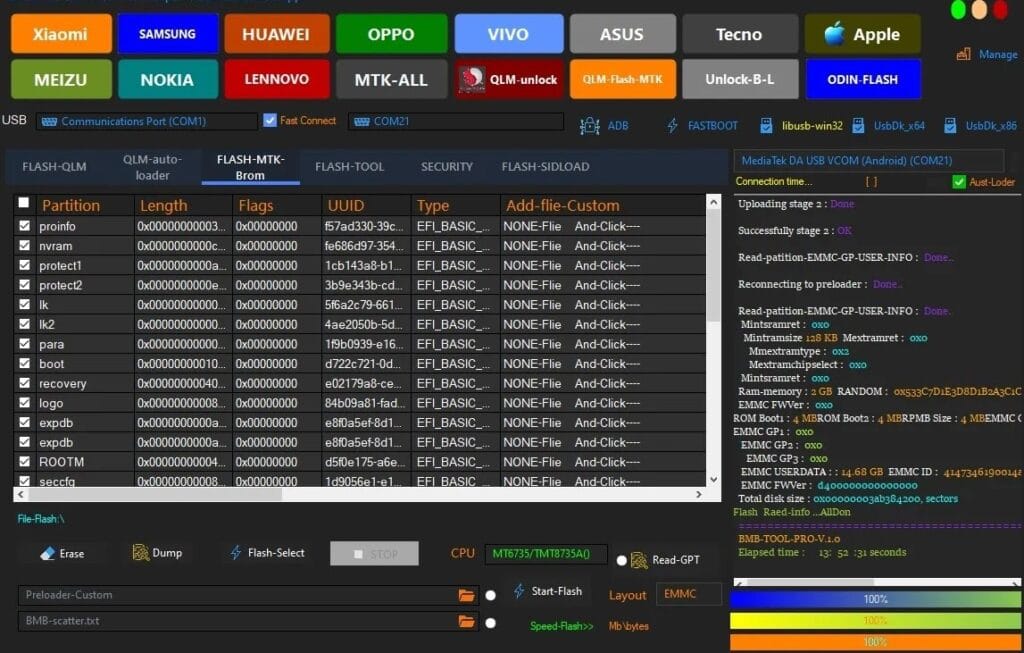
BMB V5 vs BMB V35 – Which Version Are You Looking For
If you searched for BMB V5 Tool and ended up here, this section is for you. The BMB Tool has gone through several version updates since it was first released and the naming has caused a lot of confusion across download sites.
BMB Tool Pro V5.0 was an earlier release that gained popularity in the repair community because it was one of the first free tools to offer FRP bypass, factory reset, bootloader unlock and ROM flashing in a single interface. It supported a reasonably wide range of brands including Samsung, Oppo, Vivo, Xiaomi, Nokia, Lenovo and Huawei. If you still see V5.0 on download sites it’s an older build and while it still works on certain older devices it has limited support for anything running Android 12 and above.
BMB V35 is the current version and the one this guide focuses on. It builds on everything V5.0 offered and extends support to Android 15, improves Qualcomm device handling, and adds better compatibility with newer MediaTek chipsets. The interface was also redesigned to be cleaner and more organized than the earlier versions.
The simple rule is: if your device is running Android 12 or above download V35. If for some reason V35 doesn’t detect your older device and you’ve confirmed it’s a supported chipset, V5.0 is worth trying as a fallback. Both download links are included at the bottom of this page.
The Qualcomm Limitation
This is the most important thing to understand about BMB Tool and almost every guide buries it at the bottom or doesn’t mention it at all.
BMB Tool V35 works primarily on Qualcomm chipset devices. The core functionality, FRP bypass, bootloader management and ROM formatting, is built around how Qualcomm’s EDL and Fastboot protocols work. If your device runs on a Qualcomm Snapdragon processor you’re in the right place.
MediaTek device support exists in BMB Tool but it’s more limited than the Qualcomm side. Some basic operations work on MediaTek devices but the tool is not as comprehensive for MTK as dedicated tools like Android Multi Tools or AMT Tool. If your device runs MediaTek and BMB Tool fails on it, switching to one of those tools will give you better results.
Samsung devices with Exynos chipsets are not supported. This catches a lot of people out because Samsung is listed as a supported brand on most BMB Tool download pages, but that refers to Samsung devices running Qualcomm processors specifically. Galaxy S series devices sold in the USA and several Asian markets use Qualcomm and work with BMB Tool. The same Galaxy S series sold in Europe and some other regions uses Exynos and will not work.
How to check your chipset: go to Settings, then About Phone, then Processor or Chipset. If it shows Snapdragon you’re good to go. If it shows Exynos, Dimensity, Helio or Kirin you’ll need a different tool. Our FRP tools page covers alternatives for each of those chipsets.
What the BMB Tool Can Do
Here’s a complete breakdown of everything BMB Tool V35 is capable of organized by category:
FRP Removal Remove Google account verification on supported Qualcomm and MediaTek devices after a factory reset. Works across multiple Android versions from Android 8 through Android 15 on supported devices. The FRP bypass is the most used function and the reason most people download the tool.
Samsung FRP and KG Lock For Samsung Qualcomm devices specifically the tool handles both standard FRP removal and Knox Guard lock removal. Being able to address KG lock in addition to FRP in the same tool is useful for repair shops handling Samsung devices with finance company locks.
Factory Reset Restore any supported device to its original factory settings. This wipes all personal data and returns the device to the state it was in when it left the manufacturer. Useful when you need a clean start after completing FRP removal.
Safe Format A more thorough formatting option that clears system partitions securely. Useful for devices with persistent software issues that a standard factory reset doesn’t fully resolve.
ROM Flashing Flash full ROMs using Brom technology on supported MediaTek devices. Useful for recovering devices with corrupted firmware or for installing a clean firmware build after completing other repair operations.
Bootloader Unlock and Relock Unlock the bootloader on supported devices to enable custom ROM installation or deeper system access. Relock after flashing if needed. Works on specific Qualcomm and MediaTek models.
EFS Backup and Restore Read and back up the EFS partition which contains your device’s IMEI and network configuration data. Restore it if needed after operations that might affect network connectivity. This is a useful safety measure before any deep partition work.
IMEI Repair Repair corrupted or missing IMEI numbers on supported Qualcomm devices. Useful for devices that have lost network registration due to IMEI issues.
Partition Management Read GPT partitions, erase specific partitions, and manage storage at a low level on supported chipsets. Advanced function primarily for repair shop use cases.
SIM Unlock Carrier unlock support on certain Qualcomm device models. Not universally supported but available for specific brands and models within the tool.
iCloud Bypass BMB V5.0 included some iCloud bypass functionality for certain Apple devices. This feature has limited reliability and is not the focus of the current V35 release, but it’s listed in the tool’s capabilities.
Supported Brands and Devices
BMB Tool V35 covers a wide range of Android brands but support quality varies significantly by brand and chipset. Here’s an honest breakdown:
| Brand | Chipset | FRP Bypass | Factory Reset | IMEI Repair | Bootloader |
|---|---|---|---|---|---|
| Samsung (Qualcomm) | Snapdragon | Yes | Yes | Some models | Some models |
| Xiaomi | Snapdragon / MTK | Yes | Yes | Some models | Yes |
| Oppo | Snapdragon / MTK | Yes | Yes | Some models | Some models |
| Realme | Snapdragon / MTK | Yes | Yes | Some models | Some models |
| Vivo | Snapdragon / MTK | Yes | Yes | Limited | Some models |
| Motorola | Snapdragon | Yes | Yes | Some models | Yes |
| Nokia | Snapdragon / MTK | Yes | Yes | Limited | Limited |
| Huawei | MTK | Limited | Yes | No | No |
| Tecno | MTK / Unisoc | Limited | Yes | No | No |
| Asus | Snapdragon | Some models | Yes | No | Some models |
| LG | Snapdragon | Some models | Yes | No | No |
A few things worth being clear about from this table. Samsung support applies only to Qualcomm variants as covered in the previous section. Huawei and Tecno support is limited to basic factory reset operations since their chipset implementations don’t fully cooperate with BMB Tool’s FRP bypass methods. Motorola and Xiaomi on Snapdragon chipsets have the most reliable and complete support across all functions.
The tool works best on mid range devices from 2019 through 2023. Newer 2024 and 2025 flagship devices with very recent security patches may not respond to the bypass even if the brand and chipset are listed as supported. As always the security patch date matters as much as the chipset.
If your specific device model isn’t showing in the tool after connecting, it may not be in the current database. The developer releases updates periodically that add new models so checking back after a tool update is worth doing if your device isn’t recognized today.
What You Need Before Starting
Nothing complicated here. Get everything ready before you download or run anything:
A Windows PC running Windows 7, 8, 8.1, 10 or 11. 64-bit is strongly recommended. The tool technically runs on 32-bit Windows but some functions behave inconsistently. If you’re on a 32-bit system and the tool crashes or fails to detect your device, the operating system architecture is likely the reason.
A USB data cable that supports data transfer. Not a charging only cable. This single thing causes more failed repairs than any other factor. If your PC isn’t detecting the device, try a different cable before changing anything else.
Qualcomm or MediaTek USB drivers installed on your PC. Without the right drivers the tool cannot communicate with your device regardless of anything else you do. Download the correct drivers for your chipset from our drivers page.
Your device charged to at least 30%. The bypass process involves putting the device into EDL or Download mode and restarting it. A device that dies mid-operation can leave things in an incomplete state that creates more problems than you started with.
WinRAR or 7-Zip on your PC. BMB Tool comes as a ZIP or RAR archive. You need one of these to extract it before running. Both are free to download.
Antivirus temporarily disabled during installation. BMB Tool has no official distribution website and communicates with device hardware at a low level. Most antivirus programs will flag it as suspicious. This is a false positive. Disable your antivirus before extracting and running the tool. Re-enable it once you’re done. Only download from the link on this page which we have verified.
Microsoft Visual C++ 2015 or above. Most Windows installs already have this. If the tool crashes immediately on launch this is almost always the reason. Download it free from Microsoft’s official site.
Download BMB Tool
The current latest version is BMB Tool V35. BMB Tool Pro V5.0 is also available for older devices that V35 doesn’t detect. Both are free with no credits, no account registration and no server authentication required.
One important note about downloading BMB Tool from the internet in general. There is no official website for this tool and the developer doesn’t maintain a centralized download portal. This means a lot of sites distribute it with no verification. Some of those versions have been modified. The links below are builds we have checked and trust.
Also watch out for the same fake download button problem mentioned in other guides on this site. Download pages for free tools are often surrounded by large advertisement buttons that look like the real download link. Scroll carefully and only click a link clearly labeled as the BMB Tool download.
| Version | Android Support | Download |
|---|---|---|
| BMB Tool V35 (Latest) | Android 8 to 15 | Download |
How to Install and Set Up
BMB Tool is a portable application. There is no traditional installer. You extract it and run it directly.
Step 1: Check your system Before extracting anything confirm you’re on a 64-bit Windows system. Right click on My Computer or This PC and select Properties. Under System Type it will say either 32-bit or 64-bit operating system. If you’re on 32-bit the tool will have limited functionality.
Step 2: Extract the archive Locate the downloaded ZIP or RAR file in your downloads folder. Right click and select Extract Here using WinRAR or 7-Zip. Extract to a folder on your desktop or C drive. Never run the executable directly from inside the archive.
Step 3: Disable antivirus Before opening the extracted folder disable your antivirus. Some programs will delete the executable the moment you try to open it. Add the extracted folder to your antivirus exclusion list if you prefer not to disable it completely.
Step 4: Run as administrator Open the extracted folder and find the BMB Tool executable. Right click it and select Run as Administrator. This is not optional. Running without admin rights causes device detection failures that are frustrating to diagnose because they look like driver issues but aren’t.
Step 5: Install drivers Once the tool opens look for the driver installation option in the interface. Install both the Qualcomm QDLoader 9008 driver and the MediaTek VCOM driver if your device uses either chipset. If the tool doesn’t include a driver installer go to our drivers page and install the correct drivers manually. Restart your PC after driver installation.
Step 6: Connect your device Once the drivers are installed and your PC has restarted you’re ready to connect the device and start the bypass process. The tool should detect it automatically once connected in the correct mode.
Step by Step FRP Bypass Guide
This covers the general FRP bypass process for Qualcomm and MediaTek devices. The steps are slightly different for each chipset so both are covered below.
For Qualcomm Devices
Step 1: Open BMB Tool as administrator. Make sure the tool is showing and ready before connecting the device.
Step 2: Power off the device completely. Hold Volume Down and Volume Up simultaneously and connect the USB cable to your PC while holding both buttons. This puts the device into EDL mode through the Qualcomm QDLoader 9008 port. You should hear a connection sound from Windows and the tool should detect the device within a few seconds.
Step 3: Once the device is detected the tool will display the model name and chipset information. Navigate to the FRP section in the tool interface and select Remove FRP. The tool will show you a confirmation prompt before proceeding.
Step 4: Click Execute or Start. The tool pushes the bypass commands to the device through the EDL connection. You’ll see a progress log updating in real time at the bottom of the screen. This usually takes 2 to 4 minutes depending on the device and your PC speed.
Step 5: When the process completes the tool will show a success message. Disconnect the USB cable and restart the device by holding the power button. Power it on manually rather than letting it auto restart.
Step 6: Go through the normal setup process. The Google account verification screen should be gone. Connect to Wi-Fi and add any Google account you have access to.
For MediaTek Devices
Step 1: Open BMB Tool as administrator.
Step 2: Power off the device completely. For most MediaTek devices hold Volume Down and connect the USB cable to enter Preloader or BROM mode. The tool should detect the device automatically. Some MediaTek devices require you to hold Volume Up instead so try both if the first doesn’t work.
Step 3: Once detected navigate to the FRP section and select Remove FRP. If your device shows as detected but FRP remove is greyed out the tool may not support that specific MediaTek model fully. In that case Android Multi Tools is a better option for MediaTek FRP. Check our FRP tools page.
Step 4: Click Execute. The process takes 2 to 5 minutes on MediaTek devices. Don’t disconnect the cable during the operation.
Step 5: Once complete disconnect and restart the device manually. Complete the normal setup and the FRP screen should be resolved.
Errors and Fixes
Device not detected regardless of what you try Start with the basics. Is the cable a data cable and not charging only. Are the correct drivers installed and visible in Device Manager without yellow warning icons. Is the tool running as administrator. Is your Windows system 64-bit. Is the device in the correct mode, EDL for Qualcomm and Preloader for MediaTek. Work through each one before assuming the tool has a problem.
Tool detects device but all functions are greyed out Your device chipset may be partially supported but not for the specific operation you need. This happens most often with Exynos Samsung devices that the tool detects via USB but can’t perform operations on due to chipset incompatibility. Confirm your chipset in Settings, then About Phone. If it’s not Qualcomm or a supported MediaTek variant you need a different tool.
EDL mode not triggering on Qualcomm device Some newer Qualcomm devices have stricter EDL mode requirements. Try holding Volume Down and Power together instead of Volume Down and Volume Up. Some devices require a specific button sequence combined with a powered off state before connecting the cable. If standard EDL triggering fails consistently your device may require test point access for EDL which is a hardware level procedure beyond the scope of this guide.
FRP removal completes but verification screen still appears Do a proper cold restart. Hold the power button until the device completely shuts down, wait 10 seconds, then power it on manually. Never let the tool trigger an automatic restart after the operation. If the screen still appears after a clean cold boot run the FRP removal a second time. Occasionally the first pass completes the process but needs a second run to fully commit the changes.
Tool crashes on launch Extract the tool before running it, not from inside the archive. Also install Microsoft Visual C++ 2015 or above from Microsoft’s official site. These two things resolve the vast majority of immediate crash on launch situations. If it still crashes after both of those check that you’re on a 64-bit Windows system.
Antivirus keeps removing the tool after extraction Set your antivirus folder exclusion before you extract, not after. During extraction some antivirus programs scan files as they’re being written to disk and delete flagged ones before you can do anything with them. Setting the exclusion on the download folder before extraction prevents this completely.
MediaTek device keeps failing despite correct setup BMB Tool’s MediaTek support is more limited than its Qualcomm support. If you’ve confirmed drivers, cable, admin mode and correct boot mode and the tool still fails on a MediaTek device, switching to Android Multi Tools or AMT Tool will give you better results. Both are built specifically around MediaTek chipsets. Check our FRP tools page for both options.
FAQ
Is BMB Tool completely free?
Yes. Both V35 and V5.0 are completely free with no credits, no account registration and no server authentication required. You download, extract and use it without spending anything.
What is the difference between BMB V5 and BMB V35?
V5.0 is an older release with more limited Android version support, covering Android 5 through 11 reliably. V35 is the current version with Android 15 support, improved Qualcomm handling and a cleaner interface. Start with V35 and only try V5.0 if V35 doesn’t detect your older device.
Does BMB Tool work on Samsung Exynos devices?
No. BMB Tool only supports Samsung devices running Qualcomm Snapdragon processors. Samsung devices with Exynos chipsets are not compatible. Check your processor model in Settings, then About Phone before downloading. For Exynos Samsung devices SamFw Tool or ZeroKnox Removal Tool are better options.
Can BMB Tool remove Knox Guard lock on Samsung?
Yes on supported Qualcomm Samsung devices. BMB Tool includes Samsung FRP and KG lock removal as a combined function. This is useful for Samsung devices that have both locks active at the same time. ZeroKnox Removal Tool is a more dedicated option for Knox Guard removal if BMB Tool’s KG function doesn’t work on your specific model.
Does BMB Tool work without an internet connection?
Yes. BMB Tool works entirely offline. There is no server authentication, no credit system and no internet requirement for any part of the process. This makes it reliable in environments with limited connectivity.
My device shows as connected but the FRP remove button doesn’t work. What’s happening?
This usually means the tool has detected your device via USB but the specific model or chipset variant isn’t fully supported for FRP operations. Check whether your device uses a Qualcomm or MediaTek chipset specifically. If it’s MediaTek and FRP removal isn’t working, Android Multi Tools is a more reliable option for your device.
Will using BMB Tool void my warranty?
FRP removal and factory reset operations generally don’t trip Knox or warranty flags on most devices. Bootloader unlock and ROM flashing operations do affect warranty status on most brands. If warranty is a concern avoid the bootloader and flashing functions and stick to FRP removal only.
Related Tools
If BMB Tool didn’t work on your specific device or chipset, here are some other resources on Rise ROM that cover the gaps.
FRP Bypass Tools has a full collection of tools covering Samsung, Motorola, Xiaomi and other brands with different bypass approaches for when BMB Tool isn’t the right fit.
OTA Firmware is where to go if your device needs a firmware flash alongside or instead of FRP removal, or if it needs a clean firmware install to recover from a deeper issue.
USB Drivers has the Qualcomm QDLoader 9008 drivers, MediaTek VCOM drivers and other chipset specific drivers you need for BMB Tool and other repair tools to detect your device properly.