
UMT MTK Module is the tool most professional repair shops turn to when every free option has failed on a MediaTek device. While tools like AMT Tool and Android Multi Tools do a solid job on mainstream MTK devices, UltimateMTK2 goes deeper, covers more chipsets, handles newer security patches more reliably, and gets updated faster than almost anything else in the paid tier. Version 3.5 released in May 2026 brings MT6835 support for Oppo, OnePlus and Realme devices in BROM mode, stability improvements to the FRP reset process, and expanded Samsung MTK coverage among other additions.
This guide covers everything you need to know about UMT MTK Module in 2026. What it is, what the dongle requirement actually means for your budget, what changed in v3.5, how to install and activate it, and how to use it properly across all three connection modes.
All download links are at the bottom of this page.⤵
⚠️ Disclaimer
The tools and methods on this page are for educational and informational purposes only. Only use them on devices you personally own or have been given explicit permission to work on. Bypassing FRP, removing screen locks or flashing firmware on a device you don’t own is illegal and can result in serious legal consequences. Always comply with Google’s terms of service and your device manufacturer’s policies. Rise ROM does not support any unauthorized or illegal use of the tools shared here.
What is UMT MTK Module
UMT stands for Ultimate Multi Tool. It’s a professional repair platform developed by UMT Team that covers multiple chipset types through separate modules. The Qualcomm module is called QCFire. The Samsung module is called UltimateSams. The MediaTek module is called UltimateMTK2 and that’s what this post covers.
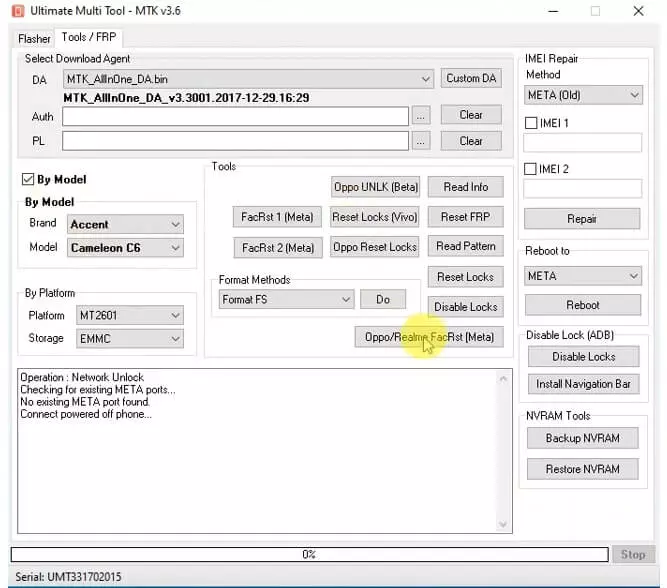
UltimateMTK2 is the second generation of UMT’s MediaTek tool. The original UltimateMTK v1 was released several years ago and while it still works on older MTK devices it has limited support for anything above Android 12. UltimateMTK2 was built from the ground up to handle modern MTK chipsets including the Helio G series, Dimensity series, and the newer MT6835 chips used in 2024 and 2025 budget to mid range devices from Oppo, Realme, Infinix and others.
The tool operates through five connection modes: Preloader, BootROM (BROM), Meta, ADB and Fastboot. Each mode serves a different purpose and works on different device states. Understanding which mode to use for which situation is one of the things that separates experienced MTK technicians from beginners and we’ll cover each one clearly in the guide section.
Unlike free tools that push commands through a single fixed method, UltimateMTK2 adapts to the device’s current state and chipset, which is a big part of why it achieves higher success rates on newer security patches than most of the free alternatives.
The Dongle Requirement – What It Actually Means
This is the section every guide skips and it’s the most important thing to understand before spending any time on the rest of this post. UMT MTK Module is not free. The software download is free but actually using it requires a physical UMT Dongle.
The UMT Dongle is a small USB device that you purchase from an authorized UMT reseller. When you plug it into your PC alongside the repair tool it activates the software and grants you access to all the module functions. Without the dongle inserted the software opens but every function is locked. You cannot perform a single operation without it.
The dongle comes with a one year activation period. After the year expires you need to renew the activation through a reseller to continue using the latest versions and features. The dongle itself is a one time hardware purchase but the activation renewal is an ongoing annual cost. This is how UMT Team maintains the tool and funds continued development.
What does it cost? Pricing varies by region and reseller but generally the dongle plus first year activation runs between $30 and $60 USD depending on where you buy it. Annual renewals after that are typically cheaper than the initial purchase. For a repair shop doing multiple MTK repairs daily this cost pays for itself within a few jobs. For someone fixing a single personal device it’s harder to justify compared to trying the free tools first.
Where to buy? UMT dongles are available through authorized GSM tool resellers in most countries. You can find reseller lists on the UMT support portal. Avoid buying dongles from unverified sources on Telegram or random e-commerce listings since cloned and deactivated dongles do circulate in some markets.
The bottom line: If you’re a repair technician who regularly works on MediaTek devices the UMT MTK Module is a worthwhile investment. If you’re trying to fix one personal device start with the free tools on our FRP tools page first. Come back to UMT MTK if those don’t work.
What’s New in UltimateMTK2 v3.5
Version 3.5 was released in May 2026 and is currently the latest stable version. Here’s what actually changed from v3.4:
MT6835 Support in BROM Mode This is the headline addition. The MT6835 is the chipset powering a large number of 2024 and 2025 budget to mid range devices from Oppo, Realme and OnePlus. Specific newly added models include the Oppo A3X 5G and several other MT6835 based Oppo, OnePlus and Realme variants. Previously these devices required test point access or weren’t supported at all. v3.5 adds clean BROM mode support without needing test points on many of them.
New Samsung MTK Models Added Several new Samsung smartphones and tablets running MediaTek chipsets have been added to the supported list. Samsung’s budget lineup, particularly the Galaxy A series in certain markets, uses MediaTek rather than Exynos or Qualcomm. These models are now better covered in v3.5.
Lava, GPLUS and onn Devices Added Three additional brands have been added to the supported device database. Lava devices are common in the Indian market. GPLUS and onn are regional brands with growing repair shop presence.
FRP Reset Process More Stable The FRP removal operation received a stability update. Users on v3.4 were occasionally seeing incomplete FRP resets where the tool completed the operation but the device still showed the verification screen after restart. This has been largely resolved in v3.5 through improved partition write verification.
Userdata Timeout Issue Fixed A specific bug where operations on devices with large userdata partitions would timeout before completing has been corrected. This was causing failures on higher storage variants of supported devices and wasting technician time on repeat attempts.
Force BROM Handling Improved Forcing a device into BROM mode (for devices that don’t enter it cleanly through standard methods) has been made more reliable. This matters for devices where the standard Preloader connection method fails and you need to force a lower level connection.
General Stability and Bug Fixes Several smaller issues from v3.4 and earlier have been addressed. The overall experience running the tool on Windows 10 and 11 is smoother than previous versions.
Full Features Breakdown
Here’s everything UltimateMTK2 v3.5 can do organized by category:
FRP and Account Removal Remove Google account verification on supported MediaTek devices across Android 8 through Android 16. Works across multiple connection modes depending on the device state. One Click FRP is particularly strong on Infinix, Tecno and Itel devices and has been consistently updated to keep up with new security patches. Mi Account reset is also available for Xiaomi MTK devices.
Firmware Flashing Flash scatter based stock firmware on any supported MediaTek device. Selective partition flashing is available meaning you can flash individual partitions like boot, recovery, system, vendor and vbmeta without flashing the entire firmware. Checksum verification is performed automatically to reduce the risk of a bad flash. Useful for recovering devices with corrupted firmware, bootloops or soft bricks.
Screen Lock Removal Remove PIN, pattern, password and fingerprint locks on supported devices. Works on both unencrypted and encrypted userdata depending on the device and Android version. For encrypted userdata on newer Android versions a safe format approach is used instead of direct lock removal.
IMEI Repair Read and write IMEI on supported MediaTek chipsets in Meta mode and Boot mode. Fix network registration issues caused by corrupted or missing IMEI. Read and restore NVRAM data which contains IMEI and network calibration information.
NVRAM Backup and Restore Read and back up the full NVRAM partition before performing any operation. Restore from backup if something goes wrong. This is critical for preserving IMEI and network calibration data and experienced technicians always do this before any deep repair operation.
Meta Mode Operations Access the device’s Meta mode for diagnostics and repair operations without triggering a full boot. Factory reset, IMEI repair, NVRAM operations and certain FRP operations can be performed in Meta mode. Particularly useful for devices that can’t boot normally but can still enter Meta mode.
BROM Mode Operations BootROM mode is the lowest level connection possible on a MediaTek device. It bypasses the bootloader entirely and gives direct access to the chipset. Used for devices with severely corrupted firmware, locked bootloaders or where Preloader mode fails. Some devices require test point access to enter BROM mode. Others support software triggered BROM entry which v3.5 handles through Force BROM.
Preloader Mode Operations The most commonly used connection mode. Most standard FRP bypass, firmware flash and screen lock operations run through Preloader mode. No test points required for most supported devices in this mode.
Partition Manager Read, write and erase individual partitions on the device’s eMMC or UFS storage. Advanced function primarily for deep level repairs and data recovery scenarios.
Auth Bypass and Custom DA Disable SLA and DAA authentication requirements on supported MediaTek chipsets. This is what allows the tool to communicate with newer chipsets that would otherwise block unauthorized tool access. Custom Download Agent support allows using alternative DA files when the default one fails on a specific device.
Storage Health Check Check eMMC and UFS storage health including PreEOL status and lifetime estimates. Useful for diagnosing devices with storage degradation issues before performing repairs.
Reboot Functions One click reboot into Meta, Factory, Fastboot or Recovery mode directly from the tool interface. Useful for navigating between modes during complex multi-step repair processes.
Supported Brands and Chipsets
UltimateMTK2 v3.5 covers a very wide range of MediaTek based devices. Here’s the breakdown by brand:
| Brand | Chipset Range | FRP Bypass | Firmware Flash | IMEI Repair | Screen Lock |
|---|---|---|---|---|---|
| Infinix | MT6761 to MT6893 | Yes | Yes | Yes | Yes |
| Tecno | MT6761 to MT6893 | Yes | Yes | Yes | Yes |
| Itel | MT6739 to MT6765 | Yes | Yes | Some models | Yes |
| Oppo | MT6765 to MT6835 | Yes | Yes | Yes | Some models |
| Realme | MT6765 to MT6835 | Yes | Yes | Yes | Some models |
| OnePlus | MT6835 | Yes | Yes | Some models | Some models |
| Xiaomi | MT6739 to MT6893 | Yes | Yes | Yes | Yes |
| Vivo | MT6739 to MT6785 | Yes | Yes | Yes | Yes |
| Samsung (MTK) | MT6739 to MT6768 | Yes | Yes | Some models | Some models |
| Nokia | MT6739 to MT6765 | Yes | Yes | Some models | Some models |
| Motorola | MT6765 to MT6833 | Yes | Yes | Some models | Some models |
| Lava | MT6739 to MT6765 | Yes | Yes | Some models | Some models |
| Huawei | MT6755 to MT6771 | Yes | Some models | Some models | No |
| Meizu | MT6755 to MT6785 | Yes | Yes | Some models | No |
Supported MediaTek Chipsets: The tool covers everything from older Helio chipsets like the MT6737, MT6739 and MT6750 all the way through the modern Dimensity and Helio G series including MT6761, MT6765, MT6768, MT6781, MT6785, MT6833, MT6877, MT6893 and now MT6835 added in v3.5. If your device runs any chipset in this range it’s worth checking the full supported models list at the UMT support portal.
A few honest notes about this table. Coverage quality varies significantly by brand. Infinix, Tecno and Itel have the most comprehensive support since UMT Team has historically prioritized these brands in their MTK module. Oppo and Realme support has improved significantly with v3.5 especially on MT6835 devices. Samsung MTK support is solid but remember this only applies to Samsung devices running MediaTek, not Exynos or Qualcomm variants.
What You Need Before Starting
Get all of this ready before you open the tool. Missing any one of these is the reason most first time UMT users get stuck before they even reach the device connection step.
A genuine UMT Dongle, activated and not expired. Without this the software opens but every function stays locked. Make sure your activation period hasn’t lapsed before starting any job.
A Windows PC running Windows 10 or 11. Older Windows versions can cause driver conflicts with the smart card reader software the dongle relies on. Stick to Windows 10 or 11 for the smoothest experience.
MTK USB drivers installed. These are different from generic Android USB drivers. Download the correct MediaTek USB VCOM drivers from our drivers page before connecting any device.
The MTK Preloader USB filter driver installed. This is a separate driver that allows the tool to intercept the device the instant it enters Preloader mode, which only lasts a few seconds on most devices. Without the filter driver installed, the connection window closes before the tool can grab it.
The correct preloader file for your device, if doing a manual connection. Most modern devices auto detect, but some older or unusual models need the matching preloader file loaded manually. Check the UMT support portal for your specific model if auto detection fails.
A working USB data cable. Charging only cables won’t carry the data signal needed for any of the connection modes. This causes more failed connections than people realize.
Your device charged to at least 30%. Operations involving firmware flashing or NVRAM work can take several minutes. Don’t risk a shutdown mid operation.
Download UMT MTK Module
Always download from the official UMT support portal or an authorized reseller link. Pirated or cracked versions circulating on forums and Telegram are a common source of malware and usually don’t work with genuine dongles anyway.
| Version | Release Date | Download |
|---|---|---|
| v3.5 (Latest) | May 2026 | Download | Mirror |
| v3.4 | 2025 | Download |
| Older Versions | Various | Download |
The software itself is free to download. You need an activated UMT Dongle to unlock functionality, as covered in Section 4.
Section 10: How to Install and Activate
Step 1: Install the smart card driver
Before plugging in the dongle, install the smart card reader driver from the UMT support portal. The dongle communicates with your PC through this driver and skipping this step means Windows won’t recognize the dongle at all.
Step 2: Install the UMT MTK Module software
Extract the downloaded ZIP and run the installer as administrator. Follow the standard installation prompts. Restart your PC once installation completes.
Step 3: Insert the dongle
Plug the UMT Dongle into a USB port on your PC, ideally directly into the motherboard rather than through a USB hub. Wait for Windows to recognize it before opening the software.
Step 4: Open the tool and verify activation
Launch UltimateMTK2 as administrator. The tool will detect the dongle automatically and display your activation status and expiry date in the main window. If it shows as expired you’ll need to renew through your reseller before any function will work.
Step 5: Install MTK drivers and the Preloader filter
If you haven’t already, install the MTK USB drivers and the Preloader USB filter driver covered in Section 8. Restart your PC after installing these.
Step by Step FRP Bypass Guide
The method you use depends on which connection mode your device supports. Try Preloader mode first since it’s the simplest and doesn’t require test points on most devices.
Method 1: Preloader Mode (most common)
Open UltimateMTK2 as administrator and select the MTK module tab. Choose Preloader as the connection mode. Power off the device completely.
Click Start or Connect in the tool, then connect the USB cable to the device while it’s powered off. The tool will detect the brief Preloader window and establish a connection automatically. If the filter driver is installed correctly this happens within a second or two of plugging in.
Once connected, select FRP Remove from the function list. Click Start. The tool will show a progress log as it works. This usually takes 1 to 3 minutes depending on the device.
When complete, disconnect the device and restart it manually using the power button. The Google verification screen should no longer appear.
Method 2: BROM Mode
Use this when Preloader mode fails to connect or when working on a device with a more locked down bootloader.
Select BROM as the connection mode in the tool. For devices that support software triggered BROM entry, click Force BROM and follow the on screen prompts, which usually involve holding a specific button combination while connecting the cable. For devices that require test points, you’ll need to short the test points on the board while connecting, which is a hardware level operation best left to people comfortable opening a device.
Once connected in BROM mode, select FRP Remove or the appropriate operation and click Start. BROM operations sometimes take slightly longer than Preloader since the tool is working at a lower level.
Method 3: Meta Mode
Meta mode is useful for devices that can’t boot normally but can still enter a diagnostic state.
Select Meta as the connection mode. Boot the device into Meta mode, which on most MTK devices involves powering off, then holding a specific key combination while connecting USB. The exact combination varies by brand, so check your model’s documentation on the UMT support portal if you’re not sure.
Once connected, select the FRP or factory reset function appropriate to your situation and run it. Meta mode operations often include additional diagnostic information in the log which is useful if something goes wrong and you need to troubleshoot further.
After any method completes:
Always do a full cold boot rather than a quick restart. Hold the power button until the device shuts off completely, wait several seconds, then power on manually. This ensures all partition changes take effect properly.
UMT MTK vs AMT Tool vs Android Multi Tools
This comparison gets skipped in almost every other guide, but it’s exactly what people need before spending money on a dongle.
| Feature | UMT MTK Module | AMT Tool | Android Multi Tools |
|---|---|---|---|
| Cost | Paid (dongle + activation) | Free | Free |
| Connection modes | Preloader, BROM, Meta, ADB, Fastboot | Mostly ADB based | ADB and Fastboot |
| Chipset range | Very wide, regularly updated | Limited, slower updates | Limited, slower updates |
| Newer security patch support | Strong | Inconsistent | Inconsistent |
| Firmware flashing | Full scatter and partition level | Basic or none | Basic or none |
| IMEI repair | Yes | Rare | No |
| NVRAM backup | Yes | No | No |
| Best for | Repair shops, frequent MTK work | Occasional personal use | Occasional personal use |
The honest takeaway is that free tools are genuinely worth trying first if you’re fixing one personal device. They cost nothing and work on a meaningful share of devices, especially older or simpler MTK models. Where UMT MTK Module earns its cost is on newer chipsets, devices with tougher security patches, and any job that needs more than basic FRP removal, like IMEI repair or full firmware recovery. If you do MTK repairs regularly, the dongle pays for itself fast. If not, it’s a harder sell.
Errors and Fixes
Dongle not detected
Make sure the smart card driver is installed before plugging in the dongle. Try a different USB port, ideally directly on the motherboard rather than through a hub or extension cable. Restart your PC with the dongle already plugged in.
Device doesn’t connect in Preloader mode
This is almost always the filter driver. Confirm the MTK Preloader USB filter driver is installed correctly. The Preloader connection window is extremely brief on most devices, often under a second, so without the filter driver the tool simply misses it every time.
BROM connection fails even with Force BROM
Some newer devices have software triggered BROM entry disabled by the manufacturer, meaning test point access is the only option. Check the device’s specific entry in the UMT support portal to confirm whether test points are required.
FRP reset completes but Google screen still shows after restart
Do a full cold boot rather than a quick restart. If the issue persists on v3.4 this was a known bug that v3.5 specifically addresses through improved partition write verification, so updating to the latest version may resolve it.
Operation times out on devices with large storage
This was the userdata timeout issue present in v3.4. Updating to v3.5 resolves this for most affected devices. If you’re already on v3.5 and still seeing timeouts, try a different connection mode.
Activation expired message
Your one year activation period has ended. Contact your reseller to renew. The dongle hardware itself remains valid, only the activation needs renewing.
Auth or DAA error during connection
Some newer chipsets require Auth Bypass to be enabled before the tool can communicate with them. Check that this function is enabled in the tool settings for your specific chipset, particularly on newer Helio G series and Dimensity devices.
FAQ
Is UMT MTK Module free?
The software download is free but it does nothing without an activated UMT Dongle, which is a paid hardware purchase plus a one year activation period.
How much does the dongle cost?
Pricing varies by reseller and region but generally runs between $30 and $60 USD for the dongle plus first year activation. Annual renewals after that are typically cheaper.
What’s the difference between UMT v1 and UltimateMTK2?
UMT v1 is the original MediaTek module and still works on older devices but has limited support above Android 12. UltimateMTK2 was rebuilt to handle modern chipsets including the Dimensity series and the newer MT6835, with better success rates on recent security patches.
Do I need test points for every device?
No. Most supported devices work through Preloader mode or software triggered BROM entry without any hardware modification. Test points are only needed for specific devices with locked down bootloaders that don’t support software BROM entry.
Does it work on Samsung devices?
Only Samsung devices running MediaTek chipsets, which mostly applies to certain budget A series models in specific markets. It does not work on Samsung devices running Exynos or Qualcomm chipsets.
Is buying a dongle worth it for fixing one personal device?
Probably not. Try the free tools on our FRP tools page first. The dongle makes more sense if you expect to work on multiple MTK devices over time.
Where should I buy the dongle?
Only through authorized resellers listed on the UMT support portal. Cloned and deactivated dongles do circulate through unverified Telegram and marketplace listings, so stick to verified sources.
Related Tools
If UMT MTK Module isn’t the right fit for your situation or budget, here are other resources on Riserom worth checking.
FRP Bypass APK Files covers APK based methods that work directly on the locked device without needing a second phone or SMS capability.
Samsung FRP Tools has a full comparison of the best free Samsung specific tools including SamFw, ZeroKnox and Prime Tool X for devices where the SMS method isn’t an option.
OTA Firmware is worth checking if your Samsung device needs a firmware downgrade to a version where the SMS exploit still works before attempting the bypass.
USB Drivers has everything you need if you decide to switch to a PC based bypass method after the SMS approach doesn’t produce results.