
UMT MTK Setup File v5.1 remains one of the most widely used MediaTek repair tools in 2026 even with a newer generation tool already on the market. While UltimateMTK2 v3.5 has taken over as the modern flagship for MTK repairs, a large number of technicians and repair shops still rely on v5.1 because it covers an enormous range of devices, has years of stability behind it, and continues to receive function updates of its own.
This guide explains exactly what UMT MTK Setup File v5.1 is, how it compares to the newer UltimateMTK2 line, what the dongle requirement means for your wallet, every feature the tool offers, which brands and chipsets it supports, and a full step by step walkthrough across all three connection modes.
All download links are at the bottom of this page.⤵
Disclaimer
The tools and methods shared on this page are intended for educational and informational purposes only. Only use them on devices you personally own or have explicit permission to work on. Bypassing FRP, removing screen locks, or flashing firmware on a device you do not own is illegal and may result in serious legal consequences. Always comply with Google’s terms of service and your device manufacturer’s policies. Rise ROM does not promote or support any unauthorized or illegal use of the tools listed here.
What is UMT MTK Setup File v5.1
UMT stands for Ultimate Multi Tool, a professional repair platform built by UMT Team that covers different chipsets through separate modules. The full file name for this version is UMTv2_UMTPro_UltimateMTK_v5.1, and it belongs to the original UltimateMTK line rather than the newer UltimateMTK2 series that introduced version 3.5.
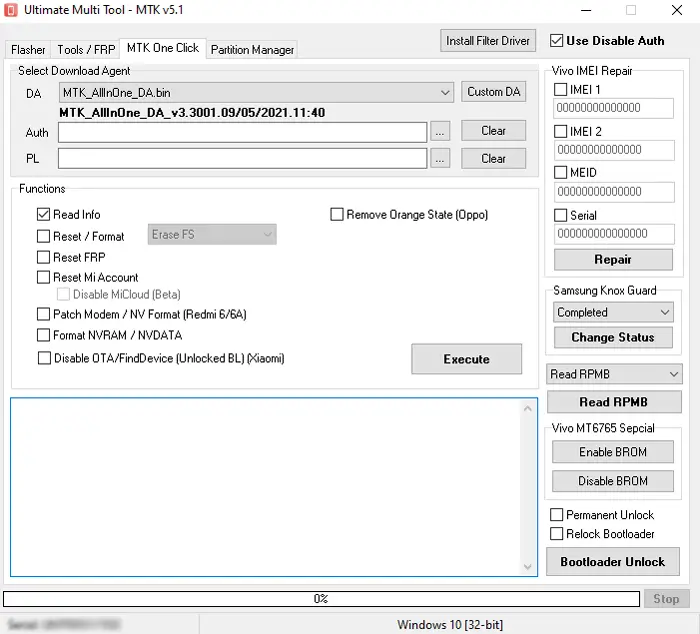
This is a dongle based Windows tool built specifically for MediaTek powered Android phones and tablets. It is designed to flash scatter based stock firmware, remove FRP, unlock screen locks, repair IMEI issues, and fix a range of other software level problems on MTK devices.
Despite the existence of UltimateMTK2, v5.1 has not been abandoned. It continues to be listed as the latest version of the original line and is still actively downloaded and used by repair professionals because of how broad its device coverage has become over time, particularly for older and budget devices that UltimateMTK2 either does not prioritize or handles differently.
UMT MTK v5.1 vs UltimateMTK2
This is the question almost nobody answers clearly, and it matters because choosing the wrong module wastes both money and time.
UMT MTK Setup File v5.1 is the original MediaTek module, built up over many releases with broad device support across older Helio chipsets and a long list of budget and mid range models from Infinix, Tecno, Itel, Oppo, Realme, Vivo, and Xiaomi. It has a long track record and a stable, predictable feature set that technicians have relied on for years.
UltimateMTK2, currently at version 3.5, is the newer generation built to handle modern chipsets more aggressively, including the Dimensity series and newer chips like the MT6835 used in recent Oppo, Realme, and OnePlus devices. It was designed with newer Android security patches in mind and tends to perform better on the latest devices released from 2024 onward.
In practice, many technicians keep both modules installed rather than choosing one permanently. If you are working on an older or budget MTK device, particularly something running an older Helio chipset, v5.1 is often the more reliable choice. If you are working on a recent device with a newer chipset and a recent security patch, UltimateMTK2 is generally the better starting point.
The same UMT Dongle and activation typically covers access to both modules, so the choice between them comes down to which device you are working on rather than which one to buy.
The Dongle Requirement
This is the part every casual download page skips and it is the most important thing to understand before spending any time on the rest of this guide. UMT MTK Setup File v5.1 is not free to use. The software itself is a free download, but every function inside it stays locked until a genuine UMT Dongle is connected and activated.
The UMT Dongle is a small physical USB device purchased from an authorized UMT reseller. Once plugged into your PC alongside the software, it unlocks the tool’s functions. Without it, the interface opens normally but nothing inside it will run.
Activation is sold in yearly periods. After the year ends, you need to renew through a reseller to keep using the latest features and device support. The dongle hardware itself is a one time purchase, but the yearly activation is an ongoing cost that funds continued updates from UMT Team.
Pricing varies by region and reseller, but the dongle plus first year activation generally falls between thirty and sixty US dollars. Renewals after the first year are usually cheaper than the original purchase.
Dongles should only be purchased through resellers listed on the official UMT support portal. Cloned or pre expired dongles circulate on unverified marketplaces and Telegram groups, so buying from an unrecognized source is a real risk.
If you only need to fix a single personal device, it is worth trying the free tools on our FRP tools page first. The dongle becomes worthwhile once you are doing repeated MTK repair work where the cost is spread across many jobs rather than one.
Full Features Breakdown
UMT MTK Setup File v5.1 covers a wide set of functions built specifically around MediaTek chipsets. Here is what the tool can actually do.
FRP removal is available on supported devices, letting you clear the Google account verification screen that appears after a factory reset. Mi Account reset is also included for Xiaomi devices specifically.
Screen lock removal covers PIN, pattern, and password locks across most Android versions. Pattern reading is supported on Android 5.x and earlier. Encrypted userdata is not supported for lock removal or pattern reading on newer Android versions, though disable and restore lock functions are available for encrypted userdata on certain devices, including dedicated support for Vivo.
Format FS and the more advanced Format FS option are available for resetting file systems on supported devices, along with a Safe Format option that lets the device format itself safely through recovery rather than through a forced low level operation.
IMEI repair runs through Meta mode or Boot mode depending on the device. NVRAM backup and restore is included, which matters because NVRAM holds IMEI and network calibration data that needs to be preserved before any deep repair operation. NVRAM and NVDATA formatting are also available separately for devices with corrupted network data.
Reboot functions let you send a device directly into Meta mode, Factory mode, or Fastboot mode from inside the tool, which speeds up moving between modes during a multi step repair.
Auth Bypass is included to disable SLA and DAA authentication on supported chipsets, which is what allows the tool to communicate with devices that would otherwise block unauthorized access. A Meta reboot option specifically for SLA enabled devices is also available.
One click functions exist for several common operations, including one click format for Oppo and Realme devices in Meta mode, and a general MTK one click function for streamlined repairs. Crash Preloader support is included for devices where forcing a lower level connection is necessary.
Chipset support includes a wide range of Helio processors such as the MT6750, MT6755, MT6763, MT6739, and the older MT6797 Helio X20, alongside broader support across the MediaTek lineup that has built up over multiple releases of this module.
Supported Brands and Chipsets
UMT MTK Setup File v5.1 covers a wide range of MediaTek powered devices built up over many years of releases. Here is the breakdown by brand.
| Brand | Chipset Range | FRP Bypass | Firmware Flash | IMEI Repair | Screen Lock |
|---|---|---|---|---|---|
| Infinix | MT6735 to MT6893 | Yes | Yes | Yes | Yes |
| Tecno | MT6735 to MT6893 | Yes | Yes | Yes | Yes |
| Itel | MT6580 to MT6765 | Yes | Yes | Some models | Yes |
| Oppo | MT6735 to MT6877 | Yes | Yes | Yes | Some models |
| Realme | MT6765 to MT6877 | Yes | Yes | Yes | Some models |
| Vivo | MT6735 to MT6877 | Yes | Yes | Yes | Yes |
| Xiaomi / Redmi | MT6580 to MT6893 | Yes | Yes | Yes | Yes |
| Motorola | MT6765 to MT6833 | Yes | Some models | Some models | Some models |
The tool’s authentication bypass covers a long list of MediaTek SoCs going back to early chips like the MT6572 and MT6580, through the mid range MT6739, MT6750, MT6755, MT6761, MT6765, MT6768, MT6771, MT6779, and MT6785, and up into newer chips including the MT6833 and MT6853 Dimensity series and the MT6877 and MT6893 Dimensity chips.
A few honest notes on this table. Infinix, Tecno, and Itel have the deepest and most consistently updated support since these brands have historically been a priority for UMT Team. Xiaomi and Redmi coverage is strong across both older and newer MIUI versions. Oppo, Realme, and Vivo support is solid for older and mid range chipsets, though for the newest Dimensity based models released from 2024 onward, UltimateMTK2 tends to have the edge since it was built with those specific chipsets in mind from the start.
What You Need Before Starting
Get everything ready before opening the tool. Missing any of these is the most common reason people get stuck before they even reach the device connection step.
A genuine UMT Dongle with an active, unexpired activation. Without this the software opens but stays completely locked.
A Windows PC running Windows 10 or 11. Older Windows versions can cause conflicts with the smart card reader software the dongle depends on.
MediaTek USB drivers installed. These are not the same as generic Android USB drivers. Download the correct MTK VCOM drivers from our drivers page before connecting any device.
The MTK Preloader USB filter driver installed. This driver allows the tool to catch the device the instant it enters Preloader mode, which on many devices only lasts a second or two. Without it installed, the connection window closes before the tool can grab it.
A working USB data cable. Charging only cables will not carry the data signal needed for any connection mode and are responsible for a large share of failed connections.
Your device charged to at least 30 percent. Some operations, particularly firmware flashing and NVRAM work, can take several minutes, and you do not want the device shutting down mid operation.
Download UMT MTK Setup File
Always download from the official UMT support portal or an authorized reseller link. Pirated or cracked copies circulating on forums and Telegram channels are a common source of malware and typically will not run properly with a genuine dongle anyway.
The software itself is a free download. A genuine activated UMT Dongle is required to unlock its functions, as covered earlier in this guide.
How to Install and Activate
Install the smart card driver first. Before plugging in the dongle, install the smart card reader driver available on the UMT support portal. The dongle communicates with your PC through this driver, and skipping it means Windows will not recognize the dongle at all.
Install the UMT MTK Setup File software. Extract the downloaded ZIP using the password provided by UMT Team and run the installer as administrator. Follow the standard installation prompts and restart your PC once it finishes.
Insert the dongle. Plug the UMT Dongle into a USB port, ideally directly on the motherboard rather than through a hub. Give Windows a moment to recognize it before opening the software.
Open the tool and check activation status. Launch UltimateMTK as administrator. The main window will show your activation status and expiry date. If it shows as expired, you will need to renew through your reseller before any function will run.
Install MTK drivers and the Preloader filter. If you have not already, install the MediaTek USB drivers and the Preloader USB filter driver covered in the previous section, then restart your PC.
Step by Step FRP Bypass Guide
The method you use depends on which connection mode your device supports. Try Preloader mode first since it works without test points on most supported devices.
Preloader mode
Open the tool as administrator and select the MTK module. Choose Preloader as the connection mode. Power off the device completely.
Click Start or Connect in the tool, then connect the USB cable to the device while it is still powered off. The tool will detect the brief Preloader window and connect automatically if the filter driver is installed correctly.
Once connected, select Reset FRP from the function list and click Start. A progress log will appear showing the operation running. This usually takes one to three minutes depending on the device.
When it finishes, disconnect the device and restart it manually using the power button. The Google verification screen should no longer appear.
BROM mode
Use this when Preloader mode will not connect or when working on a device with a more restrictive bootloader.
Select BROM as the connection mode. For devices with software triggered BROM entry, the tool can attempt to crash the Preloader to force a BROM connection. For devices that require test point access, you will need to short the correct test point while connecting the cable, which is a hardware level step best handled if you are comfortable opening the device.
Once connected, select the appropriate function and click Start. BROM operations can take slightly longer than Preloader since the tool is communicating at a lower level.
Meta mode
Meta mode is useful for devices that cannot boot normally but can still enter a diagnostic state.
Select Meta as the connection mode and boot the device into Meta mode, which usually involves powering off and holding a specific key combination while connecting the USB cable. The exact combination depends on the brand and model, so check the device’s listing on the UMT support portal if you are unsure.
Once connected, select Reset FRP, Safe Format, or the appropriate function for your situation and run it. Meta mode often shows more detailed log information, which is useful if you need to troubleshoot further.
After any method completes, always do a full cold boot rather than a quick restart. Hold the power button until the device shuts off completely, wait a few seconds, then power it back on manually so any partition changes take full effect.
Errors and Fixes
Dongle not detected. Install the smart card driver before plugging in the dongle. Try a different USB port directly on the motherboard rather than through a hub, and restart your PC with the dongle already connected.
Device does not connect in Preloader mode. This is almost always the filter driver. Confirm the MTK Preloader USB filter driver is installed properly, since the Preloader window is extremely brief on most devices and the tool will miss it entirely without this driver in place.
BROM connection fails even after attempting to force it. Some devices have software triggered BROM entry disabled by the manufacturer, meaning test point access is the only option. Check the device’s specific page on the UMT support portal to confirm.
FRP reset completes but the Google screen still appears after restart. Always do a full cold boot rather than a quick restart. If the issue continues, try the operation a second time, and make sure you are on the latest available update of the module.
Operation times out on devices with large storage. This has historically affected userdata erase operations on higher storage variants. Updating to the latest available release of the module resolves this for most affected devices.
Activation expired message. Your one year activation period has ended. Contact your reseller to renew. The dongle hardware itself remains valid, only the activation needs renewing.
Auth or DAA error during connection. Some chipsets require Disable Auth to be used before the tool can communicate with the device. Check that this function is selected for your specific chipset, particularly on newer Helio and Dimensity based models.
FAQ
Is UMT MTK Setup File free?
The software download itself is free, but it does nothing without a genuine activated UMT Dongle, which is a paid hardware purchase plus a yearly activation period.
How much does the dongle cost?
Pricing varies by reseller and region, but the dongle plus first year activation typically falls between thirty and sixty US dollars, with renewals after that usually costing less.
Should I use v5.1 or UltimateMTK2?
Use v5.1 for older or budget MTK devices with established chipset support. Use UltimateMTK2 for newer devices released from 2024 onward, particularly those with the MT6835 or other recent Dimensity chipsets. Most technicians keep both modules available since the same dongle and activation typically covers both.
Do I need test points for every device?
No. Most supported devices connect through Preloader mode or software triggered BROM entry without any hardware modification. Test points are only needed on specific devices with more restrictive bootloaders.
Does it work on Samsung devices?
UMT MTK Setup File v5.1 is focused on MediaTek chipsets, so it only applies to Samsung devices running MediaTek rather than Exynos or Qualcomm variants. For other Samsung chipsets, UMT Team offers a separate Samsung specific module.
Is it worth buying a dongle to fix one personal device?
Probably not. Try the free tools on our FRP tools page first. The dongle becomes worthwhile when you are doing repeated MTK repair work rather than a single one off fix.
Where should I buy the dongle?
Only through resellers listed on the official UMT support portal. Cloned or pre expired dongles circulate through unverified marketplaces and Telegram groups, so stick to verified sources.
Related Tools
If UMT MTK Setup File is not the right fit for your device or budget, here are other resources on Rise ROM worth checking.
FRP Bypass APK Files covers APK based methods that work directly on the locked device without needing a second phone or SMS capability.
Samsung FRP Tools has a full comparison of the best free Samsung specific tools including SamFw, ZeroKnox and Prime Tool X for devices where the SMS method isn’t an option.
OTA Firmware is worth checking if your Samsung device needs a firmware downgrade to a version where the SMS exploit still works before attempting the bypass.
USB Drivers has everything you need if you decide to switch to a PC based bypass method after the SMS approach doesn’t produce results.