
The Qualcomm QDLoader 9008 driver is what lets a Windows PC talk to a Snapdragon phone in EDL mode. Without it, your flashing tool sits on “waiting for device” forever. You plug the phone in, Device Manager shows QHSUSB_BULK with a yellow triangle, and nothing else happens.
This page gives you the latest signed build (v1.0.10065.1), three ways to install it, and the right way to get a phone into EDL. You also get fixes for the errors that waste most of a technician’s bench time. I’ll also tell you which brands lock EDL down so tightly that the driver on its own won’t get you anywhere.
⚠️ Disclaimer: The tools and methods on this page are for educational and informational purposes only. Only use them on devices you personally own or have been given explicit permission to work on. Bypassing FRP on a device you do not own is illegal and can result in serious legal consequences. Always comply with Google’s terms of service and your device manufacturer’s policies. Rise ROM does not promote or support any unauthorized or illegal use of the tools shared here.
What Is the Qualcomm QDLoader 9008 Driver
Every Snapdragon chip has a small emergency mode burned into its boot ROM. Qualcomm calls it Emergency Download mode, or EDL. It sits below Android and below the bootloader. When a phone is hard bricked and shows only a black screen, EDL is often still working.
In EDL the phone appears on USB with vendor ID 05C6 and product ID 9008. Windows doesn’t recognise that by default. It lists the phone as QHSUSB_BULK, or QUSB_BULK on some newer chips, under Other devices.
Installing the driver changes that. The same phone then appears under Ports (COM & LPT) as Qualcomm HS-USB QDLoader 9008, with a COM number next to it. QFIL, MiFlash, MSM Download Tool, UMT and UnlockTool all connect through that COM port. If the port doesn’t show, nothing can flash.
Most people who need this are repair technicians reviving dead Snapdragon phones, or users flashing stock firmware through QFIL. If you only want to copy photos or run ADB commands, you don’t need it. Your phone’s normal USB driver handles that.
The package also includes the serial and diagnostic drivers. One install covers the Qualcomm HS-USB Diagnostics 900E port that QPST uses as well.
[Image: Device Manager showing Qualcomm HS-USB QDLoader 9008 under Ports | Alt text: Qualcomm QDLoader 9008 driver installed in Windows Device Manager]
Which Phones Actually Work With EDL in 2026
Most guides skip this part. The driver installs the same way on every PC. Whether you can actually do anything in EDL depends on the phone brand.
| Brand | EDL access in 2026 | What you need beyond the driver |
|---|---|---|
| Xiaomi, Redmi, POCO | Restricted on most models | Authorized Mi account or paid server auth |
| OnePlus | Open on many older models | The MSM Download Tool package for that exact model |
| Oppo, Realme | Restricted on newer models | Authorized account or credits through a box tool |
| Vivo | Restricted | Test point plus auth on most recent models |
| Motorola | Mixed | Blankflash files exist mainly for older models |
| Nokia (HMD) | Mixed | Correct firehose loader, often a test point |
| Samsung Snapdragon | Locked | Not practical. Use Odin and the Samsung USB driver |
On restricted brands, the driver is not what blocks you. The signed firehose programmer is. Newer Snapdragon phones check that the loader sent over EDL is signed for that exact model, and many also demand an authorized account before they accept it.
These ratings come from technician reports and tool changelogs, not official OEM documentation. They also shift from model to model. Treat them as a starting point, not a promise.
What You Need Before Installing
Sort these out first. Most failed installs come from skipping one of them.
- A Windows 10 or Windows 11 PC. 64-bit is the safest choice.
- An admin account on that PC
- A short, good-quality data cable. Charge-only cables are useless here.
- A USB 2.0 port, or a port on the back of the motherboard on a desktop
- Any old Qualcomm driver versions removed from the PC
- The correct firmware or firehose file for your exact model, if you plan to flash
If the phone powers on at all, charge it first. A battery that dies halfway through an EDL flash makes recovery harder.
How to Check the Qualcomm QDLoader 9008 Driver Is Installed Correctly
Plenty of people finish the install, see a COM port, and assume everything is fine. A quick check saves you from chasing flashing errors that were never about the firmware.
Connect the phone in EDL mode and open Device Manager. Under Ports (COM & LPT) you should see Qualcomm HS-USB QDLoader 9008 with a COM number. If the entry still sits under Other devices as QHSUSB_BULK, the Qualcomm QDLoader 9008 Driver did not bind to the phone.
Next, right-click the port, open Properties and go to the Details tab. Pick Hardware Ids from the dropdown. You should see VID_05C6 and PID_9008. That pair confirms the phone is in Emergency Download mode and not in diagnostic mode, which uses 900E.
Then switch to the Driver tab. The provider should be Qualcomm Incorporated, and the version should match the build you installed, such as 1.0.10065.1. If an older version shows up here, a previous Qualcomm package is still winning. Remove it with pnputil before you try again.
One more habit worth building: note the COM number every time. It can change when you use a different USB port, and QFIL will only connect to the one you select. Plugging into the same rear USB 2.0 port each session keeps the number steady.
If all four checks pass and your tool still fails, the Qualcomm QDLoader 9008 Driver is not the problem. Look at the firehose programmer, the cable, or whether the brand requires authorization.
Qualcomm QDLoader 9008 Driver Download
Check your Android version and device before downloading. Using the wrong file for your version is the most common reason the bypass fails.
| Driver Name | Purpose | Download |
|---|---|---|
| Qualcomm USB Driver v1.0.10065.1 (x64 + x86) | Windows 10 and 11, EDL 9008 and Diag ports | Download |
| Qualcomm USB Kernel Drivers (official source) | Build it yourself, includes ARM64 | GitHub |
Older versions
| Driver Name | Purpose | Download |
|---|---|---|
| Qualcomm USB Driver v1.0.10061.1 | Fallback if 10065.1 clashes with an older tool | Download |
| Qualcomm USB Driver v1.0.10057.4 | Older fallback build | Download |
| Qualcomm USB Driver v1.0.10049.36 | Older fallback build | Download |
| Qualcomm USB Driver v1.0.10044.7 | Older fallback build | Download |
File name: Qualcomm_USB_Driver_v1.0.10065.1.zip
Size: around 18 MB
MD5: b821ff66aff4b98102c002f0c0bfac5c
As of October 2026, version 1.0.10065.1 is the newest build technicians are using. Qualcomm publishes the driver source on GitHub and states that the drivers are WHQL certified on current Windows versions.
That certification matters in practice. A signed driver installs without test signing mode, without disabling signature enforcement, and without fighting Windows 11 Memory Integrity. Most of the old forum advice about those workarounds dates from the unsigned 1.00.xx drivers.
Qualcomm’s own packaged installer sits behind a developer account on Qualcomm Software Center, so most people download the same package from a mirror. Check the MD5 before running anything. If the size or checksum doesn’t match, delete the file.
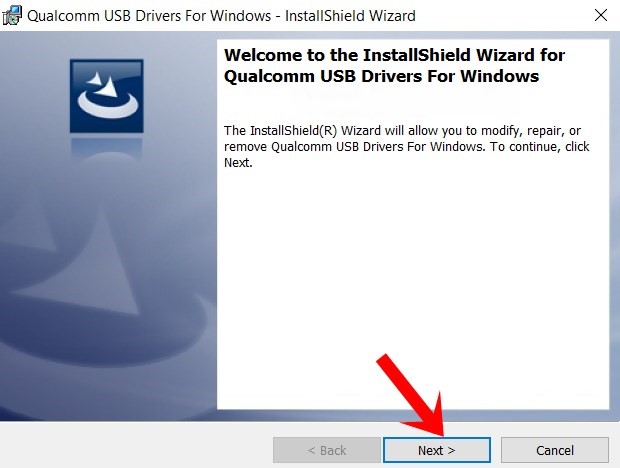
How to Install the Qualcomm QDLoader 9008 Driver
Use one method, not all three. Running several installers on top of each other causes the Code 10 conflicts covered further down.
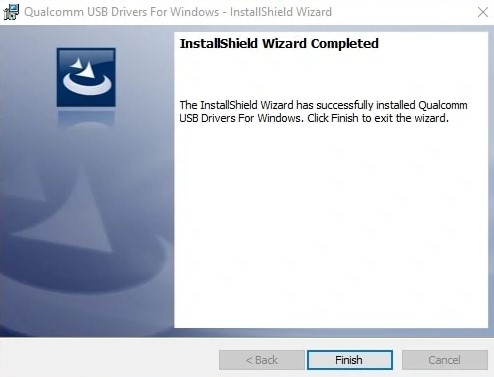
Method 1: Setup installer (easiest)
- Extract the zip to a simple folder like C:\QualcommDriver.
- Right-click the setup file and choose Run as administrator.
- If the installer asks you to choose between a WWAN option and an Ethernet option, keep the default WWAN one. The Ethernet option is for modem development boards, not phones.
- Accept the license and click Install.
- Approve the Windows security prompt if one appears.
- Click Finish and restart the PC.
Method 2: Manual install through Device Manager
Use this when the phone is already connected in EDL and showing as QHSUSB_BULK.
- Open Device Manager and expand Other devices.
- Right-click QHSUSB_BULK and choose Update driver.
- Select Browse my computer for drivers, then Let me pick from a list.
- Click Have Disk and browse to the extracted folder.
- Select the serial INF file, usually named qcser.inf, and click OK.
- Pick Qualcomm HS-USB QDLoader 9008 from the list and click Next.
The device moves to Ports (COM & LPT) with a COM number.
Method 3: Command line with pnputil
This method is useful on shop PCs where you install the same driver often, or when the GUI installer refuses to run. Open Terminal as administrator inside the extracted folder and run:
pnputil /add-driver qcser.inf /install
To remove it later, list the installed packages with pnputil /enum-drivers. Find the Qualcomm entry’s published name, such as oem42.inf, and run pnputil /delete-driver oem42.inf /uninstall /force.
How to Boot Into EDL Mode and Connect
Installing the driver is the easy half. Getting the phone into EDL at the right moment is where most people get stuck.
- Power the phone off completely. If it’s stuck in a bootloop, hold the power button for about 15 seconds until it goes dark.
- Open Device Manager on the PC and keep it visible on screen.
- Put the phone into EDL using whichever method your model supports:
adb reboot edlworks on a small number of models, usually ones with an open bootloader. Most stock firmware ignores it.- Some models enter EDL if you hold both volume buttons while plugging in the cable. This is model specific, so check before relying on it.
- Test point is the method technicians fall back on. You open the back, short the EDL points on the board with tweezers, and connect the cable at the same moment.
- An EDL deep flash cable shorts the right lines for you on models that still accept it.
- Watch Ports (COM & LPT). You should see Qualcomm HS-USB QDLoader 9008 followed by a COM number. Write the number down.
- Open your flashing tool straight away and select that COM port. Many phones leave EDL by themselves if no tool talks to them within a short window.
- Load the firmware or firehose file for your exact model and start the flash.
- When the tool reports success, unplug the cable and hold power to boot.
[Image: Phone in EDL mode connected to QFIL showing COM port | Alt text: Qualcomm QDLoader 9008 driver COM port selected in QFIL flash tool]
Read this before flashing anything in EDL
EDL writes directly to storage with no safety checks. Flashing firmware built for a different variant can corrupt partitions the phone needs to boot.
The bigger risk is erasing calibration data. On Qualcomm phones, the persist, modemst1, modemst2 and fsg partitions hold IMEI, network calibration and sensor data. Lose them and you can end up with no signal or a dead fingerprint sensor, even if Android boots fine.
Use your tool’s read or backup function to save those partitions before you flash. And never tick “erase all” unless you know exactly why you need it.
Errors and Fixes
QHSUSB_BULK under Other devices with a yellow triangle
The driver isn’t installed, or Windows installed it for a different port. Use Method 2 above while the phone is connected. Point Windows at the qcser.inf file yourself instead of letting it search.
Code 52: Windows cannot verify the digital signature
You’re using an old unsigned driver, usually a 1.00.xx build from an old forum zip. Uninstall it, tick “Attempt to remove the driver for this device”, and install v1.0.10065.1. Only disable driver signature enforcement as a last resort. If you do, use the one-time option from Advanced Startup instead of turning on permanent test signing.
“A driver can’t load on this device” on Windows 11
Memory Integrity under Core Isolation is blocking an old driver file. Don’t switch off Memory Integrity to get around it. Remove the old driver and install the signed version, which loads with Memory Integrity on.
Phone shows as Qualcomm HS-USB Diagnostics 900E instead of 9008
Your driver is working fine. The phone is just in diagnostic mode, not EDL. Diag ports are for QPST and IMEI tools. Power off and enter EDL again using test point or the right key combo.
Port appears for a few seconds, then disappears
This is usually the EDL timeout or a weak connection. Open the flashing tool first and have the port setting ready, then connect the phone. Swap to a short cable and a rear USB 2.0 port, and skip USB hubs and front panel ports.
Port shows correctly but QFIL says Sahara fail or waiting for device
No driver will fix this. The phone is rejecting the firehose programmer, either because it’s the wrong one for the model or because the model needs an authorized loader. Find the programmer built for your exact model and variant, or use a tool with auth support for that brand.
Code 10: This device cannot start
This usually happens on PCs that have had several Qualcomm driver packs installed over the years. Uninstall the device in Device Manager with driver removal ticked. Then run pnputil /enum-drivers and delete every Qualcomm oem entry. Restart and install one driver version, once.
FAQ
Is the Qualcomm QDLoader 9008 driver free?
Yes. It’s free to download and use, and Qualcomm publishes the source code on GitHub under a BSD-3 license. The packaged installer is the same driver whether you get it from a mirror or from Qualcomm Software Center.
Does it work on Windows 11?
Yes. Version 1.0.10065.1 is signed and installs on Windows 11 with Memory Integrity left on. The old 1.00.xx builds are the ones that cause signature errors on Windows 10 and 11.
Do I need this driver on Linux or macOS?
No. Linux talks to EDL devices directly through libusb, so tools like the open source edl client work without any driver. This driver is a Windows requirement.
Will installing the driver remove FRP or a screen lock?
No. The driver only gives your PC a working connection to the phone in EDL. Removing FRP or a lock depends on the tool you run afterwards, and on whether that tool supports your model and patch level.
Can I use this for a Samsung phone with a Snapdragon chip?
Not in any practical way. Samsung locks EDL on its Snapdragon models, and Samsung repair work goes through download mode with Odin. Install the Samsung USB driver for those phones.
What is the difference between 9008 and 900E?
9008 is Emergency Download mode, where you flash firmware and repair bricked phones. 900E is diagnostic mode, used for QPST, IMEI and network work. Same driver package, different phone state.
Can flashing in EDL brick my phone permanently?
EDL lives in the boot ROM, so it usually survives a bad flash. Erasing the calibration partitions is the real danger, because you can lose IMEI and signal for good if you have no backup. Back up persist and the modem partitions before every flash.
Related Tools
For FRP removal after you have a working connection, browse the FRP bypass tools collection on Rise ROM. Many of them support Qualcomm EDL directly.
If you’re flashing back to stock, you’ll find model-specific packages in the OTA firmware section. For phones on other chipsets, the full USB drivers library has Samsung, MediaTek and Unisoc drivers.
Working on a Unisoc phone instead? The SPD driver guide covers that chipset. For box-free Qualcomm work, see the Qualcomm Unlock Tool post.
Sources: