
Android Multi Tools is one of the most capable all-in-one repair utilities available for Windows right now, and if you work with Android devices regularly, you’ve probably already heard of it. The latest version, V1.3.5.2, brings expanded device support, better stability, and improved FRP bypass methods that actually keep up with 2026 security patches. This guide covers everything you need to know, what the tool does, which devices it supports, how to download and install it, and how to use it properly.
All download links are at the bottom of this page.⬇
Disclaimer
The tools and methods shared on this page are provided for educational purposes only. Please make sure you’re using them on a device that you own or have permission to work on.
Bypassing FRP or removing a Google account from a device that isn’t yours can be illegal and may lead to serious consequences. Always follow Google’s policies and your device manufacturer’s guidelines when performing any kind of modification.
Rise ROM does not encourage or support any misuse of these tools. Use them responsibly.
What is Android Multi Tools
Android Multi Tools, commonly known as Android Multi Tool, is a Windows-based smartphone repair software built for mobile technicians and advanced Android users. It handles everything from FRP bypass and factory reset to firmware flashing, IMEI repair, bootloader unlock, and partition management, all from a single interface.
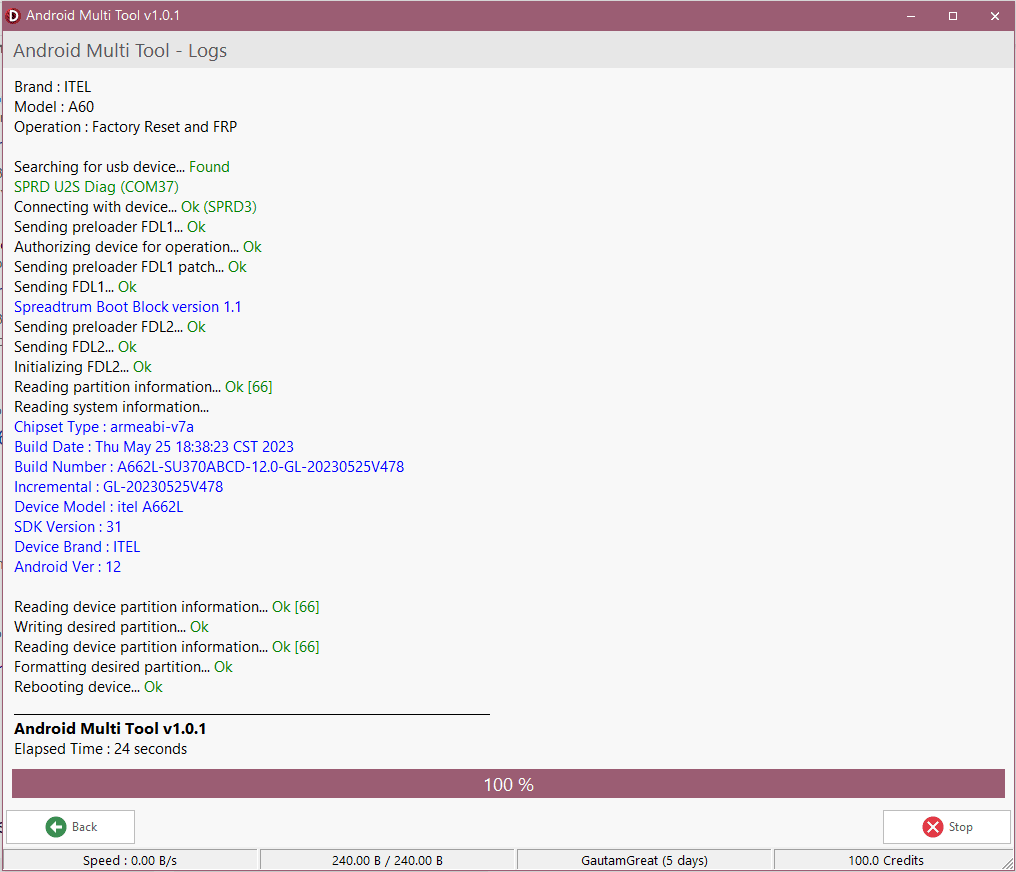
What sets it apart from simpler tools is the depth of what it can do. Most FRP tools handle one thing and handle it poorly on newer devices. Android Multi Tool goes deeper. It works at the chipset level, supporting MediaTek, Qualcomm, Unisoc, and SPD-based devices across a huge range of brands. That’s why repair shops rely on it daily rather than keeping five different tools open at once.
The tool works on a credit-based system. The software itself is free to download, but using it requires you to register an account and purchase credits from an authorized reseller. Some basic operations on certain Vivo models are available without credits, but anything involving server-side operations requires a balance. A yearly license costs around $40 to $45, which is reasonable for the volume of work repair shops put through it.
It supports brands including Samsung, Xiaomi, Vivo, Oppo, Realme, OnePlus, Motorola, Tecno, Infinix, Itel, Karbonn, and Nothing, covering chipsets from MediaTek Dimensity all the way down to older MT6739 chips and Qualcomm Snapdragon EDL mode operations.
What’s New in Android Multi Tools V1.3.5.2
The V1.3.5.2 update released on March 13, 2026, is significant. Here’s what actually changed:
Nothing Phone Series Support Added. This is the headline addition. Nothing phones have been notoriously difficult to work with for repair tools because of their unique Android implementation. V1.3.5.2 finally brings proper support for the full Nothing lineup. CMF Phone 1, CMF Phone 2 Pro, Phone 2A, and 3A Lite now work in Preloader mode. Phone 1, Phone 2, Phone 3, and 3A Pro work in EDL mode. For repair shops starting to see Nothing devices coming in, this is a significant update.
Realme MediaTek AUTH Support You can now perform advanced operations on Realme MediaTek AUTH devices without requiring authentication. This removes a major blocker that was making Realme repairs more complicated than they needed to be.
Expanded Infinix and Tecno Unisoc Support Added seamless operation on newer Infinix and Tecno devices running Unisoc chips with recent security patches. Previously, some of these models were hit or miss.
Xiaomi EDL and BROM Auth New support for Xiaomi EDL and BROM authentication, plus Xiaomi Fastboot to EDL mode. Useful for deeper repairs on Xiaomi devices that previously required manual test point access.
Samsung Flagship Support Samsung S22 Ultra and S23 Ultra are now on the supported list. These are high-end devices that many tools struggle with, so having them covered in Android Multi Tool is worth noting.
Bug Fixes and Stability General performance improvements, smoother FRP removal process, and better device detection reliability across the board.
Previous Version Highlights — V1.3.5.0
If you missed the V1.3.5.0 update or are coming from an older version, it’s worth knowing what changed before V1.3.5.2 so you understand how far the tool has come in recent months.
V1.3.5.0 was released in early 2026 and focused heavily on Motorola and Vivo support. The Motorola additions were particularly welcome since newer Moto devices with the latest security patches had been causing issues with older Android Multi Tool versions.
New Motorola Models Added V1.3.5.0 added support for Moto E15, Moto G05, Moto G15, Moto G15 Power, Moto G06, Moto G06 Power, Moto G17, and Moto G17 Power with the latest security patches. These are all budget to mid-range models that are extremely common in repair shops, so having them covered properly made a real difference.
Vivo Models Added Without Credits Some Vivo models were added to the no credit required list in V1.3.5.0. This is a nice addition for technicians who only occasionally work on Vivo devices and don’t want to spend credits on basic operations.
FRP Stability Improvements The FRP removal process received a significant stability update in this version. Users on V1.3.4.9 and earlier were reporting inconsistent results on certain MediaTek devices. V1.3.5.0 addressed most of those issues, and V1.3.5.2 built further on that foundation.
Server Performance Updates Backend server improvements that reduced the time it takes to authorize operations, particularly for Qualcomm EDL mode repairs.
Key Features of Android Multi Tools
Here’s everything Android Multi Tool Tool can do, organized by category:
FRP and Account Removal
- Remove FRP on MediaTek, Qualcomm, Unisoc, and SPD devices
- Samsung FRP via Test Mode and MTP mode for newer patches
- Remove Mi Account on Xiaomi devices
- Bypass FRP on Nothing Phone series via EDL and Preloader mode
- Anti-relock support for MIUI 14 and HyperOS to prevent re-locking after Wi-Fi connection
Screen Lock Removal
- Remove pattern, PIN, and password locks on supported devices
- Vivo and Oppo safe format option for screen lock removal without data loss on supported models
Firmware Flashing
- Flash stock firmware on MediaTek and Qualcomm devices
- Write scatter files for MTK devices
- Flash via EDL mode for deep-level repairs
- Soft brick and bootloop recovery
- Upgrade and downgrade Android OS versions
IMEI Repair
- Read and write IMEI on supported chipsets
- Fix network registration caused by a corrupted IMEI
- Write the EFS partition for IMEI restoration
- Read and write QCN files for Qualcomm devices
Bootloader
- Unlock the bootloader on supported MediaTek and Qualcomm devices
- Relock the bootloader after flashing
- Bypass bootloader auth on MediaTek without an authorized ID
- Switch between Fastboot and EDL modes
Advanced Operations
- BROM and Preloader mode access for deep-level MediaTek formatting
- RPMB read and write for storage health repair on eMMC and UFS
- Partition manager for reading, writing, and erasing specific partitions
- Enable Diag mode on supported devices
- Demo mode removal
- Hard reset via EDL and Download mode
Device Information
- Read full device info, including chipset, security patch, IMEI, and software version
- Check server authorization status
- Battery and hardware diagnostics
Supported Devices List
Android Multi Tools covers a genuinely wide range of brands and chipsets. Rather than listing every single model here, which changes with every update, below are the major brands currently supported. For a full model-specific list, visit the official supported models page at androidmultitool.com/supported_models.
MediaTek Based Devices Samsung, Xiaomi, Oppo, Realme, OnePlus, Vivo, Motorola, Nokia, Tecno, Infinix, Itel, Karbonn, Huawei, Lava, Micromax, Lenovo, ZTE, Oukitel, and Nothing Phone series.
Qualcomm Based Devices Xiaomi, Vivo, Oppo, Realme, OnePlus, Samsung, Motorola, and Nokia on selected Snapdragon chipsets via EDL mode.
Unisoc and SPD Based Devices Tecno, Infinix, Itel, Samsung budget series, and selected Nokia models.
A few things worth knowing about device support. Not every operation works on every device, even if the brand is listed. FRP removal on a Xiaomi device works differently from FRP removal on a Tecno device. The tool tells you clearly which operations are available once it detects your specific model. If your exact model isn’t showing full functionality, it may need a future update or may require credits for server-side authentication.
For Nothing Phone specifically, as of V1.3.5.2, the CMF Phone 1, Phone 2 Pro, Phone 2A, and 3A Lite work via Preloader mode while Phone 1, Phone 2, Phone 3, and 3A Pro work via EDL mode.
System Requirements
Nothing complicated here. Here’s what your PC needs to run Android Multi Tools without issues:
Operating System: Windows XP, 7, 8, 8.1, 10, or 11, both 32-bit and 64-bit. Windows 10 or 11 is strongly recommended for the best stability and driver compatibility.
Processor: Intel Pentium 4 or better. A Core i3 or above is recommended if you’re doing firmware flashing, since that process puts more demand on the CPU.
RAM: Minimum 2GB. 4GB or more recommended, especially if you’re running other applications alongside the tool during repairs.
Internet Connection: Required for server authentication, credit verification, and any operation that needs online authorization. A stable connection matters here since dropped authentication mid-operation can cause incomplete results.
USB Drivers: The correct drivers for your device’s chipset must be installed before connecting the phone. MediaTek, Qualcomm, and Unisoc each need their own driver set. You can find all of them on our drivers page.
Device Battery: At least 30% charge before starting any operation. Flashing and partition operations involve restarts, and you don’t want the device dying halfway through.
Visual C++ Runtime: Microsoft Visual C++ 2015 or above. Most Windows installs already have this, but if the tool throws an error immediately on launch, this is almost always the reason.
How to Download and Install
Downloading:
Always download from a source you trust. Third-party sites frequently bundle modified versions with unwanted software. The links at the bottom of this page are verified and safe.
One important note: on the official androidmultitool.com download page, there are advertisement buttons that look like download buttons. Don’t click those. Scroll past them and use only the actual download link labeled clearly as such. This trips up a lot of people on their first visit.
Installing:
Step 1: Once the download finishes, locate the ZIP file in your downloads folder. Right-click and extract it using WinRAR or 7-Zip. Never run the tool directly from inside the ZIP archive.
Step 2: Before opening the tool, install the USB drivers for your device’s chipset. Go to our drivers page and download the appropriate driver. MediaTek and Qualcomm drivers are listed separately. Install and restart your PC.
Step 3: Open the extracted folder and find the main executable. Right-click it and select Run as Administrator. This is not optional. Running without admin rights causes detection failures that look like driver problems but aren’t.
Step 4: The tool will open and prompt you to log in with your Android Multi Tool account. If you don’t have one yet, account creation is free at androidmultitool.com. You’ll need to purchase credits separately to use server-based operations.
Step 5: Once logged in, your credit balance will show in the dashboard. You’re ready to connect a device and start working.
Driver Links:
For MediaTek devices, download the MTK USB VCOM driver. For Qualcomm devices, download the Qualcomm HS-USB QDLoader driver. For Oppo and Realme, you may need the specific QComMTK combined driver. All available on our drivers page.
How to Use Android Multi Tools
This covers the general workflow for the most common operation, which is FRP removal. Other operations like firmware flashing and IMEI repair follow a similar pattern with operation-specific variations.
Step 1: Open the tool as an administrator Always start here. Right-click the executable, run as administrator, and log in with your credentials. Check your credit balance before proceeding if the operation you need requires credits.
Step 2: Connect your device Power off the phone completely. For MediaTek devices, hold Volume Down and connect the USB cable to enter Preloader or Download mode. For Qualcomm devices, hold Volume Down plus Volume Up and connect the cable to enter EDL mode. For some operations the device just needs to be on and connected normally via ADB.
Once connected, the tool should detect your device automatically and display the model name, chipset, Android version, and current security patch. If it doesn’t detect within 30 seconds, try a different USB port or cable.
Step 3: Select your operation From the main interface, find the operation you need. Operations are grouped by brand and chipset. Click on your brand, then find FRP Remove, Factory Reset, IMEI Repair or whatever you need. The tool will show you how many credits the operation costs before you confirm.
Step 4: Execute Click the Start button. The tool will begin communicating with the device and pushing the necessary commands. You’ll see a progress log at the bottom of the screen updating in real time. Do not disconnect the USB cable during this process under any circumstances.
Step 5: Restart and verify When the operation completes successfully, the tool will show a confirmation message. Disconnect the device and restart it by holding the power button. Go through the normal setup process. The FRP screen or whatever issue you were addressing should now be resolved.
If something doesn’t work on the first attempt, the errors section below covers the most common issues and how to fix them.
Common Errors and Fixes
Failed to Generate HWID Error
This is one of the most reported errors and it has a specific fix. Open Command Prompt as administrator and run these commands one at a time:
net stop wuauservnet stop cryptSvcnet stop bitsnet stop msiserverren C:\Windows\SoftwareDistribution SoftwareDistribut
After running all commands, restart your PC and try launching the tool again. This fixes the HWID generation issue in most cases.
Device not detected Work through this checklist in order. Is your USB cable a data cable not just a charging cable? Are the correct chipset drivers installed and showing properly in Device Manager? Is the tool running as administrator? Are you using a USB 2.0 port rather than 3.0? On some older MediaTek devices, USB 3.0 ports cause connection issues. Try each one before assuming the tool is broken.
OPPO and Realme stuck in Recovery Mode This happens when the device enters recovery mode during an operation but doesn’t proceed correctly. Hold Power and Volume Up together for 10 seconds to force exit recovery. If that doesn’t work, hold all three buttons (Power, Volume Up, Volume Down) simultaneously for 15 seconds. Once the device restarts normally, try the operation again. Make sure you’re using the QComMTK combined driver for Oppo and Realme devices specifically.
Authentication failed or server error Check your internet connection first. Log out of your AMT account in the tool and log back in. If you’re getting a server error repeatedly the AMT servers may be temporarily down for maintenance. Check the official androidmultitool.com site for any maintenance announcements and try again after 15 to 20 minutes.
Operation completes but the problem persists. Do a full power cycle first. Hold the power button until the device shuts down completely, wait 10 seconds, then power it back on manually rather than letting it auto-restart. If the issue remains after a clean boot, try running the operation a second time. If it still doesn’t work, an alternative method may be needed. Check our FRP tools page for additional options.
Antivirus blocking the tool Some antivirus programs flag Android Multi Tool Tool as suspicious because of how it communicates with device firmware at a low level. This is a false positive. Temporarily disable your antivirus and firewall before launching the tool and try again. Re-enable them after you’re done.
Insufficient credits Each server-based operation costs a set number of credits. Vivo operations require a minimum of 40 credits to proceed. If your balance is too low the operation won’t start. Purchase additional credits through your Android Multi Tool account at androidmultitool.com. Always check your balance before starting a repair session so you’re not caught short mid-job.
Credits and Pricing
Android Multi Tools uses a credit-based activation system. Here’s how it works:
Creating an Account Account registration is completely free at androidmultitool.com. You can download and install the tool, log in, and view all available functions without spending anything. Credits are only needed when you actually want to execute an operation.
Purchasing Credits Credits are purchased through authorized resellers listed on the Android Multi Tool website. Pricing varies by reseller and region, but as a general guide, a yearly license runs around $40 to $45 USD, which gives you access to all server operations for 12 months. There are also 3-month plans available for technicians who need the tool for the short term.
Credit Usage Different operations cost different amounts of credits. Basic operations on certain devices cost as little as 1 to 2 credits. Server authenticated operations on newer security patches cost more. Vivo operations specifically require a minimum balance of 40 credits before the tool will even attempt to connect to the server.
Free Operations: Not everything requires credits. Some operations on specific devices are available without any credit balance at all. The Universal MediaTek V5 Exploit for Vivo V5-based models, for example, was added as a completely free operation. As the team discovers new exploits, some previously paid operations get moved to the free tier. It’s worth checking the changelog with each update to see what’s been added to the no credit list.
Important Note on Credits: Make sure you have a sufficient balance before starting any operation. If a server operation fails mid-process due to insufficient credits, the tool will not issue a refund. Always verify your balance in the dashboard before initiating any paid operation.
Download Android Multi Tools
The latest version as of 2026 is V1.3.5.2, released March 13, 2026. Always use the latest version to get the most current device support and bug fixes.
Before downloading, make sure your Android version and chipset are supported. Using the tool on an unsupported device or chipset won’t damage anything but it will give you errors and waste your time.
| Version | Release Date | Download |
|---|---|---|
| V1.3.5.2 (Latest) | March 13, 2026 | Download |
| V1.3.5.0 | Early 2026 | Download |
| Older Versions | Various | Download |
For the most reliable and up-to-date download, always check the official site at androidmultitool.com first.
“Note: Some mirror sites like amttool.in show v1.4.0, but the official and most recent stable release is v1.3.5.2 (March 2026). Always download from trusted sources.”
Related Tools
If Android Multi Tools didn’t solve your specific problem or you need something for a device it doesn’t cover, here are some other resources on Rise ROM worth checking out.
FRP Bypass Tools has a full collection of free APK-based methods that work directly on the device without needing a PC or credits.
OTA Firmware is where to go if your device needs a full firmware flash to recover from a deeper issue that Android Multi Tool alone can’t fix.
USB Drivers has MediaTek, Qualcomm, Unisoc, and other chipset drivers you’ll need for the tool to detect your device properly.
FAQs
Is Android Multi Tools completely free to use?
The software itself is free to download and install. However, most operations require credits, which you purchase through authorized resellers. Some basic operations on certain devices are available without credits, but anything involving server authentication requires a balance. Account registration is always free.
Which chipsets does Android Multi Tools support?
It supports MediaTek, Qualcomm, Unisoc, and SPD chipsets. This covers a wide range of brands, including Samsung, Xiaomi, Oppo, Realme, Vivo, Motorola, Tecno, Infinix, and Nothing, among others. It does not support Kirin or Exynos-based devices.
Does Android Multi Tools work on Nothing Phone?
Yes, as of V1.3.5.2. CMF Phone 1, Phone 2 Pro, Phone 2A, and 3A Lite work via Preloader mode. Phone 1, Phone 2, Phone 3, and 3A Pro work via EDL mode. This support was added specifically in the latest update.
How many credits do I need for Vivo operations?
Vivo operations require a minimum balance of 40 credits before the tool will attempt to connect to the server. Make sure your balance is sufficient before starting any Vivo repair. The tool will not issue refunds if an operation fails due to low credits.
Can I use Android Multi Tools without an internet connection?
Only for operations that don’t require server authentication. Most FRP bypass and advanced operations need an active internet connection for credit verification and authorization. Basic device detection and information reading can work offline on some chipsets.
My device is not being detected. What should I do?
Check these three things first. Is your cable a data cable and not just a charging cable? Are the correct chipset drivers installed and showing properly in Device Manager? Is the tool running as administrator? These three cover the majority of detection issues. If all three are fine, try switching to a USB 2.0 port instead of 3.0.