
SPD Driver is the USB driver you need to connect any Spreadtrum or Unisoc powered Android device to your Windows PC for flashing, FRP bypass, IMEI repair and other repair operations. Without it installed correctly your PC simply won’t recognize the device when it’s connected in download or diagnostic mode, and none of the tools you’re trying to use will work. This guide covers everything about SPD Driver in 2026, what it is, which tools and devices need it, how to install it both automatically and manually, and how to fix the most common issues people run into during installation.
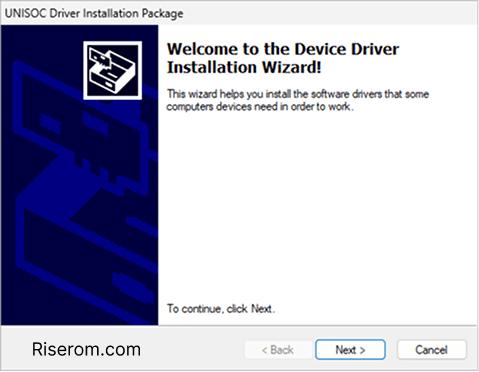
Download links are at the bottom of this page.⤵
⚠️ Disclaimer
The drivers and tools on this page are for educational and informational purposes only. Only use them on devices you personally own or have been given explicit permission to work on. Rise ROM does not support any unauthorized or illegal use of the tools shared here.
What is SPD Driver and Who Makes It
SPD stands for Spreadtrum, which was a Chinese semiconductor company that designed chipsets for budget and mid range Android devices. In 2018 Spreadtrum merged with RDA Microelectronics and rebranded as Unisoc. The drivers kept the SPD name in the repair community even after the rebrand which is why you’ll see both SPD Driver and Unisoc Driver referring to essentially the same package depending on where you download it.
The driver itself creates a communication bridge between your Windows PC and any device running a Spreadtrum or Unisoc chipset. When you connect an SPD device in download mode Windows needs to identify it as a specific port type called SPRD U2S Diag or SCI USB Serial before any repair tool can talk to it. Without the driver installed Windows either shows the device as an unknown device with a yellow warning icon in Device Manager or doesn’t detect it at all.
One thing worth knowing upfront that most guides skip: SPD drivers are unsigned. This means they don’t have Microsoft’s digital signature verification which Windows 8, 10 and 11 require by default before allowing a driver to install. This is why so many people install the driver successfully but it still doesn’t work. You need to either disable driver signature enforcement temporarily or use the specific workaround covered in section 10 of this guide. We’ll cover that in detail separately so you know exactly what to do.
The latest stable version is SPD Driver R4.20.4201. There is also an all in one SPD Drivers Pack v1.02 that covers both 32 bit and 64 bit Windows systems in a single package and includes fixes for the driver signature verification error.
Which Tools Need SPD Driver
This is something no other guide covers clearly. The SPD Driver isn’t just for one tool. Here’s every major repair tool that requires it to be installed before it can detect your Unisoc device:
SPD Flash Tool (also called SPD Upgrade Tool or Unisoc Flash Tool) — The primary firmware flashing tool for Spreadtrum and Unisoc devices. Used to flash PAC firmware files on Tecno, Infinix, Itel and other SPD devices. Requires SPD Driver to detect the device in download mode.
SPD Research Tool — Advanced diagnostic and repair tool from Spreadtrum. Used for IMEI repair, NVRAM backup and device diagnostics. Requires SPD Driver for any operation.
WriteIMEI Tool — Dedicated IMEI write and repair utility for SPD chipset devices. Won’t detect the device without SPD Driver installed.
UMT SPD Module — The Unisoc module of Ultimate Multi Tool. Requires SPD Driver alongside the UMT dongle activation.
TFT Unlock Tool — Widely used in repair shops for Unisoc device FRP bypass and screen lock removal. SPD Driver is a prerequisite.
Miracle Box and Miracle Thunder — Both tools support Unisoc devices and require SPD Driver for the device connection to work.
BMB Tool — As covered in our BMB Tool guide, SPD device operations in BMB require the driver to be installed first.
Android Multi Tools (AMT Tool) — For Unisoc device operations in AMT Tool the SPD Driver needs to be present alongside the standard MTK and Qualcomm drivers.
GSM Flasher Tools — Various GSM repair tools that support SPD devices all depend on the same underlying driver package.
If you’ve installed any of these tools and your Unisoc device isn’t showing up, SPD Driver is almost certainly what’s missing.
Supported Devices and Chipsets
SPD Driver covers any device running a Spreadtrum or Unisoc chipset. These chipsets are extremely common in budget and entry level Android devices. Here’s a breakdown by brand:
| Brand | Common Chipsets | Device Examples |
|---|---|---|
| Tecno | SC9863A, T606, T610, T616 | Tecno Spark series, Pop series, Camon series |
| Infinix | SC9863A, T606, T610, T616 | Infinix Hot series, Note series, Smart series |
| Itel | SC7731E, SC9832E, T606 | Itel A series, P series, Vision series |
| Realme | T606, T612, T616 | Realme C series (Unisoc variants) |
| Vivo | SC9863A | Selected Vivo Y series budget models |
| Nokia | SC9863A | Nokia C series budget models |
| Samsung | T606 | Samsung Galaxy A03, A03 Core, M02s |
| Lava | SC9832E, SC9863A | Lava budget series |
| Walton | SC9832E | Walton Primo series |
| Symphony | SC9832E | Symphony budget range |
The specific chipset numbers worth knowing are the SC9863A which is the most common modern Unisoc chip found in devices from 2021 through 2024, the Tiger T606 and T610 series which powers many 2022 and 2023 budget devices, and the older SC7731E and SC9832E which you’ll encounter on devices from 2018 through 2021.
The driver pack v1.02 supports all old and new smartphones and feature phones. Some supported SPD chip numbers include 6600M, 6600R, 6800, 6600L, 6600D, 8800D, 6226, 6530, 6610, 6620, 7710, 7730, 7731 EMMC, 7715 NAND, 8830 EMMC, 6815 EMMC and 7731 EMMC New.
If your device brand isn’t listed here but you know it runs a Unisoc or Spreadtrum chipset the SPD Driver will still work. The driver covers the chipset not the brand.
What You Need Before Installing
Get everything ready before downloading anything:
A Windows PC running Windows 7, 8, 8.1, 10 or 11. Both 32 bit and 64 bit are supported. Windows 10 or 11 is recommended. The driver works on older Windows versions but modern Windows gives you better USB port management and fewer compatibility issues during installation.
Administrator rights on your PC. You must install the driver as administrator. Without admin rights the installation will either fail silently or install incorrectly. Right click any installer and select Run as Administrator before proceeding.
A USB data cable that supports data transfer. Not a charging only cable. If the port appears and disappears in Device Manager make sure your cable is high quality and the battery is charged. A cheap or damaged cable causes the most frustrating detection issues because the device appears briefly in Device Manager and then disappears, making it look like a driver problem when it’s actually a cable problem.
Your device charged to at least 30%. A device that powers off during the driver detection process causes Windows to log a failed device connection which can sometimes require a PC restart to clear before the next attempt works cleanly.
WinRAR or 7-Zip on your PC. The driver package comes as a ZIP or RAR archive. You need one of these to extract it before running the installer.
Antivirus temporarily disabled. Some antivirus programs flag SPD Driver files because they’re unsigned third party drivers. Disable your antivirus before extracting and installing. Re-enable it after the driver is successfully installed and verified in Device Manager.
Driver Signature Enforcement awareness. Windows 8, 10 and 11 block unsigned drivers by default. SPD drivers differ from MediaTek, Qualcomm or Samsung drivers and are usually unsigned, which may require Windows users to turn off driver signature enforcement during installation. We cover exactly how to do this in a dedicated section after the installation steps.
Download SPD Driver
Two versions are available. Both are free with no account registration required.
SPD Driver R4.20.4201 is the latest standard version and the one most tools reference specifically when they list driver requirements. Use this as your first download.
SPD Drivers Pack v1.02 is the all in one package that includes both 32 bit and 64 bit installers in a single archive and includes the driver signature verification fix built in. Use this if R4.20.4201 fails to install due to signature errors on Windows 10 or 11.
One important note about downloading SPD drivers in general. There is no single official Unisoc driver portal for end users. Most trusted downloads come from established GSM community sites. The links on this page are from verified sources we have checked. Avoid downloading from random Telegram groups or sites you don’t recognize since some circulate modified driver packages.
| Version | Compatibility | Download |
|---|---|---|
| SPD Driver R4. 24.7505.zip | Windows 7, 8, 10, 11 (32 and 64 bit) | Download |
| SPD Drivers older versions | Windows 7, 8, 10, 11 (32 and 64 bit) | Download |
Both links point to our drivers page where you’ll find the verified download alongside all other chipset drivers your repair tools might need.
Installation
Method 1: Auto Installer
This is the easiest way to install SPD Driver and the one most people should try first. The auto installer handles everything automatically without needing you to navigate Device Manager manually.
Step 1: Extract the downloaded archive
Locate the downloaded ZIP or RAR file in your downloads folder. Right click it and select Extract Here using WinRAR or 7-Zip. Extract to a folder on your desktop or C drive. Never run the installer directly from inside the archive.
Step 2: Disable antivirus
Before opening the extracted folder disable your antivirus completely. Some programs will flag and delete the driver files during extraction or when you try to run the installer. Add the extracted folder to your antivirus exclusion list if you prefer not to disable it entirely.
Step 3: Open the extracted folder
Inside you will find two executable files. DPInst32.exe for 32 bit Windows systems and DPInst64.exe for 64 bit systems. Right click on the correct one for your system and select Run as Administrator. If you’re not sure whether your Windows is 32 or 64 bit right click on My Computer or This PC, select Properties and look at the System Type line. Almost all modern PCs are 64 bit.
Step 4: Follow the installer prompts
The installer will open a simple wizard. Click Next through the prompts. When asked to accept the license terms click Accept. The installer will copy the driver files and register them with Windows automatically.
Step 5: Handle the unsigned driver warning
Windows will likely show a security warning saying the driver publisher cannot be verified. This is the unsigned driver signature issue mentioned earlier. Click Install This Driver Software Anyway to proceed. If Windows blocks it entirely and won’t let you click through, skip to the Driver Signature Enforcement Fix section below before continuing.
Step 6: Complete the installation
Once the installer finishes click Finish. You do not need to restart your PC after installing SPD drivers in most cases but restarting is always a good idea if you plan to use the driver immediately with a repair tool.
Step 7: Verify the installation
Open Device Manager. Right click on My Computer or This PC, select Manage, then click Device Manager. Connect your Unisoc device in download mode by holding Volume Down (or both Volume buttons on some models) and plugging in the USB cable while the device is powered off. Look in the Ports (COM and LPT) section of Device Manager. You should see SPRD U2S Diag or SCI USB2Serial appear. If it appears without a yellow warning icon the driver is installed correctly and your repair tool should now detect the device.
Method 2: Manual Installation via Device Manager
Use this method if the auto installer didn’t work or if the device shows as an unknown device in Device Manager with a yellow warning icon. Manual installation gives you more control over exactly which driver gets assigned to the device.
Step 1: Connect device in download mode
Power off your Unisoc device completely. Hold Volume Down (or both Volume buttons) and connect the USB cable to your PC. The device should appear in Device Manager as an Unknown Device or with a yellow warning icon. If nothing appears at all check your cable and try a different USB port.
Step 2: Open Device Manager
Right click on My Computer or This PC and select Manage. Click Device Manager in the left panel. Look for the unknown device under Other Devices or Universal Serial Bus Controllers. It may also appear under Ports with a yellow icon.
Step 3: Update driver manually
Right click on the unknown device and select Update Driver Software. On the next screen select Browse my computer for driver software.
Step 4: Point to the extracted driver folder
Click Browse and navigate to the folder where you extracted the SPD driver package. Make sure the Include Subfolders checkbox is ticked. Click Next.
Step 5: Select SCI USB2Serial
Windows will scan the folder and present driver options. Look for the model named SCI USB2Serial and select it. Click Next to install.
Step 6: Handle the signature warning
Windows will show the unsigned driver warning again. Click Install This Driver Software Anyway. If Windows refuses to install an unsigned driver you need to disable driver signature enforcement first. Read the next section before continuing.
Step 7: Verify
Once installed the device should now show in Device Manager under Ports (COM and LPT) as SPRD U2S Diag or SCI USB2Serial without any yellow warning icon. Open your repair tool, connect the device and it should detect automatically.
Driver Signature Enforcement Fix
This is the most common reason SPD Driver installation fails on Windows 10 and 11 and almost no guide dedicates proper space to explaining it. Here’s everything you need to know.
Windows 8 and above require all drivers to be digitally signed by Microsoft before they can be installed. SPD drivers are unsigned which means Windows blocks them by default. You need to temporarily disable this enforcement to get the driver installed.
Method A: Advanced Startup (Recommended)
This is the safest approach because it only disables signature enforcement for one boot session. After you restart normally the enforcement comes back on automatically.
Step 1: Open the Start menu and click the Power button. Hold the Shift key and click Restart. Keep holding Shift until you see the blue recovery screen.
Step 2: On the recovery screen select Troubleshoot, then Advanced Options, then Startup Settings, then Restart.
Step 3: After the PC restarts you will see a numbered list of startup options. Press F7 to select Disable Driver Signature Enforcement.
Step 4: Windows will boot normally with signature enforcement disabled for this session. Install the SPD driver now using Method 1 or Method 2 above.
Step 5: After successful installation restart your PC normally. Signature enforcement re-enables automatically. The installed driver will continue working since it’s already registered with Windows.
Method B: Command Prompt (Alternative)
If Method A doesn’t work or isn’t accessible on your system try this approach.
Step 1: Open Command Prompt as administrator. Right click on the Start menu and select Command Prompt Admin or Windows Terminal Admin.
Step 2: Type the following command and press Enter:
bcdedit /set testsigning on
Step 3: Restart your PC. You will see a small watermark in the bottom right corner of your desktop saying Test Mode. This is normal.
Step 4: Install the SPD driver now. Once installed open Command Prompt as administrator again and run:
bcdedit /set testsigning off
Step 5: Restart your PC to exit test mode. The driver remains installed and functional.
How to Verify Installation Worked
Before opening any repair tool confirm the driver is installed correctly. This saves time compared to opening a tool, waiting for it to not detect your device and then trying to diagnose the problem.
Step 1: Open Device Manager
Right click on My Computer or This PC and select Manage. Click Device Manager.
Step 2: Connect device in download mode
Power off your Unisoc device, hold Volume Down (or both Volume buttons) and connect the USB cable. Watch Device Manager as you connect. The device should appear within a few seconds.
Step 3: Look for the correct port
Expand the Ports (COM and LPT) section. You should see one of these entries appear:
SPRD U2S Diag
SCI USB2Serial
SPRD U2S Diag COM3 (the COM number may vary)
If you see any of these without a yellow warning icon the driver is installed correctly and your repair tool will detect the device.
Step 4: If you see a yellow warning icon
Right click the device and select Update Driver. Try Method 2 above to manually point Windows to the correct driver file. The yellow icon means Windows found the device but couldn’t match it to the correct driver automatically.
Step 5: If the device appears and disappears
This is almost always a cable quality issue not a driver issue. Try a different USB cable. Make sure the device has at least 20% battery. Try a USB 2.0 port instead of 3.0. A port that flickers in and out of Device Manager is a stable cable and power issue, not a missing driver.
Common Errors and Fixes
Device not showing in Device Manager at all
Check three things in order. Is the cable a data cable and not charging only. Is the device actually in download mode (you should see no screen activity, just a connection sound from Windows when you plug in). Are you using a USB 2.0 port rather than 3.0. On some older SPD chipsets USB 3.0 ports don’t establish the correct connection for the diagnostic port.
Device appears as Unknown Device with yellow icon
The driver files exist but Windows assigned the wrong driver. Use Method 2 above to manually select SCI USB2Serial from the extracted driver folder. Make sure you tick Include Subfolders when browsing so Windows can find the correct INF file inside any subfolder.
Installer says driver is already installed but device still not detected
This happens when a previous failed installation left incomplete registry entries. Open Device Manager, right click the problem device and select Uninstall Device. Tick the Delete the driver software for this device checkbox if it appears. Restart your PC then reinstall fresh using Method 1.
Windows says the driver cannot be verified or blocks installation completely
This is the driver signature enforcement issue. Follow the Driver Signature Enforcement Fix section above. Method A using Advanced Startup is the cleanest solution and doesn’t leave your system in test mode permanently.
Port appears and disappears repeatedly
Bad cable is almost always the cause. Replace the cable first. If a new cable doesn’t fix it check your device’s charging port for debris or damage. A slightly loose connection creates exactly this symptom. Also make sure your device has adequate battery charge since low battery causes intermittent USB connection drops during download mode.
Tool opens but still says waiting for device or no device found
Confirm the correct port is showing in Device Manager first. If the port shows correctly but the tool still can’t see it try selecting the COM port manually in the tool settings rather than relying on auto detection. Some older SPD tools don’t auto detect the port and need you to specify it manually from the dropdown.
Driver installed on Windows 11 but COM port shows with error code 43
Error code 43 on Windows 11 usually means the driver was installed but Windows 11’s stricter security policies are blocking it at runtime rather than during installation. Use Method B from the Driver Signature Enforcement Fix section to enable test signing mode, reinstall the driver, then disable test signing after confirming the port works correctly.
FAQ
What is the difference between SPD Driver and Unisoc Driver?
They are the same driver package with different names. Spreadtrum rebranded to Unisoc in 2018. The repair community kept calling the drivers SPD drivers out of habit. Whether a site calls it SPD Driver, Spreadtrum Driver or Unisoc Driver they’re referring to the same driver package that enables PC communication with Unisoc chipset devices.
Which version of SPD Driver should I download?
Start with R4.20.4201 which is the latest stable release referenced by most repair tools. If that fails to install due to signature errors on Windows 10 or 11 download the SPD Drivers Pack v1.02 which includes a built in signature fix and covers both 32 and 64 bit systems in one package.
Do I need to reinstall SPD Driver every time I use a repair tool?
No. Once installed correctly the driver stays registered with Windows and works for every tool that needs it. You only need to reinstall if you switch to a different PC, reinstall Windows, or if the driver gets removed by an antivirus program or Windows update.
Why does my device appear in Device Manager but the repair tool still can’t detect it?
This usually means the device is appearing as a generic USB device rather than the correct SPRD diagnostic port. Check Device Manager for the entry. If it’s under Unknown Devices or shows as USB Composite Device rather than SPRD U2S Diag the driver isn’t fully matched. Follow Method 2 to manually assign the SCI USB2Serial driver to it.
Can I use SPD Driver on a Mac?
No. SPD Driver is a Windows only driver package. Unisoc device repair tools are also Windows only applications. Mac and Linux users have no native support for SPD device flashing or repair operations.
Does SPD Driver work for all Tecno and Infinix devices?
Yes for all Tecno and Infinix devices running Unisoc chipsets. Both brands use Unisoc as their primary chipset manufacturer across their entire budget and mid range lineup. A small number of Tecno and Infinix flagship models use MediaTek Dimensity chips which need MTK drivers instead. Check your device’s chipset in Settings then About Phone to confirm before installing.
Will installing SPD Driver affect my other USB drivers?
No. SPD Driver installs as a specific port driver for Unisoc devices only. It doesn’t modify or replace MediaTek, Qualcomm, Samsung or any other USB drivers already on your system. You can have all chipset drivers installed simultaneously without any conflicts.
Related Tools
Now that SPD Driver is installed you’re ready to use any of the following tools for operations on your Unisoc device:
FRP Bypass Tools has a full collection of tools that work with Unisoc devices including AMT Tool and Android Multi Tools, both of which require SPD Driver to detect your device.
OTA Firmware is where to find firmware files for Tecno, Infinix, Itel and other Unisoc devices if you need to flash or restore your device alongside any bypass operation.
USB Drivers has SPD Driver alongside MediaTek VCOM drivers, Qualcomm QDLoader drivers and Samsung USB drivers all in one place so you can install everything your repair tools need from a single page.