
The MediaTek USB driver is what lets a Windows PC see a MediaTek phone when you flash firmware or run an FRP tool. Without it, SP Flash Tool sits on a red bar forever and your FRP tool never finds the device. You plug the phone in, Windows makes the connect sound for half a second, then nothing.
This page gives you the signed driver that installs cleanly on Windows 11, two install methods, and the exact way to catch the MTK preloader port before it vanishes. You also get fixes for the errors that eat the most bench time, and a plain answer on which MediaTek chips still cooperate in 2026.
Disclaimer
The tools and methods shared on this page are provided for educational purposes only. Please make sure you’re using them on a device that you own or have permission to work on.
Bypassing FRP or removing a Google account from a device that isn’t yours can be illegal and may lead to serious consequences. Always follow Google’s policies and your device manufacturer’s guidelines when performing any kind of modification.
Rise ROM does not encourage or support any misuse of these tools. Use them responsibly.
What Is the MediaTek USB Driver (MTK VCOM)
MediaTek phones talk to a PC over a virtual COM port. People call it the MTK VCOM driver, the MTK USB driver, or the preloader driver. They all mean the same thing. It’s the software that makes Windows recognise a MediaTek chip in flashing and repair modes instead of showing an unknown device.
A MediaTek phone can appear on USB in a few different states. In normal mode it shows as a media device for file transfer. The modes you care about are preloader and DA. Preloader is the tiny window right after you connect a powered-off phone, before anything boots. DA, or Download Agent, is the mode SP Flash Tool pushes it into to write firmware.
Both of those need the MediaTek USB driver. Install it once and the phone shows up as MediaTek USB Port or MediaTek USB VCOM under Ports in Device Manager. SP Flash Tool, the UMT MediaTek module, and every MTK FRP tool connect through that port.
If you only copy photos or run ADB, you don’t need this driver. Your phone’s normal MTK driver handles that. You need the VCOM driver specifically for flashing stock firmware, unbricking, and FRP work.
Most people reading this are technicians flashing dead Infinix, Tecno, Redmi or Realme phones, or users following an SP Flash Tool guide who got stuck at the connection step.
[Image: Device Manager showing MediaTek USB Port under Ports | Alt text: MediaTek USB driver installed and showing MTK VCOM port in Windows Device Manager]
Which MediaTek Phones Work in 2026
The driver installs the same on every PC. What you can actually do once connected depends on the chip generation and how locked the phone is.
| Chip generation | Example chips | Flashing and FRP access in 2026 |
|---|---|---|
| Older MT65xx, MT67xx | Helio A, P series | Open. SP Flash Tool and FRP tools work well |
| Dimensity 6000 and 7000 budget | D6020, D6100, D7025 | Mostly open, some need auth bypass for secure boot |
| Newer secured Dimensity | D8000 and up, flagship | Locked. DAA and SLA security blocks most tools |
The pattern is the same across brands. Budget Infinix, Tecno, itel, and many Redmi and Realme models on older MediaTek chips are the friendly ones. Newer secured chips enable DAA and SLA, which reject an unsigned Download Agent. Those need an authenticated DA file or a tool with auth support, not just the driver.
These ratings come from technician reports and tool changelogs, not official MediaTek documents, and they shift model to model. Treat the table as a guide, not a guarantee.
What You Need Before Installing
Get these ready first. Most failed installs trace back to one of them.
- A Windows 10 or Windows 11 PC, 64-bit is safest
- An admin account on that PC
- A short, good quality data cable. A charge-only cable will not work.
- A USB 2.0 port, ideally on the back of a desktop. Skip hubs and front panel ports.
- Any old or broken MTK driver removed first
- The phone charged enough to hold a connection
One MediaTek quirk worth knowing now. On many MTK phones the preloader port only appears when the phone is fully powered off and you plug it in. It shows for one or two seconds. If you fight a live, booted phone, you will never catch it.
MediaTek USB Driver Download
Check your Android version and device before downloading. Using the wrong file for your version is the most common reason the bypass fails.
| Driver Name | Purpose | Download |
|---|---|---|
| MTK USB All In One Driver v1.0.8 (signed) | Windows 10 and 11, VCOM and preloader | Download |
| MediaTek Driver Auto Installer v5.1632 | Auto install on all Windows versions | Download |
Older and helper versions
| Driver Name | Purpose | Download |
|---|---|---|
| MTK Driver Auto Installer v1.1352 | Fallback auto installer | Download |
| MTK VCOM Driver (manual INF) | For manual Device Manager install | Download |
File name: MTK_USB_All_v1.0.8.zip
Size: around 10 MB
MD5: run a check on the file you host and paste it here
As of October 2026, the signed MTK USB All In One v1.0.8 driver and the v5.1632 auto installer are what most technicians run. The signed version matters on Windows 11, because it installs without test signing mode and without disabling signature enforcement.
MediaTek does not publish a public end-user driver installer, so these packages come from the repair community. Scan anything you download and check the MD5 before running it. If the size or checksum looks off, delete the file.
How to Install the MediaTek USB Driver
Use one method, not both. Stacking installers causes the port conflicts covered further down.
Method 1: Auto installer (easiest)
- Extract the auto installer zip to a simple folder like C:\MTKDriver.
- Right-click the installer and choose Run as administrator.
- Let it run. It installs both the VCOM and preloader entries by itself.
- When it finishes, restart the PC.
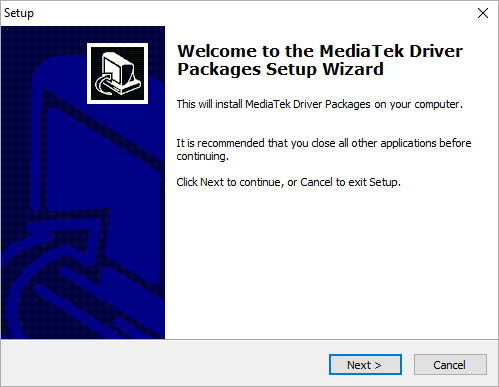
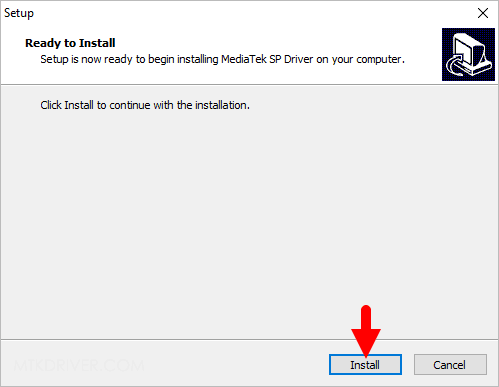
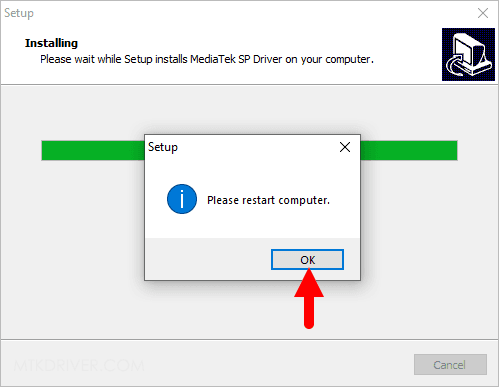

On Windows 11, if it warns about an unsigned driver, close it and use the signed MTK USB All In One v1.0.8 package instead. Don’t disable signature enforcement to force an old installer through.
Method 2: Manual install through Device Manager
Use this when the preloader port shows up briefly as an unknown device and you want to point Windows at the INF yourself.
- Extract the MTK VCOM driver package to a folder.
- Open Device Manager and keep it on screen.
- Power the phone off fully. Plug it in and watch for a new unknown device or a MediaTek Preloader entry that appears for a second or two.
- Right-click it the moment it shows and choose Update driver.
- Pick Browse my computer, then Let me pick from a list, then Have Disk.
- Browse to the extracted folder, select the MTK INF, and install.
Windows has a small window before the preloader port disappears. If you miss it, unplug, wait, power off again and retry. Catching that window is the whole trick.
Enabling signed driver install on Windows 11
The signed v1.0.8 package should install without this. If you are stuck with an older unsigned driver and nothing else will do, use the one-time option from Advanced Startup rather than turning on permanent test signing. Reboot through Settings, Recovery, Advanced Startup, then Troubleshoot, Advanced options, Startup Settings, and pick Disable driver signature enforcement for that one boot. Install, then reboot normally.
[Image: MTK preloader port appearing in Device Manager during driver install | Alt text: MediaTek USB driver manual install catching the MTK preloader port on Windows]
How to Confirm the Driver Works
A quick test before you waste time in a flashing tool.
- Install the driver and restart.
- Open Device Manager and expand Ports (COM & LPT).
- Power the phone off fully.
- Plug it in and watch the Ports list.
- You should see MediaTek USB Port or MediaTek USB VCOM flash in for a moment, sometimes with a COM number.
If it appears, the driver is working. The port vanishing after a second is normal MediaTek behaviour, not a fault. SP Flash Tool and FRP tools grab that port in the instant it exists, which is why you open the tool first and connect the phone second.
Errors and Fixes
Phone connects for a second then disappears, nothing in Device Manager
The driver isn’t installed, or the preloader port came and went before Windows matched it. Install the signed driver, then open your flashing tool first and connect the powered-off phone second so the tool catches the port.
Unknown device or MTK USB Port with a yellow triangle
Windows sees the phone but has no driver for it. Use Method 2 and point Windows at the MTK INF yourself instead of letting it search Windows Update.
SP Flash Tool stuck on red bar, never turns yellow
The tool isn’t catching the preloader. Fully power the phone off, hold volume down or both volume keys while inserting the cable on models that need it, and make sure the VCOM driver is installed. A charge-only cable causes this constantly.
“A driver can’t load on this device” on Windows 11
Core Isolation Memory Integrity is blocking an old unsigned MTK driver. Don’t switch Memory Integrity off. Remove the old driver and install the signed v1.0.8 package, which loads with Memory Integrity on.
BROM ERROR: S_DA_SDMMC_WRITE_FAILED or DAA errors
This is not a driver problem. The chip’s security is rejecting the Download Agent. The driver is fine. You need an authenticated DA file for that model, or a tool with MTK auth bypass support.
Port shows the wrong COM number or SP Flash Tool can’t open the port
Another program is holding the port, or several MTK drivers are fighting. Close other flashing tools, unplug, and in Device Manager remove duplicate MediaTek port entries. Reinstall one driver, once, and restart.
Driver installs but preloader port never appears at all
Either the phone isn’t entering preloader, or its bootloader blocks it. Confirm the phone is fully off, try the volume key combo for that model, and test another cable and a rear USB 2.0 port. Some newer secured chips simply won’t expose preloader without extra steps.
How to Keep Your MediaTek USB Driver Working Long Term
Most people install the MediaTek USB Driver once, flash a phone, and forget about it. Then a Windows update lands, or a second flashing tool gets installed, and the port stops showing up. A few habits keep the setup stable so you don’t repeat the whole process every time.
Remove old driver versions before updating
A new MediaTek USB Driver installed over an old one often leaves leftover entries behind. Open Device Manager, click View, and turn on Show hidden devices. Expand Ports (COM & LPT) and look for greyed-out MediaTek entries. Right-click each one and uninstall it. Tick the option to delete the driver software if Windows offers it. Then restart the PC before you install the new package. A clean slate takes two minutes and saves an hour of confusion.
Keep one flashing tool setup per PC
SP Flash Tool, UMT, and other MTK utilities sometimes ship with their own bundled drivers. Running several installers on the same machine is the most common cause of duplicate COM ports. Pick one trusted MediaTek USB Driver package, install it once, and let every tool use it. If you work on many models, a dedicated bench PC with nothing else installed gives you far fewer surprises.
Check the cable and port every time
When the MediaTek USB Driver seems broken, the cable is the culprit more often than the software. Keep one short data cable that you know works and label it. Use the same rear USB 2.0 port every time. Windows ties some driver settings to a specific port, so switching ports can make a working setup look like a fresh install.
Watch out for antivirus and Windows updates
Some antivirus programs flag MTK driver packages and quietly quarantine part of the files. If the install finishes but the MediaTek USB Port never appears, check your antivirus quarantine list. Major Windows updates can also replace the driver with a generic one. If your phone stops connecting after an update, reinstall the signed package rather than hunting for a new download.
Download from sources that publish a checksum
The MediaTek USB Driver comes from community packages, not from MediaTek itself, so the file you download matters. Compare the file size and checksum against what the page lists before you run anything. If the numbers don’t match, delete the file and download it again from the source.
Quick checklist before every flash
- MediaTek USB Driver installed, with the port visible in Device Manager
- No duplicate or greyed-out MediaTek entries
- Known good data cable in a rear USB 2.0 port
- Phone fully powered off before you plug it in
- Flashing tool opened first, phone connected second
Run through this list and most connection problems are solved before they start. A tidy MediaTek USB Driver setup is the difference between a ten-minute flash and a wasted afternoon.
FAQ
Is the MediaTek USB driver free?
Yes. It’s free to download and use. MediaTek USB Driver doesn’t sell an end-user driver, so the community packages the VCOM and preloader drivers into free installers.
Does it work on Windows 11?
Yes. The signed MTK USB All In One v1.0.8 driver installs on Windows 11 with Memory Integrity left on. Older unsigned MTK drivers are the ones that trigger signature errors there.
What is the difference between VCOM and preloader mode?
VCOM is the general virtual COM port for MediaTek devices. Preloader is the specific early mode that appears for a second when you connect a powered-off MTK phone, before Android boots. The same driver package covers both.
Why does the port disappear after one second?
That’s how MediaTek USB Driver preloader works. The port exists only for a brief window on connect. Your flashing or FRP tool is built to grab it in that instant, which is why you open the tool before plugging the phone in.
Do I need this for FRP bypass on MediaTek phones?
Yes. Any PC-based MTK FRP tool connects through this driver. Install it first, then run the tool. Without the driver the tool never sees the phone.
Will this driver work for Infinix, Tecno and Redmi phones?
Yes, as long as they use a MediaTek chip, which most budget Infinix, Tecno, itel and many Redmi and Realme models do. The driver is per chipset, not per brand.
Can I use this driver and SP Flash Tool to unbrick a dead phone?
Often yes. If the phone still enters preloader when plugged in, the driver lets SP Flash Tool talk to it and reflash firmware. Secured newer chips may need an authenticated DA file first.
Related Tools
Once the driver is working, you’ll want the flashing tool to go with it. See the SP Flash Tool guide and the rest of the FRP bypass tools collection on Rise ROM for MediaTek-capable tools.
For stock firmware to flash back, the OTA firmware section has model packages. For other chipsets, the full USB drivers library covers Samsung, Qualcomm and Unisoc.
Working on a Unisoc phone instead? The SPD driver guide covers that chipset. For the MediaTek bypass module itself, see the UMT MTK Module post.
Sources: