
TunaPro Tool V3.9 is one of the few genuinely free options in 2026 that handles Samsung Exynos FRP bypass without requiring a paid dongle or activation credits. If you have a Samsung device running an Exynos chipset and it is stuck on the Google verification screen after a factory reset, most of the tools that can reliably deal with it will cost you something. TunaPro is the exception right now, and that is exactly why it has spread quickly through repair communities since its release earlier this year.
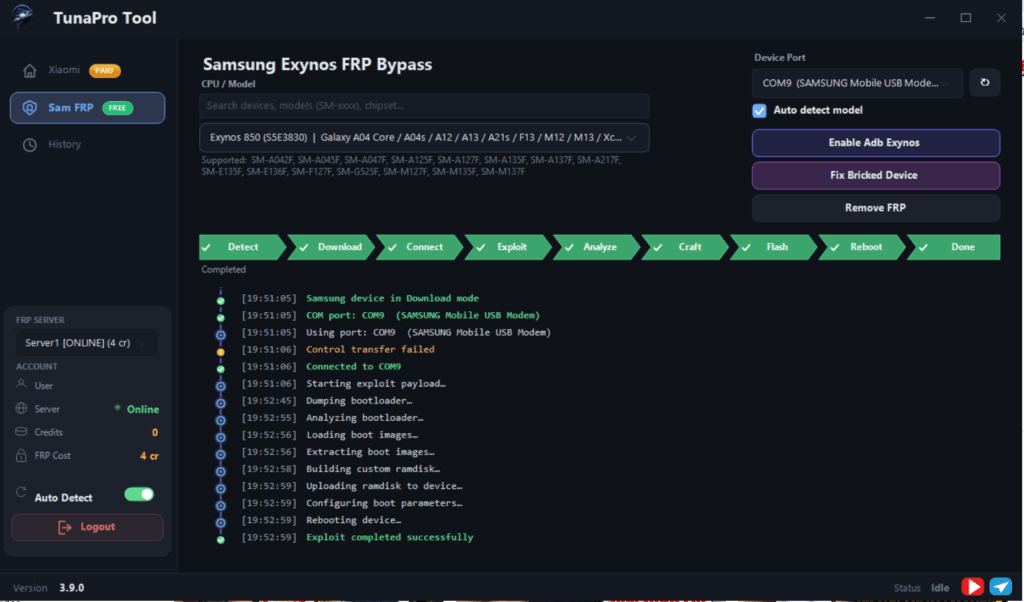
What makes it stand out beyond the price is the built in ADB enable function. Exynos based Samsung devices require ADB to be enabled before standard FRP procedures can run, and on a locked device that normally means a separate tool or a manual workaround before you even get to the actual bypass step. TunaPro collapses both into a single workflow, which saves real time on the repair desk.
This guide covers what the tool does, which functions are free and which cost credits, every supported model category, and a full step by step walkthrough for the Exynos FRP bypass process.
Disclaimer
This guide is for legitimate device recovery only. Only use TunaPro Tool V3.9 on devices you own or have explicit permission to work on. Bypassing FRP on a device you do not own is illegal in most countries and can result in serious legal consequences. Rise ROM takes no responsibility for misuse.
What is TunaPro Tool V3.9
TunaPro Tool V3.9 is a Windows based Android servicing application that first appeared in mid 2026 and has already reached version 3.9.0 as of late June 2026. It is a lightweight tool, meaning it does not carry the bloat of older professional suites, and it focuses primarily on Samsung Exynos devices with secondary support for Xiaomi, MediaTek and Qualcomm based phones.
The official site is tunaprotool.com and registration is completely free with no OTP or email verification required. Even a temporary email address works for signup, which is an unusually low barrier compared to most tools in this category where registration alone can be a process.
Because TunaPro Tool V3.9 is a new tool, it is worth saying this clearly upfront. It has built a strong reputation fast and the Exynos FRP function has been independently tested and confirmed working across over 60 Galaxy models. But it does not have years of track record behind it the way SamFw or UMT does. The Samsung Exynos section is currently free and the repair community expects that to remain the case, but whether it stays free long term is something only future updates will confirm. For right now it works, it costs nothing for Exynos jobs, and it is worth having on your toolkit.
Free vs Credit Based
This is important to understand before you register and download so there are no surprises when you open the tool for the first time.
Samsung Exynos FRP bypass is completely free. No credits, no activation, no hidden costs. You register an account, download the tool, and the Exynos FRP function runs without deducting anything from your balance.
Xiaomi Mi Account bypass is credit based. Each job costs 5 credits. Credits are purchased through the tool’s credit system and the cost per job is reasonable for a repair shop doing regular volume, but it is not free so do not expect otherwise if Xiaomi is the reason you are here.
MediaTek and Qualcomm support exists in the tool for diagnostics and certain repair functions, but these are secondary to the main Exynos and Xiaomi workflow. If MTK or Qualcomm FRP removal is your primary need, the free tools on our FRP tools page or a dedicated MTK module are a better starting point.
What TunaPro Tool V3.9 Can Do
Here is the full breakdown of what the tool actually offers.
Samsung Exynos FRP bypass is the headline function. It removes the Google account verification screen that appears after a factory reset on Exynos powered Samsung devices, covering Android 14, 15 and 16 across over 60 Galaxy models.
Enable ADB on Exynos devices is the function that sets TunaPro apart from most alternatives. On Samsung Exynos phones, ADB is disabled by default and enabling it on a locked device normally requires either a separate tool or a manual workaround that adds steps to an already involved process. TunaPro handles this internally before running the FRP removal, so both steps happen inside the same window without switching tools or changing your workflow mid job.
Xiaomi Mi Account bypass handles Google FRP and Mi Account verification removal on Xiaomi, Redmi and POCO devices through a one click server process, though as covered above this runs on credits rather than being free.
Screen lock removal clears pattern, PIN and password locks on Android 10 through Android 15 on supported models without erasing personal files in most cases, which is a meaningful advantage over methods that require a full format to remove a lock.
MediaTek chipset support covers read, write, format and basic repair operations across a range of MTK based devices. Qualcomm support extends compatibility to Snapdragon powered phones for diagnostics and certain repair tasks.
Built in ADB and Fastboot files mean you do not need to separately download and configure ADB packages before using the tool. Everything it needs is bundled inside, which removes one of the more common setup headaches for people who are not regularly working with ADB on their PC.
Auto device detection recognizes the connected phone automatically once it is plugged in, with chipset based device selection available from a dropdown for cases where auto detection does not pick up the model.
Cloud and local server connection options are both available. The cloud option is the standard path for most jobs and connects through TunaPro’s servers. The local server option is available for environments where cloud connectivity is restricted.
Supported Samsung Exynos Models
TunaPro Tool V3.9 covers over 60 Samsung Galaxy models running Exynos chipsets. Here is the breakdown by series.
| Series | Models | Android Support |
|---|---|---|
| S Series | Galaxy S7, S8, S9, S10, S20, S21, S22, S23, S24, S25 | Android 14, 15, 16 |
| A Series | Galaxy A12, A13, A14, A15, A22, A23, A32, A33, A34, A35, A53, A54, A55 | Android 14, 15, 16 |
| M Series | Galaxy M12, M13, M23, M33, M53 | Android 14, 15 |
| Tab Series | Galaxy Tab A7 Lite, Tab A8, Tab S6 Lite, Tab S7, Tab S9 | Android 14, 15 |
A few honest notes on this table. S series coverage is strong across the full range from older Exynos S7 era devices through the current S25 series, though S series support is specifically for Exynos variants which are sold in certain markets like Europe, Africa and parts of Asia. S series devices sold in North America typically use Qualcomm and are not covered by the Exynos function. A series and M series coverage on Android 16 is growing with each update since the tool is actively being updated, so check the official site for the latest confirmed model list if your specific device is not on the table above.
Xiaomi Redmi and POCO Support
The Xiaomi side of TunaPro is worth covering separately since it works differently from the Exynos function in both how it connects and how it charges.
Mi Account bypass removes both Xiaomi Mi Account verification and Google FRP on Mi, Redmi and POCO devices through a one click server process. The tool connects to TunaPro’s cloud server which handles the bypass remotely, meaning the process does not rely on local drivers or connection modes the way the Exynos function does.
Each Xiaomi job costs 5 credits. Credits are purchased through your TunaPro Tool V3.9 account and the per job cost is competitive with other server based Xiaomi tools in the market. For repair shops doing occasional Xiaomi jobs it is a reasonable cost. For shops doing high Xiaomi volume there are dedicated Xiaomi server tools that may offer better bulk pricing.
Device compatibility on the Xiaomi side covers a wide range of Mi, Redmi and POCO models but the exact supported list is server side and updated by TunaPro’s team independently. The safest approach before spending credits on an unfamiliar model is to check the official supported model list on tunaprotool.com first.
What You Need Before Starting
Get everything on this list ready before opening the tool. Missing any of these is how people end up spending twenty minutes troubleshooting a connection issue that was preventable from the start.
A Windows PC running Windows 10 or 11. TunaPro Tool V3.9 is Windows only and works best on these two versions. Older Windows versions may cause driver conflicts.
Samsung USB drivers installed on your PC. Without these Windows will not recognize the device when you plug it in and the tool will not detect it either. Download the latest Samsung USB drivers from our drivers page.
A genuine USB data cable. Not a charging only cable. This is the most common reason the tool fails to detect a device and it is always worth trying a different cable before assuming something else is wrong.
A free TunaPro account. Registration takes under a minute, requires no OTP, and works with any email address including temporary ones. Go to tunaprotool.com and sign up before downloading.
Your device charged to at least 30 percent. The bypass process involves a restart and you do not want the phone shutting down mid operation.
Credits in your account if you are working on a Xiaomi device. Samsung Exynos jobs cost nothing but Xiaomi Mi Account bypass costs 5 credits per job. Top up before starting if Xiaomi is your use case.
How to Register and Download
Registration is simpler than most tools in this category and worth doing before anything else since the download requires a logged in account.
Go to tunaprotool.com and click the Register or Create Account option. Enter any email address, a username and a password. No OTP will be sent and no email verification is required before the account activates.
Once registered, log in and navigate to the download section. The latest version as of this writing is V3.9.0. Always download the newest version since each update adds device support and stability improvements.
The file comes password protected. The password is listed on the download page. Extract using WinRAR or 7-Zip after downloading.
Only download from tunaprotool.com or the link on this page. Third party mirrors and Telegram groups frequently circulate older or modified versions.
How to Install
Extract the downloaded archive using WinRAR or 7-Zip with the password from the download page. Do not try to run the tool from inside the archive since this causes random crashes on launch.
Install Samsung USB drivers if you have not already. You can find these on our drivers page. Restart your PC after installing the drivers before opening the tool.
Right click the TunaPro Tool V3.9 executable and select Run as Administrator. This is not optional. The tool needs admin rights to communicate with the device at the level required for ADB enabling and FRP removal. Running it without admin rights causes detection failures on most Windows setups.
Log in with your tunaprotool.com account credentials when the tool opens. Your credit balance will appear in the dashboard if you purchased any.
Step by Step Guide – Samsung Exynos FRP Bypass
This covers the standard Exynos FRP bypass with the built in ADB enable function. This is the free function and the main reason most people download TunaPro.
Power on the locked Samsung device and connect it to your PC via USB cable. The device should be on the FRP screen, the Google account verification screen that appears after a factory reset.
Open TunaPro Tool V3.9 as administrator and log in with your account.
The tool will attempt to detect the device automatically. Once detected, your device model or chipset will appear in the device field. If auto detection does not pick it up, click the dropdown and select your Exynos chipset variant manually.
Click Enable ADB. This is the step that sets TunaPro apart from a standard FRP workflow. The tool pushes a partition level operation to the device that enables ADB without requiring any manual steps on the locked phone itself. Watch the log window at the bottom of the screen as this runs.
If a USB debugging prompt appears on the phone screen during this step, tap Allow or Trust immediately. Do not leave this prompt sitting unanswered since it times out on some devices.
Once ADB is enabled and confirmed in the log, click Samsung Exynos FRP Bypass. The tool will connect through the now active ADB channel and push the FRP removal commands to the device.
Watch the progress log. The full process from ADB enable through FRP removal typically takes two to five minutes depending on the device and connection stability. Do not disconnect the phone during this time.
When the tool shows a success confirmation in the log, disconnect the device and perform a full cold boot. Hold the power button until the device shuts off completely, wait several seconds, then power it on manually.
Go through the normal device setup. The Google verification screen should not appear. Skip adding a Google account during initial setup and add it from Settings after you are fully into the home screen.
Errors and Fixes
Device not detected after connecting.
Check the cable first since a charging only cable is the most common cause. Confirm Samsung USB drivers are installed and the tool is running as administrator. Try a different USB port, preferably directly on the motherboard rather than through a hub. Restart both the PC and the device then reconnect.
Enable ADB step fails or freezes.
This usually means the USB debugging prompt appeared on the phone screen and timed out before you tapped Allow. Disconnect the device, restart the tool, reconnect and watch the phone screen closely during the ADB enable step. Tap Allow the instant the prompt appears.
ADB enables successfully but FRP bypass fails.
Your device may be running a security patch that the current version does not yet cover. Check tunaprotool.com for the latest version and update if you are not already on TunaPro Tool V3.9.0. Each update expands patch coverage so this is often resolved by simply being on the newest release.
Tool crashes on launch.
Make sure the tool is extracted from the archive before running rather than launched from inside it. Install Microsoft Visual C++ 2015 Redistributable from Microsoft’s official site if the crash persists, since missing runtime libraries are a common cause of launch failures on fresh Windows installs.
FRP screen returns after a successful confirmation.
Always do a full cold boot rather than a quick restart from the success screen. Hold power until the device shuts off completely, wait a few seconds, then power on manually. A cold boot is required for the changes to take full effect on most Exynos devices.
Credit balance shows zero on Xiaomi jobs.
Credits need to be purchased through your tunaprotool.com account before starting a Xiaomi job. The Xiaomi function will not run without sufficient credits and there is no trial or free use on the Xiaomi side.
FAQ
Is TunaPro Tool V3.9 completely free?
The Samsung Exynos FRP bypass function is completely free. Xiaomi Mi Account bypass costs 5 credits per job. MediaTek and Qualcomm functions are available but secondary and their credit requirements vary by operation.
Does it work on Samsung devices with Qualcomm chipsets?
No. The Exynos FRP function is specifically for Samsung devices running Exynos chipsets. Samsung devices sold in North America typically use Qualcomm Snapdragon and are not covered by this function. For Qualcomm based Samsung devices, SamFw Tool is a better starting point.
How do I know if my Samsung uses Exynos or Qualcomm?
Check the model number. Samsung sells the same models with different chipsets in different regions. Exynos variants are most common in Europe, Africa, parts of Asia and the Middle East. If you are in North America your device almost certainly uses Qualcomm. You can also check by searching your exact model number online to confirm the chipset for your region.
Is registration really free with no verification?
Yes. As of the current version, registration on tunaprotool.com requires only an email address, username and password. No OTP is sent and no email verification is required before the account works. Temporary email addresses function fine for signup.
How long does the bypass take?
The full process from connecting the device through to the success confirmation typically takes two to five minutes. Heavier operations on devices with more complex Exynos chipsets can occasionally take slightly longer but anything over ten minutes usually indicates a connection issue worth investigating.
Will TunaPro Tool V3.9 stay free for Exynos?
The Samsung Exynos function is currently free and the repair community expects this to continue, but because TunaPro is a relatively new tool there is no long track record to point to. Use it while it is free and keep an eye on updates from the official site for any changes to the pricing model.
Related Tools
If TunaPro Tool V3.9 did not solve your problem or you are working on a device it does not cover, here are other resources on Rise ROM that can help
.SamFw FRP Tool covers Samsung FRP removal from Android 8 through 16 with a free version for devices with patches before December 2022 and paid credits for newer patches.
ZeroKnox Removal Tool handles Samsung FRP and Knox Guard removal on Android 8 through 16 with three ADB methods and four KG removal methods completely free.
Prime Tool X is the most beginner friendly free Samsung tool covering Android 12 through 16 on budget A and M series devices with no credits required.
Samsung FRP Tools is our complete comparison of every major free Samsung FRP tool in 2026 with honest success rates by Android version to help you pick the right one for your device.
USB Drivers has Samsung USB drivers and everything else your repair tools need to detect your device properly.