
The Odin latest version is v3.14.4, and it’s the tool you use to flash firmware onto a Samsung Galaxy from a Windows PC. If your Samsung is stuck on a boot loop, needs a factory firmware to fix a software problem, or you want to flash a stock file to clear a soft brick, Odin is how you do it. It writes official firmware through Samsung’s download mode.
This page gives you v3.14.4 and the stable v3.14.1, explains which to use, and walks through a safe flash. You also get fixes for the FAIL and Auth errors that stop most flashes, and a straight answer on what Odin latest version can and cannot do on newer Galaxy phones.
⚠️ Disclaimer: The tools and methods on this page are for educational and informational purposes only. Only use them on devices you personally own or have been given explicit permission to work on. Bypassing FRP on a device you do not own is illegal and can result in serious legal consequences. Always comply with Google’s terms of service and your device manufacturer’s policies. Rise ROM does not promote or support any unauthorized or illegal use of the tools shared here.
What Is Odin
Odin is a Windows flashing tool for Samsung Galaxy devices. Samsung uses it internally, and leaked builds have circulated for years as the standard way to flash firmware outside a service center. It only works on Samsung, and it only talks to a phone in download mode, which Samsung also calls Odin mode.
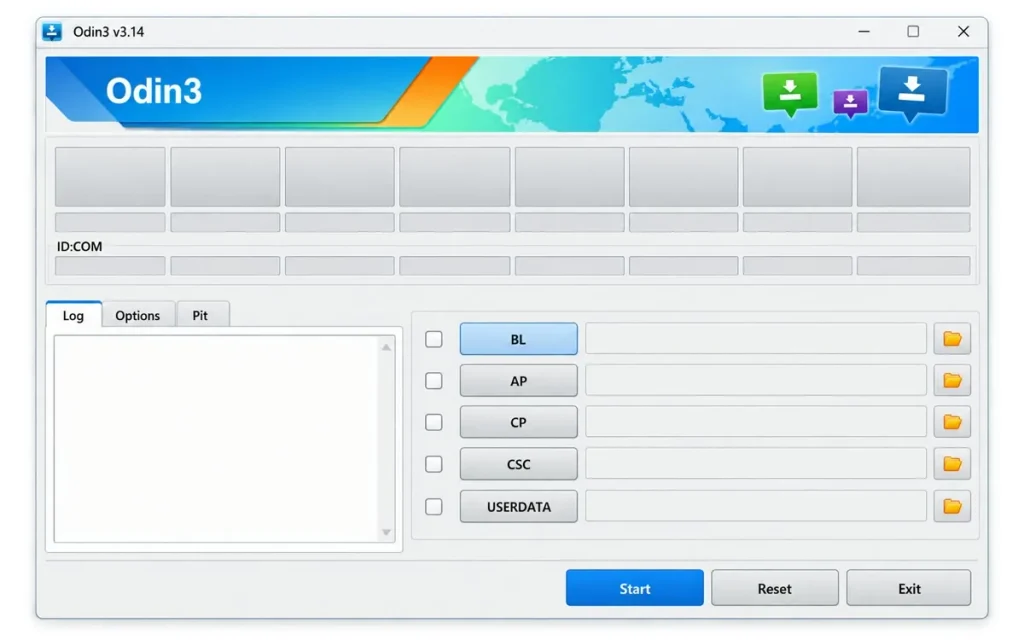
You load firmware into Odin latest version’s slots, which are labelled BL, AP, CP and CSC. Each one holds a different part of a full Samsung firmware. BL is the bootloader, AP is the main system, CP is the modem, and CSC carries region and carrier settings. A full flash fills all four. A quick fix sometimes uses just AP.
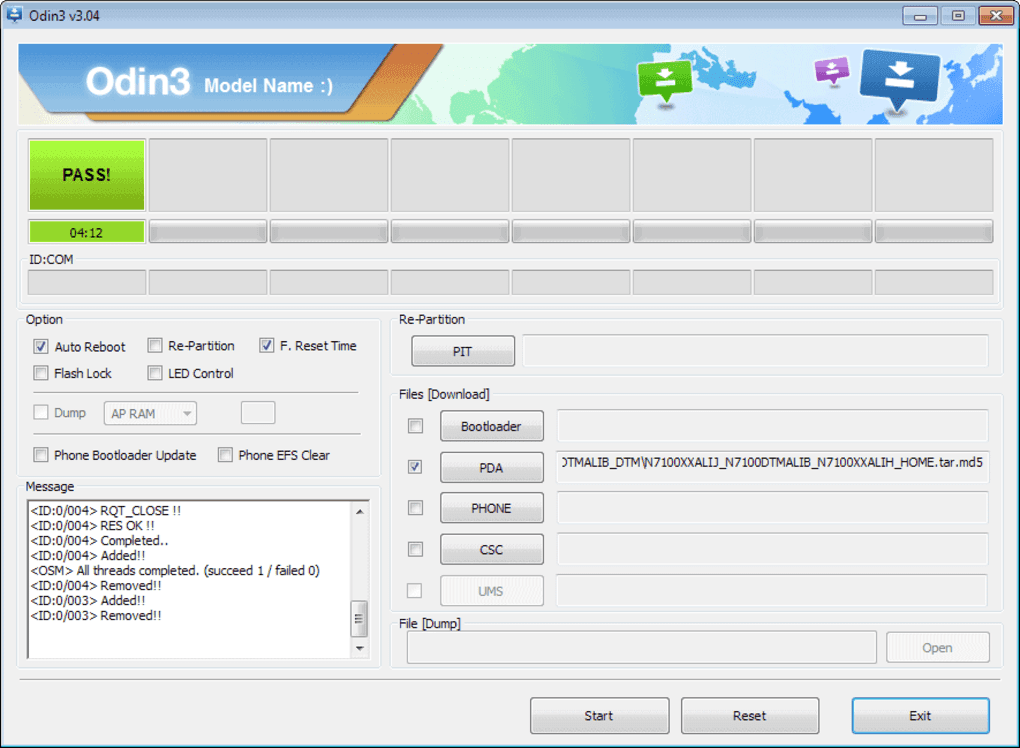
Odin flashes official signed Samsung firmware. It does not install custom ROMs the way a MediaTek or Qualcomm tool might, and on a locked bootloader it will only accept firmware Samsung signed for that device. That signature check is why Odin latest version is safe when you use the right firmware, and why it refuses the wrong one.
Who needs it: technicians fixing Samsung software faults, users flashing stock firmware to recover a bricked Galaxy, and anyone following a Samsung firmware guide that ends in an Odin flash.
Odin Latest Version: Which One to Use
There are two numbers worth knowing, plus a third you should be careful with.
| Version | Status | Best for |
|---|---|---|
| Odin v3.14.4 | Latest | Newest Galaxy models and current firmware |
| Odin v3.14.1 | Latest stable | Most reliable for everyday flashing |
| Odin patched builds | Modified | Specific jobs like skipping certain checks, use with care |
For most people, v3.14.1 is the safe default because it’s the stable build that handles the widest range of devices cleanly. Use v3.14.4 when you’re flashing one of the newest Galaxy phones and v3.14.1 gives trouble.
The patched Odin builds are a different thing. Someone modified the official tool to change its behaviour, usually to bypass a check. Those can help with a specific problem, but they come from third parties and can misbehave. Use a patched Odin latest version only when a guide for your exact situation calls for it, and get the stable official build working first.
What You Need Before Flashing
Set these up before you open Odin. A flash that fails halfway is harder to recover than one you never started.
- A Windows 10 or Windows 11 PC
- The Samsung USB driver installed and working
- The correct official firmware for your exact model number, matching your region
- A good data cable and a charged phone, ideally above 30 percent
- The phone able to reach download mode
That model number point matters. Samsung firmware is tied to the exact model, like SM-A155F, and often to a region code. Flashing the wrong model’s firmware will fail at best, and cause problems at worst. Get your exact model from Settings, About phone, before you download anything.
If the Samsung driver isn’t installed yet, do that first. Odin cannot see the phone without it, and a missing driver is the most common reason Odin latest version shows a blank ID:COM box.
Odin Latest Version Download
Check your Android version and device before downloading. Using the wrong file for your version is the most common reason the bypass fails.
| Tool Name | Version | Download |
|---|---|---|
| Odin latest version (v3.14.4) | v3.14.4 | Download |
| Odin stable (v3.14.1) | v3.14.1 | Download |
Older and patched versions
| Tool Name | Purpose | Download |
|---|---|---|
| Odin v3.13.3 | Older Galaxy models | Download |
| Odin v3.14.1 patched | Specific guide-based jobs | Download |
File name: Odin3_v3.14.4.zip
Size: around 2 MB
MD5: run a check on the file you host and paste it here
As of October 2026, v3.14.4 is the latest Odin build and v3.14.1 is the stable one most technicians rely on. The newest Odin builds are reported to handle current One UI firmware, so they cover recent Galaxy models alongside older ones.
Odin latest version is portable. There’s no installer. Extract the zip and run the Odin3 exe straight from the folder.
How to Flash Samsung Firmware With Odin latest version
Read the whole thing first. Download mode and the slot mapping are where people slip up.
- Extract both Odin latest version and your firmware into separate folders. A full firmware gives you four files for BL, AP, CP and CSC.
- Run the Odin3 exe as administrator.
- Put the phone into download mode. Power it off, then hold the right key combo for your model while connecting the cable. On recent models you hold both volume keys while plugging in, then press volume up to confirm.
- Watch Odin latest version. The ID:COM box turns blue or shows Added when it sees the phone. If it stays blank, your Samsung driver isn’t right.
- Load the firmware files into the matching slots. BL to BL, AP to AP, CP to CP, CSC to CSC. For a clean flash that keeps data, use the CSC file, not the HOME_CSC file. To wipe, use CSC.
- In the Options tab, leave Auto Reboot and F. Reset Time ticked. Do not tick Re-Partition unless you’re using a full PIT and know why.
- Click Start. A progress bar runs on the phone and Odin latest version shows PASS in green when it finishes.
- The phone reboots on its own. The first boot after a full flash can take several minutes.
A green PASS with the right firmware means a clean flash. If you used the four file set correctly, the phone comes back on stock software.
What Odin Cannot Do on Newer Samsung Phones
Being honest here, because commercial pages oversell this tool.
Odin flashes official signed firmware. On any Galaxy with a locked bootloader, which is most retail phones, it will only accept firmware Samsung signed for that exact device. You cannot use it to flash a custom ROM or to downgrade past the bootloader version the phone allows. Try to downgrade the bootloader and Odin throws an SW REV CHECK FAIL.
Odin also does not bypass FRP by itself. It’s a flashing tool, not an FRP tool. Some FRP methods use a combination firmware flashed through Odin as one step, but Odin alone doesn’t remove a Google account lock.
On the newest flagships, the S24 and S25 line, FRP and Knox protections are tight. A plain firmware flash won’t clear a lock on those, and you should not expect Odin to be the whole answer. Treat Odin latest version as the firmware step, and use a proper Samsung FRP tool for the lock itself.
Errors and Fixes
ID:COM box stays blank, Odin latest version never sees the phone
The Samsung driver isn’t installed or the phone isn’t in download mode. Install the Samsung USB driver, confirm the phone shows the download mode screen, and use a data cable on a rear USB 2.0 port.
FAIL! Auth or SECURE CHECK FAIL (auth)
The firmware doesn’t match the device, or a bootloader downgrade is being blocked. Re-download the exact firmware for your model and region, and don’t try to flash an older bootloader than the phone currently has.
SW REV CHECK FAIL: Fused X, Binary Y
You’re trying to flash firmware older than the phone’s bootloader binary version. Samsung blocks downgrades. Flash firmware with a bootloader version equal to or newer than what’s on the phone.
FAIL! at the CSC or during an AP write
Often a corrupt download or a cable dropping out mid flash. Extract the firmware fresh, use a short good cable, and don’t touch the phone or PC during the flash.
Odin stuck on SetupConnection or NAND Write Start
The connection stalled, usually a weak cable or a USB hub. Close Odin latest version, reconnect the phone in download mode, use a rear USB 2.0 port, and start again.
Phone shows “Only official released binaries are allowed”
The phone’s FRP or OEM lock is blocking the flash. You may need to allow OEM unlock in Developer options first, or the phone is FRP locked and needs the lock cleared before flashing.
Odin latest version PASS but the phone bootloops
Usually a partial or mismatched firmware. Flash the complete four file firmware for the exact model, using CSC rather than HOME_CSC to do a clean wipe.
FAQ
Is Odin free?
Yes. Odin is free to download and use. It isn’t officially distributed by Samsung to the public, but it’s free wherever it’s shared.
What is the Odin latest version?
The latest version is v3.14.4, with v3.14.1 as the stable build most technicians use. Both handle recent Galaxy firmware.
Does Odin work on Windows 11?
Yes. Odin runs on Windows 10 and 11. It needs the Samsung USB driver installed to detect the phone in download mode.
Can Odin flash a custom ROM?
No. Odin flashes official signed Samsung firmware. Custom ROMs go through a custom recovery like TWRP on unlockable models, not through Odin.
Does Odin remove FRP or a Google lock?
Not by itself. Odin is a firmware flasher. Some FRP methods flash a combination firmware with Odin as one step, but clearing the lock needs a dedicated Samsung FRP tool.
Why does Odin fail on my new Galaxy?
Usually a firmware mismatch or a blocked bootloader downgrade. Flash the exact firmware for your model and region, and don’t try to go to an older bootloader than the phone already has.
What’s the difference between CSC and HOME_CSC?
CSC does a clean flash and wipes data. HOME_CSC keeps your data when the firmware version allows it. Use CSC when you want a full reset, HOME_CSC to preserve data.
Related Tools
Odin needs the Samsung driver, so set that up first with the Samsung USB driver. For the firmware files, the OTA firmware section has Samsung stock packages.
For FRP after flashing, see the FRP bypass tools collection on Rise ROM, including the Samsung FRP tools comparison. The full USB drivers library covers other brands.
Flashing a MediaTek phone instead? That uses SP Flash Tool and the MediaTek driver, not Odin.
Sources: