
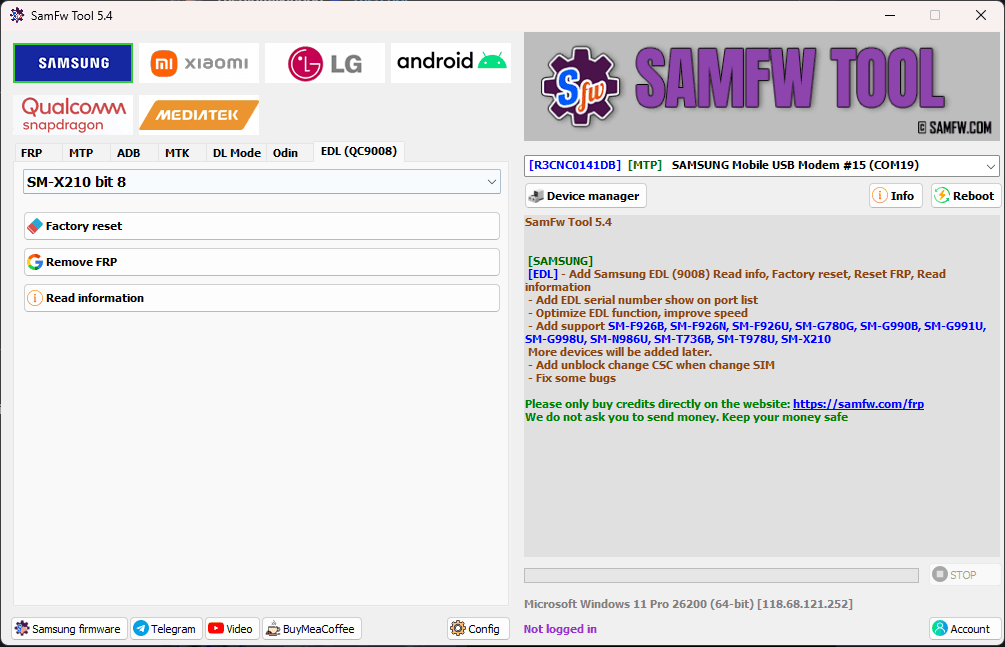
SamFw FRP Tool is one of the most searched Samsung bypass tools right now, and if you landed here, you probably already know why. It’s one of the few genuinely free options for removing Google account verification on Samsung devices without needing a paid service. This guide covers everything about the SamFw FRP Tool in 2026, what it is, which devices it works on, how to use it, and where to download the latest version safely.
(All download links for SamFw FRP Tool and supporting files are at the bottom of this page.)
One thing before we get into steps: SamFw Tool has a free version and a paid version, and they work on completely different devices. Most people waste 20 minutes following steps that will never work on their device because nobody told them this upfront. We will cover that in the next section, so you know exactly where you stand before doing anything.
Disclaimer
The tools and methods shared on this page are provided for educational purposes only. Please make sure you’re using them on a device that you own or have permission to work on.
Bypassing FRP or removing a Google account from a device that isn’t yours can be illegal and may lead to serious consequences. Always follow Google’s policies and your device manufacturer’s guidelines when performing any kind of modification.
Rise ROM does not encourage or support any misuse of these tools. Use them responsibly.
Free Version or Paid Version, Which One Do You Need
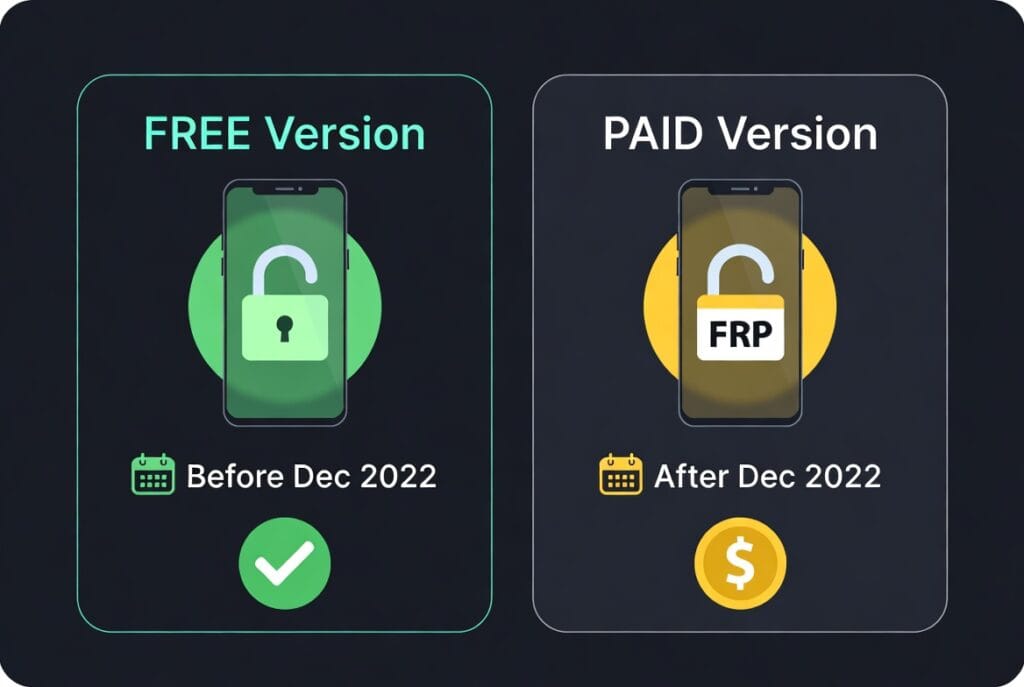
This is the most important thing to understand about SamFw FRP Tool, and almost every guide skips over it.
The free version of SamFw Tool works on Samsung devices with a security patch dated before December 2022. If your device received its last security update before that date, the free method will very likely work for you. Older Samsung models like the Galaxy A series from 2020 and 2021, older J series, and M series devices running Android 10 and 11 generally fall into this category.
The paid version covers devices with security patches from December 2022 onwards. This includes most Samsung devices bought in 2023, 2024, and 2025. If your phone is relatively new or has been receiving regular updates, you are almost certainly in this category.
How to check your security patch date: go to Settings, then About Phone, then Software Information. Look for the Android Security Patch Level. If it says anything from December 2022 onwards, the free method won’t work on your device.
This doesn’t mean you’re out of options. The paid SamFw service is reasonably priced compared to other tools, and we will mention some free alternatives at the end for newer patches.
Supported Devices and Android Versions
Here’s a clear breakdown of what the free version of SamFw FRP Tool supports:
| Device Series | Android Version | Security Patch | Free Version |
|---|---|---|---|
| Galaxy J Series | Android 8 to 11 | Before Dec 2022 | Yes |
| Galaxy A Series (2019 to 2021) | Android 10 to 12 | Before Dec 2022 | Yes |
| Galaxy M Series | Android 10 to 11 | Before Dec 2022 | Yes |
| Galaxy S Series (older) | Android 10 to 12 | Before Dec 2022 | Yes |
| Galaxy A Series (2022 to 2025) | Android 12 to 14 | After Dec 2022 | Paid only |
| Galaxy S Series (2022 to 2025) | Android 13 to 15 | After Dec 2022 | Paid only |
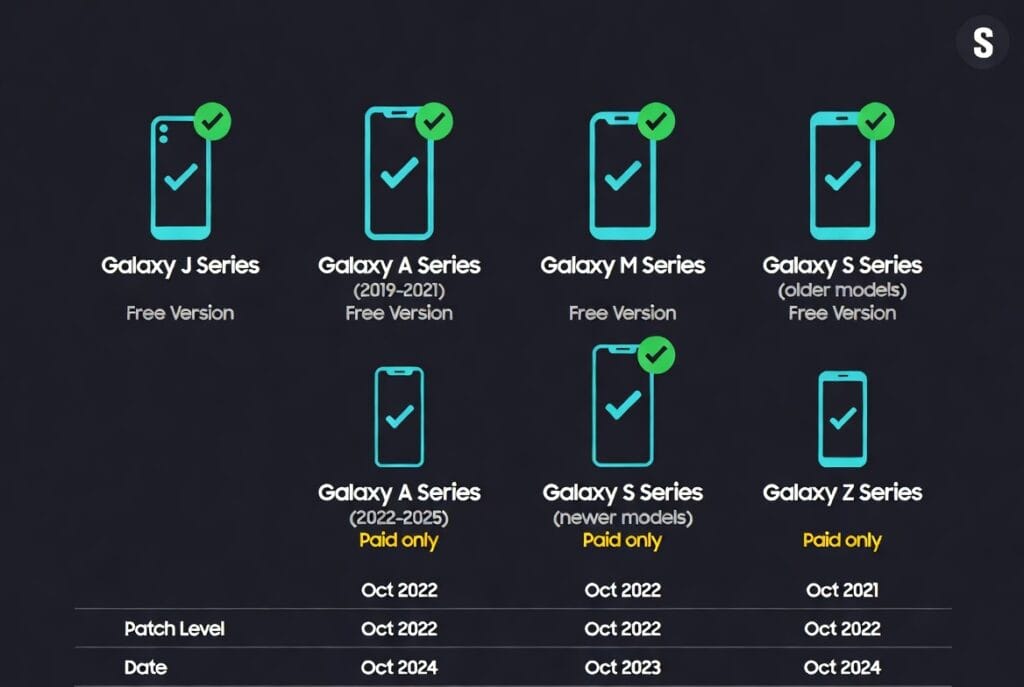
The key column here is the security patch date, not the Android version. A Samsung Galaxy A52 running Android 12 with a patch from mid 2022 can still be bypassed with the free version. The same phone with a patch from early 2023 cannot. Always check the patch date first.
How to Download SamFw FRP Tool
The latest version as of 2026 is SamFw Tool V5.4. Older versions like V4.9 are still floating around on various sites but they have limited device support compared to the newer release. Always download the latest version unless you have a specific reason to use an older one.
All download links are at the bottom of this page. The files are hosted on our GitHub and MediaFire so you are getting them directly without any extra steps or redirect chains.
Before you download anything, make sure your PC has the following ready:
Samsung USB drivers installed. Without these your PC won’t detect the device at all. You can download them from our drivers page.
A working USB cable that supports data transfer. A charging-only cable will not work here, regardless of what else you do.
Windows 10 or 11. SamFw Tool doesn’t run on Mac or Linux.
Microsoft .NET Framework 4.5 or above. Most Windows installs already have this, but if the tool throws an error on launch, this is usually why.
That’s everything you need. No paid software, no extra subscriptions, just the tool and the drivers.
Here are sections 5 through 8:
Step by Step Guide
Before you start, make sure your Samsung device is charged to at least 30%. The process involves a couple of restarts,s and you don’t want it dying halfway through.
Step 1: Put the device in download mode Power off the phone completely. On most Samsung devices you enter download mode by holding Volume Down and Volume Up together, then connecting the USB cable to your PC while holding both buttons. On older models it’s Volume Down plus Home plus Power. Hold until you see the download mode screen then press Volume Up to confirm.
Step 2: Open SamFw Tool. Run the SamFw Tool as an administrator on your PC. Right-click the executable and select Run as Administrator. If you open it normally it sometimes fails to detect the device even with drivers installed.
Step 3: Connect the device Plug your Samsung into the PC via USB while SamFw Tool is open. The tool should detect your device automatically within a few seconds and display the model number and security patch date. If it doesn’t detect within 30 seconds, unplug and reconnect, or try a different USB port.
Step 4: Check your patch date. Once the tool detects your device it will show you the security patch information. This is where you confirm whether the free bypass will work. If the patch is before December 20,22 you’re good to go. If it’s after that date the tool will tell you and you’ll need the paid option.
Step 5: Run the FRP bypass Click the FRP Remove button. The tool will push the necessary files to your device. You’ll see a progress bar and a few status messages. The whole process usually takes 3 to 5 minutes depending on your device and PC.
Step 6: Restart and set up Once the tool finishes your device will restart automatically. Go through the normal setup process and the Google account verification screen should be completely gone. Add any Google account you have access to and you’re in.
Common Errors and Fixes
Even when you do everything right things sometimes go wrong. Here are the most common issues people run into and how to fix them.
The tool says device not detected Nine times out of ten this is a driver issue. Go to Device Manager on your PC and look for any unknown devices or devices with a yellow warning icon. If you see one, right click and update the driver. Download the Samsung USB drivers from our drivers page and reinstall them. Also try a different USB cable since charging only cables are a very common cause of this.
The tool detects the device, but FRP is removed. The button is greyed out This means your security patch is too new for the free version. The tool is telling you it can’t process the bypass on this particular patch date. You either need the paid SamFw service or an alternative tool.
Process completes but FRP screen still appears after restart This sometimes happens when the bypass completes but the device needs a full power cycle rather than just a restart. Hold the power button until the device fully shuts down, wait 10 seconds, then power it back on manually rather than letting it restart on its own.
Tool crashes on launch This is almost always a missing .NET Framework issue. Download and install .NET Framework 4.8 from Microsoft’s official site and try launching the tool again. Also make sure you’re running it as administrator.
Device stuck in download mode after the process Hold Volume Down and Power together for about 10 seconds to force the device out of download mode. It will restart normally. If it keeps going back into download mode on its own, the firmware may need to be reflashed. Check our firmware page for Samsung firmware files.
FAQ
Is SamFw FRP Tool safe to use?
SamFw Tool has been around for several years and is widely used in the repair community. The tool itself is safe as long as you download it from a trusted source. The links at the bottom of this page are hosted on our own GitHub and MediaFire, so you’re not getting a modified version from an unknown site.
Does the SamFw Tool work on Samsung Galaxy S23 and S24?
These devices have security patches well past December 2022, so the free version won’t work on them. You would need the paid SamFw service or an alternative method for newer flagship Samsung devices.
Will using the SamFw Tool void my warranty?
Using an FRP bypass tool doesn’t modify your firmware or trip Knox, so technically it shouldn’t void your warranty. That said, some Samsung service centers can sometimes tell that a bypass was performed. If warranty is a concern, the safest option is always to recover through Google account recovery through official channels first.
Can I use the SamFw Tool without a PC?
No. SamFw Tool is a Windows application and requires a PC connection to work. If you need a no PC method, check our FRP bypass APK guide, which covers APK-based methods that work directly on the device.
What’s the difference between the SamFw Tool and the Samfw FRP Tool online service?
The downloadable tool is the free version that works on older patches. The online service at samfw.com is a paid option that generates bypass codes or remote unlock solutions for newer devices. They share the same name but work completely differently.
My Samsung is a carrier-locked device. Will this work?
SamFw Tool bypasses FRP, specifically which is the Google account lock after a factory reset. It doesn’t unlock carrier restrictions. If your device is carrier locked, that’s a separate issue entirely and needs a different solution.
Download SamFw FRP Tool
Below are the download links for the SamFw Tool and all the supporting files you might need during the process.
| Version | Release Year | Download links |
|---|---|---|
| V5.4 (Latest) | 2026 | Download |
| V4.9 | 2024 | Download |
| V4.0 | 2023 | Download |
| V3.1 | 2022 | Download |
| V2.3 | 2021 | Download |
For Samsung USB drivers and additional helper APKs, visit our drivers page and FRP tools page.
If SamFw Tool didn’t work on your device, check out our full FRP Bypass APK Files guide, which covers alternative methods for both older and newer Samsung patches.
More Download:
- Alliance Shield x app
- Google Account Manager 8.1 Apk
- Google Account Manager 9 APK
- Vivo Y1s FRP & Pattern Remove File
- Easy Flashing Bypass 8.0 APK
What SamFw FRP Tool Can Do
Most people download SamFw Tool just to remove FRP on a Samsung and never realize how much else it handles. Here’s the full breakdown:
Samsung
FRP:
- Remove FRP
- Remove FRP new security
- Remove FRP 2024 USA models
- Remove FRP Android 16
MTP Mode:
- Factory reset
- Disable Knox
- Disable Factory mode
- KG Unlock
- Enable secret code for Verizon
ADB Mode:
- Change CSC
- Remove Samsung account
- Enable mobile data toggle for some AT&T phones
- Change CSC root mode
Download Mode:
- Exit download mode
- Soft brick fix
- FRP Android 5/6 for supported models
Odin Flash:
- Save recent flash files
- Auto detect and select slot
- Auto extract ZIP files
- Ignore MD5 checksum
Xiaomi
ADB:
- Bypass Micloud Android 8.1
- Enable Diag (Root)
Fastboot:
- Remove FRP on unlocked devices
Sideload:
- Factory reset
- Remove FRP
- Reset Micloud
- Qualcomm Micloud clock bypass
- Read offline Micloud information
EDL 9008:
- Factory reset
- Reset FRP
- Reset Micloud
LG
Supported models: G5, G6, G7, G8, G8X, G8S, V20, V30, V35, V40, V50, V50S, V60, Q6
MTP:
- Factory reset
EDL:
- Factory reset
- Remove FRP
LG UP:
- Flash LG KDZ files
General Android
ADB:
- Battery information
- Disable/Enable OTA updates
- Set language
- Factory reset
- Hide developer options
- Open network settings
FRP:
- Open browser during FRP lockout
- Remove FRP
App Manager:
- Install and manage APKs and XAPKs
- Enable/disable/clear single or multiple apps
- Install apps on Dual Messenger
- Delete bloatware for Korean, Japanese and US variants
Qualcomm
EDL 9008:
- Read/Write/Erase partitions
- Reset FRP
- Factory reset
- Erase user data
Mediatek
- Factory reset
- Format user data
- Remove FRP
- Unlock bootloader
- Relock bootloader
- Bypass auth
Misc
- Check driver signature enforcement status
- Disable/Enable driver signature enforcement
- Install the Samsung USB driver
- Install VC++ 2015 for ADB
Upcoming Features
- Root-based battery cycle change
- View saved Wi-Fi passwords
- Additional features are currently in testing
very informative articles or reviews at this time.
It’s very easy to find out any matter on web
as compared to books, as I found this post at this web page.