
Samsung FRP Helper is one of the most-searched Samsung bypass tools online and one of the most misunderstood. Half the sites covering it give wrong information about which Android versions it supports, and the other half push you toward a paid tool within the first paragraph without actually explaining what Samsung FRP Helper does or when it works. This guide gives you the honest picture. What the tool actually does, which Samsung devices it works on, how to use both bypass methods correctly, and what to use instead if your device is too new for it.
Download links are at the bottom of this page.
⚠️ Disclaimer
The tools and methods on this page are for educational and informational purposes only. Only use them on devices you personally own or have been given explicit permission to work on. Bypassing FRP on a device you don’t own is illegal and can result in serious legal consequences. Always comply with Google’s terms of service and Samsung’s device policies. Rise ROM does not support any unauthorized or illegal use of the tools shared here.
Does Samsung FRP Helper Still Work in 2026
This is the question most people actually want answered and nobody gives a straight answer. Here it is.
Samsung FRP Helper v0.2 works on Samsung devices running Android 5 and Android 6 only. It does not work on Android 7 or above. The tool was built around exploits that existed in those early Android versions and Google patched them starting with Android 7. If your Samsung is running Android 7, 8, 9, 10, 11, 12, 13, 14 or 15 this tool will not help you.
You will find sites claiming it supports Android 9 through 13. That information is wrong. It comes from people copying each other without actually testing the tool. The real limitation is Android 5 and 6 only, and even within that range success depends on your specific Samsung model and firmware build.
So who is this guide actually useful for? If you have an older Samsung device, such as a Galaxy J2, J3, J5, A3, or A5 from 2015 or 2016 running Android 5 or 6, Samsung FRP Helper is worth trying. For everything newer than that skip to the What to Use Instead section near the bottom of this guide.
One more thing worth saying upfront. Samsung FRP Helper v0.2 has no official website and hasn’t received updates in years. Downloading it carries a real risk of getting a modified version with malware from an untrusted site. The link at the bottom of this page is a clean verified build. Do not download it from random Telegram groups or sites you don’t recognize.
What Samsung FRP Helper Actually Does
Samsung FRP Helper works by installing what it calls an anti-locker onto the Samsung device. This is a small system level application that disables the FRP verification requirement, essentially telling the device that the Google account check has already been passed even though it hasn’t.
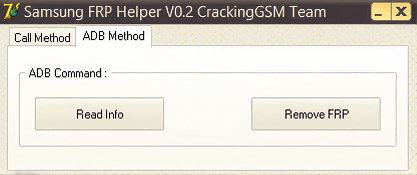
The tool offers two methods for getting this anti-locker onto the device. The Calling Method which uses a software called Real Term to exploit the Samsung dialer, and the ADB Method which uses Android Debug Bridge to push the anti-locker directly to the device.
Both methods require a Windows PC and Samsung USB drivers. The ADB method has an additional hardware requirement that most guides don’t mention, which we’ll cover in the steps below. After the anti-locker is installed there’s a specific disconnect and reconnect step that most people skip and then wonder why the bypass didn’t work. We’ll cover that too.
The tool has one other function worth knowing about. It can also be used to apply FRP lock to a Samsung device. If you’re selling a Samsung phone and want to add FRP protection before handing it over, Samsung FRP Helper can do that too. Not many people know about this reverse function.
Method 1: Calling Method (Real Term Method)
The Calling Method exploits the Samsung phone dialer during an active call to open a pathway to device settings. It requires Real Term, a free serial terminal application, alongside Samsung FRP Helper.
What you need for this method: A Windows PC, Samsung USB drivers installed, Real Term software downloaded and installed, Samsung FRP Helper extracted and ready, and a SIM card with an active plan inserted in the locked Samsung device.
Step 1: Install Samsung USB drivers Download and install Samsung USB drivers from our drivers page if you haven’t already. Restart your PC after installation.
Step 2: Install Real Term Real Term is a free serial terminal program available from various download sites. Install it on your PC. You’ll use it alongside Samsung FRP Helper during the bypass process.
Step 3: Open Samsung FRP Helper as administrator Extract the Samsung FRP Helper archive and right click the executable. Select Run as Administrator. The tool will open showing both method options.
Step 4: Connect the locked Samsung Connect the Samsung device to your PC via USB data cable. The tool should detect it and display the device information. If it doesn’t detect within 30 seconds check your cable and confirm Samsung USB drivers are installed correctly.
Step 5: Select the Calling Method In Samsung FRP Helper select the Calling Method option. The tool will prompt you to open Real Term. Open Real Term and configure it to the COM port that your Samsung is connected on. You can find the correct COM port in Device Manager under Ports.
Step 6: Make or receive a call on the locked device On the locked Samsung device dial any number or have someone call the device. During the active call the tool sends a command through Real Term that exploits the dialer’s open state to push the anti-locker installation command to the device.
Step 7: Complete the anti-locker installation Follow the on-screen prompts in Samsung FRP Helper. The tool will indicate when the anti-locker has been successfully installed on the device.
Step 8: Disconnect, then reconnect This step is the one most guides miss and the most common reason this method fails. After the installation completes, power off the Samsung completely. Disconnect the USB cable. Wait 10 seconds. Reconnect the USB cable and power the device back on. This reconnection step is what activates the anti-locker that was just installed.
Step 9: Complete setup The Samsung should now boot through the setup process without asking for Google account verification. Add any Google account you have access to and complete the normal setup.
Method 2: ADB Method
The ADB Method pushes the anti-locker directly to the device through Android Debug Bridge. It’s more reliable than the Calling Method on supported devices but has one hardware requirement that most guides completely ignore.
The OTG Mouse Requirement To enable USB debugging on an FRP locked Samsung device without using the calling method you need to physically navigate to the developer settings on the locked screen. The problem is that the touchscreen alone can’t always do this on a locked device during setup. Samsung FRP Helper’s ADB method requires you to connect a USB mouse to the Samsung device via a USB OTG adapter. The mouse lets you navigate the setup screen precisely enough to reach the settings pathway needed to enable USB debugging.
This surprises most people because it’s never mentioned in the basic guides. But it’s a genuine requirement for this method on most Samsung models running Android 5 and 6.
What you need for this method: A Windows PC, Samsung USB drivers, ADB drivers, Samsung FRP Helper, a USB OTG adapter compatible with your Samsung’s charging port, and a standard USB mouse.
Step 1: Install drivers Install both Samsung USB drivers and ADB drivers from our drivers page. Restart your PC after installation.
Step 2: Connect the OTG mouse Connect the USB OTG adapter to the Samsung device and plug the USB mouse into it. The mouse should work on the setup screen immediately. Use it to navigate more precisely than you could with just the touchscreen.
Step 3: Enable USB debugging Using the mouse navigate to the setup screen’s settings pathway. On Android 5 and 6 Samsung devices you can often reach About Phone through the setup screen’s emergency or accessibility options. Tap Build Number 7 times to enable developer options, then go to Developer Options and enable USB Debugging.
Step 4: Open Samsung FRP Helper as administrator Extract and run Samsung FRP Helper as administrator on your PC.
Step 5: Connect the Samsung to your PC via USB While the OTG mouse is still connected on one end, connect the Samsung to your PC via USB. On some Samsung models you may need a powered USB hub to handle both the OTG connection and the PC connection simultaneously. The device should appear in Samsung FRP Helper once connected.
Step 6: Select the ADB Method In Samsung FRP Helper select the ADB Method option. The tool will push the anti-locker installation to the device through the ADB connection.
Step 7: Disconnect and reconnect Same as the Calling Method. After the installation completes power off the device completely. Disconnect the USB cable from the PC. Wait 10 seconds. Reconnect and power the device back on. This step is not optional. The anti-locker only activates after this reconnection cycle.
Step 8: Complete setup The FRP verification screen should be gone. Complete the normal Samsung setup process.
What You Need Before Starting
Here’s the complete list of everything required depending on which method you’re using:
For both methods: Windows PC running Windows 7, 8, 10 or 11. Samsung USB drivers installed from our drivers page. Samsung FRP Helper v0.2 extracted and ready. USB data cable that supports data transfer, not charging only. Antivirus temporarily disabled. Samsung device running Android 5 or Android 6 specifically.
Additional for Calling Method: Real Term software installed. SIM card with active plan inserted in locked Samsung. Stable USB connection throughout the call.
Additional for ADB Method: ADB drivers installed. USB OTG adapter compatible with your Samsung’s port type. Standard USB mouse. Possibly a powered USB hub for simultaneous OTG and PC connections.
Download Samsung FRP Helper
The tool is free and very small at under 5MB. It comes as a ZIP or RAR archive.
Remember that there is no official developer site. Download only from verified sources. The link below is a clean build we have checked.
| Version | Android Support | Download |
|---|---|---|
| Samsung FRP Helper v0.2 | Android 5 and 6 only | Download |
Common Errors and Fixes
Tool doesn’t detect the Samsung device Install Samsung USB drivers and restart your PC before connecting the device again. Check that you’re using a data cable not a charging cable. Run the tool as administrator. If the device still doesn’t show try a different USB port.
Real Term can’t find the correct COM port Open Device Manager and look under Ports (COM and LPT) while the Samsung is connected. The Samsung should appear as a Samsung Mobile USB Modem or similar. Note the COM number shown and enter that exact number in Real Term’s configuration.
Anti-locker installed but FRP screen still appears after restart You skipped or rushed the disconnect and reconnect step. Power the device completely off, disconnect the USB cable from both the device and PC, wait a full 10 seconds, then reconnect and power on. The anti-locker only activates after a complete power cycle with the cable disconnected.
OTG mouse not working on the setup screen Try a different OTG adapter. Some cheap adapters don’t pass data correctly. Also confirm your Samsung model supports OTG by checking the specifications. On devices that support OTG the mouse should work immediately on the setup screen without any additional setup.
USB debugging option not appearing in developer settings On some Samsung Android 5 and 6 devices the path to developer options is slightly different. Try navigating through Settings, then About Device, then Software Info and tapping Build Number 7 times. If Settings isn’t accessible through the setup screen the mouse and OTG approach may not be enough on your specific model and the Calling Method is a better option.
Tool freezes or crashes during installation This is a stability issue common in an outdated tool. Close everything, restart your PC and try again. Make sure no other Samsung related software is running in the background that might conflict with the USB connection. Some antivirus programs also interfere even when supposedly disabled, so try adding the Samsung FRP Helper folder to your antivirus exclusion list rather than just disabling protection temporarily.
Device on Android 7 or above and nothing works Samsung FRP Helper does not support Android 7 or above. This is not a settings or driver issue. The tool simply cannot bypass FRP on Android 7 and newer. Read the next section for what actually works on your device.
What to Use Instead on Android 7 and Above
If your Samsung is running Android 7 or above Samsung FRP Helper is the wrong tool for your situation. Here’s what actually works depending on your Android version and security patch:
For Samsung devices on Android 8 through 12 with security patches before December 2022, SamFw FRP Tool is your best starting point. It’s free, widely tested and has a high success rate on older patches. Read our complete SamFw FRP Tool guide.
For Samsung devices on Android 8 through 16 where you also have a Knox Guard lock, ZeroKnox Removal Tool 2.4 is the most capable free option. It handles both FRP and KG removal and offers three different ADB methods giving you multiple approaches if the first one doesn’t work. Read our complete ZeroKnox Removal Tool guide.
For budget Samsung A series and M series devices on Android 12 through 16 with a simple clean interface, Prime Tool X V9.0 is the most beginner friendly option and requires no credits. Read our complete Prime Tool X guide.
For Samsung devices on Android 15 and 16 with firmware before January 2026, HalabTech FRP Tool works through MTP mode without requiring special boot modes. Read our complete HalabTech FRP Tool guide.
If none of the free tools work on your specific Samsung model and patch level, AMT Tool with credits has the highest overall success rate and gets server updates to handle new patches faster than any free tool. Read our complete AMT Tool guide.
FAQ
Does Samsung FRP Helper v0.2 work on Android 10, 11 or 12?
No. Samsung FRP Helper v0.2 only works on Android 5 and 6. Any site claiming it supports Android 9 through 13 is giving incorrect information. Those claims come from content being copied without verification. If your Samsung runs Android 7 or above use one of the tools listed in the section above.
Which method is easier, Calling or ADB?
The Calling Method is simpler in terms of hardware since it only requires Real Term software and an active SIM. The ADB Method requires an OTG adapter and USB mouse which adds hardware but gives you more control over the process. If you have an OTG adapter available the ADB method is generally more reliable when it works. If you don’t have OTG hardware start with the Calling Method.
Why do I need to disconnect and reconnect after installation?
The anti-locker that Samsung FRP Helper installs needs a complete power cycle with the USB cable disconnected to activate. Without this step the anti-locker exists on the device but doesn’t initialize correctly. Think of it like installing a program on a PC where a restart is required before changes take effect. The disconnect reconnect step is that restart for the anti-locker.
Is it safe to download Samsung FRP Helper v0.2 in 2026?
The tool itself is safe and has been used in the repair community for years. The risk comes from where you download it. Modified versions with bundled malware exist on some sites. Only download from the link on this page which we have verified as a clean build.
Can Samsung FRP Helper apply FRP protection as well as remove it?
Yes. The tool works in both directions. You can use it to add FRP protection to a Samsung device you’re preparing to sell, in addition to removing it from a device you own that’s locked. This reverse function is built into the same tool interface.
My Samsung is on Android 6 but Samsung FRP Helper still didn’t work. Why?
Success within the supported Android 5 and 6 range depends on the specific Samsung model and firmware build. Not every Android 6 Samsung device is equally vulnerable to the exploits this tool uses. If the tool fails on your Android 6 device try ZeroKnox or SamFw as alternatives since they cover some Android 6 Samsung models through different bypass methods.
Related Tools
Since Samsung FRP Helper only covers Android 5 and 6, most people reading this guide will need a more modern tool. Here’s where to go next depending on your situation.
SamFw FRP Tool covers Samsung FRP removal from Android 8 through 16 with a free version for devices with patches before December 2022.
ZeroKnox Removal Tool handles Samsung FRP and Knox Guard removal on Android 8 through 16 with three ADB methods and four KG removal methods completely free.
Prime Tool X is the most beginner friendly free Samsung tool covering Android 12 through 16 on budget A and M series devices with no credits required.
HalabTech FRP Tool covers Samsung Android 15 and 16 through MTP mode on devices with firmware before January 2026.
USB Drivers has Samsung USB drivers and ADB drivers needed for Samsung FRP Helper and every other tool in this guide.