
Exynos FRP GSMCode PRO is a brand new free Windows tool released in August 2026 specifically built for Samsung Exynos FRP bypass and it does something most free tools still can’t do cleanly: enable ADB and remove FRP in a single one-click operation through Odin Download Mode. No separate ADB enable tool needed, no extra steps between enabling debugging and running the bypass. You select your Exynos chipset, click Enable ADB and Remove FRP, and the tool handles both in one pass. This guide covers everything about Exynos FRP GSMCode PRO v1.0.0, what it does, the Exynos driver requirement most guides miss, supported chipsets, step by step instructions and honest limitations.
All download links are at the bottom of this page.
⚠️ Disclaimer
The tools and methods on this page are for educational and informational purposes only. Only use them on devices you personally own or have been given explicit permission to work on. Bypassing FRP on a device you don’t own is illegal and can result in serious legal consequences. Always comply with Google’s terms of service and Samsung’s device policies. Rise ROM does not support any unauthorized or illegal use of the tools shared here.
What is Exynos FRP GSMCode PRO
Exynos FRP GSMCode PRO is a Windows-based Samsung Exynos repair tool developed by GSMCodePRO. Unlike broad multi-brand ADB utilities, this tool is focused entirely on Samsung Exynos chipset devices, covering the specific connection modes and FRP methods that Exynos hardware requires.
The developer behind the tool is GSMCode.PRO, a platform primarily known in the repair community for selling professional source code for Android servicing tools. The Exynos FRP tool is their first public free release and it’s significant because it brings a professional grade Exynos bypass approach to the wider repair community without a credit system or activation requirement.
The official listing identifies it as Samsung Exynos FRP Tool 2026 and lists its pricing as 100% free.
What makes it worth paying attention to despite being a v1.0.0 first release is the specific design philosophy. The application operates fully offline, bundling all required dependencies inside the installer package to deliver a seamless servicing experience without needing active internet access during the flashing operation. No server calls, no credit verification, no account login. Install, connect and run.
One thing to be completely clear about upfront: this tool supports older Exynos chipsets from the Exynos 850 through Exynos 990 range. It does not currently support newer Exynos chipsets like Exynos 1280, 1380, 2100, 2200, 2400 or 2500. For those newer chipsets TunaPro Tool v3.9 or a paid option like Z3X SamsTool Online is the current recommended solution. We will cover this clearly in the supported chipsets section.
The Exynos Driver Problem Nobody Mentions
This section exists because it’s the most common reason technicians fail with Exynos FRP Exynos FRP and almost no guide covers it properly.
Standard Samsung USB drivers are not enough for Exynos FRP operations through Odin Download Mode. You need two separate driver packages installed: the standard Samsung USB drivers and a separate Samsung Exynos driver package.
When an Exynos Samsung device connects in Download Mode it identifies itself to Windows differently from how it appears in normal ADB or MTP mode. The Exynos specific driver tells Windows how to communicate with the device through this Odin Download Mode connection. Without it the tool either won’t detect the device at all or will detect it but fail at the ADB enable step with no clear error message.
The source page for this tool includes a dedicated Exynos driver fix file alongside the download. This is the file you use if your Windows is not recognizing the Exynos device correctly after installing standard Samsung USB drivers. The fix zip contains the correct Exynos driver INF files and a guide for manually assigning them through Device Manager.
Samsung USB Driver download link and Exynos Driver fix link are both in the download section at the bottom of this page. Install both before connecting any device. Restart your PC after installing both driver packages.
Key Features of Exynos FRP GSMCode PRO v1.0.0
The initial release of v1.0.0 introduces several fundamental capabilities. Here’s the complete function list:
Remove FRP Samsung Galaxy (Exynos CPU) The primary function. Removes the Google account verification lock that appears after a factory reset on supported Samsung Exynos devices. Works through the ADB connection established in Odin Download Mode.
Enable ADB through Odin Mode Enables Android Debug Bridge on the locked Samsung Exynos device through the Odin Download Mode connection. This is the step that enables all subsequent FRP operations and it’s built directly into the tool without needing any separate ADB enable utility.
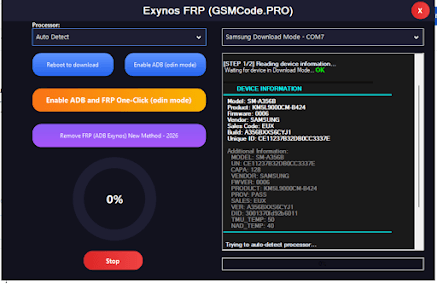
Enable ADB and Remove FRP One-Click (Odin Download Mode) The headline function of the tool. Combines Enable ADB and Remove FRP into a single operation. You click once and the tool handles both steps automatically in sequence. This is the function most technicians will use for every job.
Remove FRP via ADB Exynos New Method 2026 A separate standalone FRP remove function that runs through an established ADB connection. Use this if you already have ADB enabled from a previous step and just need to push the FRP removal command.
Reboot to Download Mode (MTP Mode) One-click reboot into Download Mode directly from the tool interface. Useful when you need to switch the device into the correct connection state without manually triggering the button combination.
Auto Detect Exynos Processor Automatically identifies which Exynos chipset the connected device is running. You don’t need to know the exact chipset number. Connect the device, click Auto Detect and the tool reads the chipset information from the device and selects the correct bypass approach.
Live Progress Display Keep track of operations with a clear numerical percentage and horizontal progress bar. Provides verbose feedback on commands sent and system responses through a real-time log window.
Emergency Stop Button Safely halt active operations at any point if required. Useful when you notice something unexpected during the operation and need to stop before it completes.
100% Offline Operation Built-in drivers and system scripts ensure operation without internet connectivity. No server authentication, no credit system, no account needed.
Supported Exynos Chipsets
Exynos FRP GSMCode PRO v1.0.0 supports the following Exynos chipsets in its initial release:
| Chipset | Common Samsung Models | Notes |
|---|---|---|
| Auto Detect | All supported models | Recommended first option |
| Exynos 850 | Galaxy A21s, A31, M21s | Budget 2020 to 2021 |
| Exynos 9610 | Galaxy A50, A30s, M30s | Mid-range 2019 |
| Exynos 9611 | Galaxy A51, M31, M21 | Mid-range 2020 |
| Exynos 7884 | Galaxy A10, A20, M10 | Budget 2019 |
| Exynos 7884B | Galaxy A10s, A20s | Budget 2019 variants |
| Exynos 7904 | Galaxy A30, A40, M30 | Mid-range 2019 |
| Exynos 9820 | Galaxy S10 series, Note 10 | Flagship 2019 |
| Exynos 9825 | Galaxy S10 Plus, Note 10 Plus | Flagship 2019 |
| Exynos 990 | Galaxy S20 series, Note 20 | Flagship 2020 |
Tested and confirmed working: The tool has been confirmed working on SM-A750FN (Galaxy A7 2018) running older firmware with process time under one minute.
Not currently supported in v1.0.0: Exynos 1280 (Galaxy A53, A33), Exynos 1380 (Galaxy A54, A34), Exynos 1480 (Galaxy A55), Exynos 2100 (Galaxy S21), Exynos 2200 (Galaxy S22), Exynos 2400 (Galaxy S24), Exynos 2500 (Galaxy S25). For these newer chipsets use TunaPro Tool v3.9 which covers the full range of current Exynos chipsets.
What You Need Before Starting
A Windows PC running Windows 7, 8, 10 or 11. The tool is compatible across all Windows versions. Windows 10 or 11 is recommended for most stable driver compatibility.
Samsung USB drivers installed. Standard Samsung USB drivers are the first requirement. Download link is at the bottom of this page. Install and restart your PC.
Samsung Exynos driver installed. This is the one most guides skip. As covered above the Exynos driver is a separate requirement from standard Samsung USB drivers. If after installing Samsung USB drivers the device still doesn’t show correctly in Device Manager when connected in Download Mode use the Exynos driver fix file linked at the bottom to install the correct driver manually. Restart your PC after installing.
WinRAR or 7-Zip. The tool comes as a RAR archive with a password. You need WinRAR or 7-Zip to extract it. Archive password is: mobiletechfrp
A USB data cable that supports data transfer. Not a charging only cable.
Antivirus temporarily disabled. The tool bundles drivers and system scripts that trigger false positive detections. Disable before extracting and running.
Your Samsung Exynos device charged to at least 30%. Download Mode operations involve connection and restart sequences.
Download Exynos FRP GSMCode PRO
Released August 2026. 100% free. RAR archive password: mobiletechfrp
| File | Purpose | Download |
|---|---|---|
| Exynos FRP GSMCode PRO v1.0.0 | Main tool | Download |
| Samsung USB Driver v1.9.0.0 | Required driver | Download |
| Exynos Driver Fix | Fix for Exynos detection issues | Download |
Official developer site: gsmcode.pro/tools/
How to Install and Set Up
Step 1: Install Samsung USB drivers first Run the Samsung USB Driver installer from the download above. Install completely and restart your PC before doing anything else.
Step 2: Extract the tool archive Right click the downloaded RAR file and select Extract Here using WinRAR or 7-Zip. When prompted for a password enter: mobiletechfrp. Extract to your desktop or C drive. Never run from inside the RAR archive.
Step 3: Disable antivirus Before opening the extracted folder disable your antivirus or add the folder to exclusions. The bundled drivers and scripts trigger false positives during extraction on some systems.
Step 4: Install the tool Open the extracted folder and run the Exynos FRP GSMCode PRO installer as administrator. Follow the installation wizard. The tool installs its own bundled dependencies as part of the process.
Step 5: Verify Exynos driver Before connecting any device open Device Manager on your PC. Connect your Samsung Exynos device in Download Mode as described in the step by step guide below. Look for the device in Device Manager. If it shows under Samsung or Android Phone without a yellow warning icon proceed. If it shows with a yellow warning icon or under Unknown Devices run the Exynos Driver Fix and manually assign the correct driver through Device Manager.
Step by Step Guide: Enable ADB and Remove FRP One-Click
This is the recommended workflow for most Exynos Samsung FRP jobs.
Step 1: Open the tool as administrator Find the Exynos FRP GSMCode PRO executable in your installed programs or on the desktop. Right click and select Run as Administrator. The tool opens showing the chipset selection dropdown and function buttons.
Step 2: Put the Samsung device into Download Mode Power off the Samsung Exynos device completely. Hold Volume Down plus Volume Up simultaneously and then connect the USB cable to your PC while holding both buttons. On some Samsung models it’s Volume Down plus Power. The Download Mode screen will appear. Click the Volume Up button to confirm entry into Download Mode when prompted on the screen.
Step 3: Connect to PC Once the device is in Download Mode plug the USB cable into your PC if not already connected. The tool should detect the device within a few seconds. You’ll see the device information populate in the tool’s log area.
Step 4: Select chipset or use Auto Detect From the Exynos chipset dropdown select your device’s chipset. If you’re not sure click Auto Detect. The tool reads the chipset information from the connected device automatically. Auto Detect is accurate on all supported chipsets in v1.0.0.
Step 5: Click Enable ADB and Remove FRP This is the one-click function. Click Enable ADB and Remove FRP. The tool begins the two step process automatically. First it enables ADB through the Odin Download Mode connection. Once ADB is established it immediately pushes the FRP removal command without requiring any manual step between them.
Step 6: Watch the progress The live progress bar and log window show exactly what’s happening. You’ll see the ADB enable stage complete followed by the FRP removal stage. Total process time is typically under 2 minutes on supported devices. The log will show the device information including model, firmware version, build and unique ID during the process.
Step 7: Wait for completion When the log shows the process completed and the progress bar reaches 100% the operation is done. Do not disconnect the cable until the completion message appears.
Step 8: Cold restart the device Disconnect the USB cable from the Samsung. Hold the power button until the device fully shuts down. Count 10 seconds. Power on manually. Do not let the tool trigger an automatic restart.
Step 9: Complete setup The Samsung should boot through the normal setup process without the Google account verification screen. Add any Google account you have access to and complete setup normally.
Alternative: Remove FRP via ADB Exynos New Method 2026
Use this approach if you already have ADB enabled on the device through a previous step and just need to push the FRP removal command directly.
Step 1: Open the tool as administrator with the device connected and detected.
Step 2: Confirm ADB is showing as active in the tool status area.
Step 3: Click Remove FRP (ADB Exynos New Method 2026) directly without going through Enable ADB first.
Step 4: The tool pushes the FRP removal command through the existing ADB connection. Faster than the combined method since it skips the ADB enable stage.
Step 5: Cold restart as described above.
Errors and Fixes
Device not detected after connecting in Download Mode Check your Samsung USB drivers first. Then check your Exynos driver using Device Manager. If the device shows with a yellow warning icon download the Exynos Driver Fix from the download section, extract it and manually install the correct INF file through Device Manager by right clicking the problem device and selecting Update Driver, then Browse and pointing to the extracted fix folder. Restart your PC after the driver fix. Also confirm your USB cable is a data cable not charging only.
Auto Detect shows wrong chipset This can happen if the Exynos driver is partially installed. Run the Exynos Driver Fix, restart your PC and try Auto Detect again. Alternatively manually select your chipset from the dropdown if you know it. Check Settings, About Phone, Processor on the device before it was locked to confirm the exact chipset.
Enable ADB step completes but Remove FRP fails The ADB connection established through Download Mode may have dropped between the two steps. Try the combined one-click function rather than running Enable ADB and Remove FRP separately. The one-click approach keeps the connection active through both steps without the gap that can cause drops.
Process completes but FRP screen still appears after restart Do a proper cold restart. Hold power until fully off, count 10 seconds, power on manually. Never let the tool auto-restart. If the screen persists after a clean cold boot run Remove FRP via ADB Exynos New Method 2026 as a second pass. Some Samsung models need two passes before the FRP flag clears completely.
Tool says chipset not supported Your Samsung Exynos device is likely running a newer chipset not included in v1.0.0. Exynos 1280, 1380, 2100, 2200 and above are not supported in the current version. For those chipsets TunaPro Tool v3.9 covers the full current Exynos range. Check our full Exynos FRP GSMCode PRO tools guide for alternatives.
RAR archive won’t open The password for the archive is mobiletechfrp, all lowercase, no spaces. Enter this exactly when WinRAR or 7-Zip prompts for the password during extraction.
Antivirus deletes files during extraction Set the antivirus exclusion on the extraction destination folder before extracting. Some antivirus programs scan and delete flagged files during the extraction process itself. Setting the exclusion first prevents this.
FAQ
Is Exynos FRP GSMCode PRO completely free?
Yes. v1.0.0 is 100% free with no credits, no activation, no account required. The Samsung Exynos FRP bypass and ADB enable functions are fully accessible without spending anything. The tool operates completely offline once installed.
Which Samsung models does it support?
The tool supports Samsung devices running Exynos 850, 9610, 9611, 7884, 7884B, 7904, 9820, 9825 and 990 chipsets. This covers a wide range of Galaxy A, M and S series devices from 2018 through 2020. Newer chipsets like Exynos 1280, 1380 and 2100 through 2500 are not in v1.0.0.
Why do I need a separate Exynos driver alongside Samsung USB drivers?
When a Samsung Exynos device connects in Odin Download Mode it presents itself to Windows through a different device interface than standard ADB or MTP connections. The Exynos specific driver tells Windows how to communicate through this Download Mode interface. Without it the standard Samsung USB drivers can’t establish the connection the tool needs for ADB enable and FRP operations.
Does it work on Android 15 and Android 16 Samsung Exynos devices?
Current compatibility is confirmed for older firmware versions. For Samsung Exynos devices on Android 15 and 16 with recent 2025 and 2026 security patches TunaPro Tool v3.9 which supports Android 14, 15 and 16 across a much wider Exynos chipset range is the recommended option.
What is the RAR archive password?
The password is mobiletechfrp, all lowercase with no spaces. Enter this when WinRAR or 7-Zip asks for the password during extraction.
Is this tool safe to download?
The tool is developed by GSMCode.PRO, a known developer in the mobile repair source code community. The download link at the bottom of this page is the official MediaFire link provided by the developer. Run your antivirus on the downloaded file after extraction if you want additional confirmation before running. Disable real-time antivirus protection during installation to prevent false positive blocking.
Related Tools
For newer Samsung Exynos chipsets not supported in GSMCode PRO v1.0.0 here are the alternatives:
TunaPro Tool v3.9 covers Exynos 850 through Exynos 2500 with Android 14, 15 and 16 support. The Samsung Exynos section is free with simple registration.
Z3X SamsTool Online V1.34 is the professional paid option covering all Exynos chipsets across Android 12 through 16 with server-side authentication. Read our full guide for the complete feature list and pricing.
Samsung FRP Tools is our complete comparison of every major Samsung FRP tool in 2026 including free and paid options for both Exynos and Qualcomm devices.
USB Drivers has Samsung USB drivers alongside Exynos specific drivers and all other chipset drivers your repair tools need.
SamFw FRP Tool V5.9 covers Samsung Exynos FRP through paid credits in its V5.5.1 and later versions. Good option for repair shops already using SamFw for Qualcomm Samsung work.