
Z3X SamsTool Online is the most significant Samsung repair tool release in years and V1.34 brings improved Android 15 and Android 16 FRP methods, updated server protocols and broader device coverage to what is already the most comprehensive cloud-based Samsung servicing platform available. If you’re still using the old Z3X Samsung Tool PRO box or struggling with free tools that can’t keep up with modern Samsung security patches, this guide explains exactly what Z3X SamsTool Online is, what changed in V1.34, how activation works, what it costs honestly, and how to use it for FRP bypass and IMEI repair step by step.
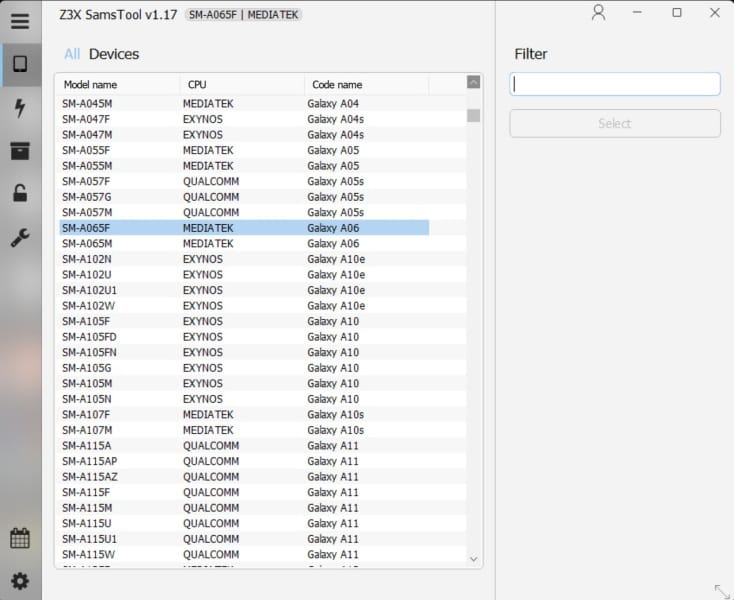
Z3X SamsTool Online is a subscription-based professional tool designed to perform thorough diagnostics, repairs and restores of smartphones and tablets. This software is a must-have for service centers and individual professionals who need a comprehensive set of functions to effectively perform various tasks related to mobile device service.
All download links are at the bottom of this page.
⚠️ Disclaimer
The tools and methods on this page are for educational and informational purposes only. Only use them on devices you personally own or have been given explicit permission to work on. Bypassing FRP, removing MDM locks or performing IMEI repair on a device you don’t own is illegal and can result in serious legal consequences. Always comply with Google’s terms of service and Samsung’s device policies. Rise ROM does not support any unauthorized or illegal use of the tools shared here.
SamsTool Online vs Z3X Samsung Tool PRO – What’s the Difference
This is the question every repair shop asks when they first hear about SamsTool Online and almost no guide answers it clearly. Here’s the straight answer.
Z3X Samsung Tool PRO is the original Z3X product. It’s been around for over a decade and requires a physical Z3X Box, a USB dongle that you plug into your PC alongside the device you’re repairing. The box authenticates your license and enables the tool functions. For years this was the gold standard for Samsung repair. Most operations were handled offline with the box doing the authentication locally.
Z3X SamsTool Online is the next generation product. Unlike the legacy Samsung Tool PRO which uses a physical hardware box, SamsTool Online is a software-only, dongle-free tool that activates on your Windows PC with a 1-year licence and connects to the Z3X cloud server for each operation. No physical box required. You buy an activation, install the software and every operation authenticates through Z3X’s servers over the internet.
Why did Z3X make this shift? SamsTool Online became essential in 2023 when Samsung introduced enhanced bootloader security on the Galaxy S23 and S24 series on Android 13 and 14 that the offline box tool could no longer bypass without live server authentication. The old box simply couldn’t keep up with Samsung’s security evolution. Server-side authentication allows Z3X to push bypass updates for new Samsung security patches within days without requiring users to update the tool software itself.
After Chimera, SamsTool Online becomes the second tool in the world to offer one-time activation with the power to unlock almost any Samsung Exynos device in just a few clicks, no monthly fees, no tokens.
In short: if you’re servicing modern Samsung devices from 2022 onwards, SamsTool Online is what you need. The old Samsung Tool PRO box still works for older devices but it’s increasingly limited on current Samsung models.
Why SamsTool Online Became Essential in 2023 and Beyond
Samsung has been progressively hardening its security with every Android update since Android 12. The changes that arrived with the Galaxy S23 and S24 series in particular made server-side authentication non-optional for reliable FRP bypass and IMEI repair on flagship devices.
The core issue is that Samsung’s newer firmware requires real-time server verification during bypass operations. The device sends an authentication challenge to the tool and the tool must respond with a valid server-generated key. An offline tool like the old Z3X box simply doesn’t have access to the server infrastructure needed to generate those responses. A cloud-connected tool like SamsTool Online can get the response from Z3X’s servers in real time during the operation.
As of 2026, SamsTool Online is the primary recommended tool for servicing all current-generation Samsung devices on Android 13, 14 and 15.
For repair shops handling a mix of older and newer Samsung devices the practical reality is that SamsTool Online covers both. The older Samsung models that the box tool handled well are also supported in SamsTool Online, so there’s no scenario where you need both tools running simultaneously.
What’s New in Z3X SamsTool Online V1.34
The V1.34 update brings improved Android 15 and Android 16 FRP methods, updated server protocols and broader device coverage. Here’s every change broken down clearly:
Improved Android 15 and Android 16 FRP Methods Samsung’s Android 15 and 16 firmware introduced new FRP verification layers that required updated bypass approaches. V1.34 specifically addresses these with refreshed server-side methods that improve success rates on the latest Samsung firmware builds. If you were seeing FRP removal failures on Samsung Android 16 devices in V1.33, V1.34 is the primary reason to update.
Updated Server Protocols The communication between SamsTool Online and Z3X’s servers has been optimized in V1.34. This translates to faster operation completion times and more reliable connections during bypass operations. Users on slower internet connections in particular should see improvement since the updated protocols handle unstable connections more gracefully than V1.33.
Broader Device Coverage New Samsung models have been added to the supported database in V1.34. The exact model list is maintained on Z3X’s official portal but the expansion continues the trend of each version adding Korean market variants, newer A series models and recently released Galaxy Z series devices.
Bug Fixes from V1.33 Several stability issues from V1.33 have been resolved including an edge case where certain Samsung Exynos models were failing at the EUB mode switching step, and an issue where read info was returning incomplete data on some Galaxy Tab models.
Version History – V1.28 to V1.34
SamsTool Online V1.28 Added new EDL loaders for multiple Samsung A and M series bit versions. Improved stability on Qualcomm Samsung devices in download mode. Bug fixes for KG unlock on certain Galaxy S series models.
SamsTool Online V1.29 Expanded Exynos support with additional Galaxy S series models. Added network factory reset function. Improved server response times for FRP operations. Fixed occasional timeout errors during IMEI repair operations.
SamsTool Online V1.30 Added Galaxy Z Fold and Flip series to the supported model database. Improved bootloader unlock reliability on Samsung Qualcomm devices. Fixed CSC change issues on some regional Samsung variants.
SamsTool Online V1.31 Added support for manual MCC/MNC input for Relock operation. Added support for new bit versions including SM-A235F Bit C, SM-A235M Bit D. Improved stability during EFS backup and restore operations. Fixed USB detection issues on certain Windows 11 configurations.
SamsTool Online V1.32 Added support for Exynos 9810 in EUB models. Auto select BL files for ODIN during EUB and Repair operations. Fixed some bugs. This was a significant Exynos update since Exynos 9810 powers the Galaxy S9 and Note 9 series, devices that are still common in repair shop circulation.
SamsTool Online V1.33 Added SM-A236B Bit E, SM-A736B Bit B, SM-E236B Bit E, SM-M145F Bit B, SM-S918U Bit 7 and SM-S928N Bit 5 via EDL. Added auto root workflow with bootloader unlock, firmware write and root APK installation through ADB. Improved rooting process on supported Samsung devices.
SamsTool Online V1.34 Improved Android 15 and Android 16 FRP methods. Updated server protocols for faster and more stable operations. Broader device coverage. Fixed Exynos EUB mode switching on certain models. Fixed incomplete read info on Galaxy Tab models.
Full Features Breakdown
Z3X SamsTool Online key features include: Repair IMEI, Repair MAC, Patch Certificate, Reset FRP Lock and FRP Remove, Network Factory Reset, Read Codes Online, SW Change, Unlock and Relock Bootloader, CSC Change, Device Info, Read Certificate, Write Certificate, Store and Restore Backup.
Here’s the complete function list organized by category:
FRP and Account Functions: Remove FRP Lock supporting latest Android 15 and Android 16 security patches. Remove FRP with enhanced security bypass for newer Samsung models. Network factory reset to clear device without accessing device settings. FRP removal across all connection modes including ADB, MTP, Download Mode and EUB mode.
MDM and Knox Functions: Remove MDM Lock for enterprise Samsung devices under company management. Remove KG Lock for Samsung Knox Guard locked devices including finance company locks. Set KG State for device management purposes. Knox disable on supported Samsung models.
IMEI and Network: Repair IMEI on all supported chipsets including Qualcomm, Exynos, MediaTek and Unisoc. Repair MAC address. Read Codes Online for network unlock codes. Fix WiFi issues caused by corrupted EFS. Repair serial number. Read and write EFS partition for IMEI and network calibration data backup.
Firmware and Flashing: Read and write firmware on supported Samsung models. Auto select BL files for ODIN during EUB and repair operations. Write Flash with root option for auto root workflow. SW Change for firmware version switching. Patch Certificate for device software authorization.
Bootloader: Unlock bootloader on supported Samsung devices. Relock bootloader after operations. Switch to Exynos EUB mode for deep level Exynos repairs. Manual MCC/MNC input for relock operations on carrier specific devices.
Device Information and Diagnostics: Read full device info including model, IMEI, serial number, firmware version, bit version and chipset. Read Certificate. Battery information. Bit display in device information.
Backup and Restore: Store and restore full device backup. EFS backup before any IMEI operation. Certificate backup and restore.
Connection Modes: MTP mode, ADB mode, Fastboot mode, Download mode, EUB mode for Exynos devices, EDL 9008 mode for supported Qualcomm models. The multi-mode support is one of SamsTool Online’s strongest advantages since different Samsung models and firmware states respond to different connection modes.
Supported Chipsets and Samsung Models
Z3X SamsTool Online supports Samsung Exynos-based Android phones to unlock FRP, KG and Factory Reset. It also supports Qualcomm, MediaTek and UniSOC-based Samsung Galaxy smartphones and tablets.
By Chipset:
| Chipset | FRP | IMEI Repair | Bootloader | MDM/KG |
|---|---|---|---|---|
| Samsung Exynos | Yes | Yes | Yes | Yes |
| Qualcomm Snapdragon | Yes | Yes | Yes | Yes |
| MediaTek (MTK) | Yes | Some models | Some models | Yes |
| Unisoc | Yes | Some models | Some models | Yes |
By Samsung Series:
| Series | FRP Support | IMEI Repair | KG Unlock | Android Range |
|---|---|---|---|---|
| Galaxy S Series | Yes | Yes | Yes | Android 10 to 16 |
| Galaxy A Series | Yes | Yes | Yes | Android 9 to 16 |
| Galaxy M Series | Yes | Yes | Some models | Android 10 to 15 |
| Galaxy J Series | Yes | Some models | No | Android 8 to 11 |
| Galaxy Note Series | Yes | Yes | Yes | Android 10 to 14 |
| Galaxy Tab Series | Yes | Yes | Some models | Android 10 to 16 |
| Galaxy Z Fold and Flip | Yes | Yes | Yes | Android 11 to 16 |
Recently Added Models in V1.31 through V1.34: SM-A235F Bit C, SM-A235M Bit D, SM-A235N Bit C, SM-A236B Bit E, SM-A736B Bit B, SM-E236B Bit E, SM-M145F Bit B, SM-S908N Bit 9, SM-S911N Bit 8, SM-S916N Bit 8, SM-S918U Bit 7, SM-S928B, SM-S928N Bit 5 and Bit 6, Exynos 9810 EUB variants including Galaxy S9, S9 Plus and Note 9.
Activation and Pricing – Honest Breakdown
This is the section most guides avoid and it’s what you need to know before spending anything.
How activation works: One license is issued only for one personal computer for one year. The license can be switched to another computer only in case of a technical problem with it. This means you buy once, activate on one PC and use for 12 months. After 12 months you renew. There are no per-operation credits. Every operation within the activation period is covered by the single license cost.
Is it truly no monthly fees and no tokens? Yes. After Chimera, SamsTool Online becomes the second tool in the world to offer one-time activation with the power to unlock almost any Samsung Exynos device in just a few clicks, no monthly fees, no tokens. You pay once per year per PC and every supported operation is included.
Promotional pricing: For the first three months after the release of SamsOnline Tool, Z3X is offering three stages of promotional discount for users who love and trust Z3X after years of use. The price increases every month on the first of the following month. Each stage has a limited supply so it is first come, first served. If you’re reading this during the promotional window check z3x-team.com for the current pricing stage.
Where to buy: Purchase directly through z3x-team.com or through authorized Z3X resellers in your region. Avoid purchasing activation codes from unofficial Telegram channels or third party sites since deactivated or cloned codes do circulate in some markets.
HWID Dongle — Coming Soon: HWID Dongle coming soon will allow you to use the tool on multiple PCs without binding to a single machine or login. This is significant for repair shops running multiple workstations. The current one PC per license limitation means busy shops need multiple activations. The HWID dongle will solve this. No release date has been confirmed but it’s actively in development.
Who should pay for it: Repair shops servicing modern Samsung devices daily. The license cost is recovered within a handful of successful IMEI repairs or FRP bypasses on premium Samsung models where alternative tools struggle. For shops in Exynos markets specifically there is currently no comparable free option for reliable Exynos FRP removal at scale.
What You Need Before Starting
A Windows PC running Windows 8, 10 or 11. This version is only available for Windows 8, 10 and 11 in 32 bit and 64 bit architecture. Windows 7 is not supported unlike some older Samsung tools.
Active internet connection with minimum 5 Mbps. SamsTool Online connects to the Z3X cloud server for every operation. A stable internet connection of minimum 5 Mbps is required throughout the operation. Operations will fail or hang if your connection drops mid-process. A wired Ethernet connection is strongly recommended over Wi-Fi for repair shops doing multiple operations daily.
Samsung USB drivers installed. The tool includes its own driver installer or you can download from our drivers page. Restart your PC after driver installation.
A valid Z3X account with active SamsTool Online activation. Create a free Z3X account at z3x-team.com. Purchase the SamsTool Online activation through the official portal or an authorized reseller. The tool won’t function without valid activation.
A USB data cable that supports data transfer. Not a charging only cable. Try a different cable before changing any settings when troubleshooting detection issues.
The locked Samsung device charged to at least 30%. Operations involve device mode changes and restarts. A dead battery mid-operation can leave things in an incomplete state.
Antivirus exclusion set up. Add the SamsTool Online installation folder to your antivirus exclusion list before installing. The tool uses scripts and server connections that trigger false positive detections in most antivirus programs.
Wi-Fi connected on the locked Samsung device for certain operations. FRP operations particularly on Android 15 and 16 devices require the locked Samsung to have an active internet connection during the process. Connect to Wi-Fi on the setup screen before starting the PC side of any FRP operation.
Download Z3X SamsTool Online V1.34
Always download from the official Z3X Team website or from our verified download link below. Third party sites frequently distribute outdated versions or modified builds. If the tool is being blocked by antivirus add it to your exclusion list.
Watch for fake download buttons on mirror sites. These pages often surround the real download link with large advertisement buttons that look identical to the actual download. Scroll carefully.
| Version | Key Update | Download |
|---|---|---|
| V1.34 (Latest) | Android 15 and 16 FRP improved, server protocols updated | Download |
| V1.33 | Auto root workflow, new EDL models | Download |
| V1.32 | Exynos 9810 EUB support, auto BL select | Download |
How to Install and Activate
Step 1: Download and extract Download the V1.34 setup file from the link above. The file is around 130MB and comes as a standard Windows installer rather than a portable archive. Run the installer directly after downloading.
Step 2: Add to antivirus exclusion before installing Before running the installer add the download folder and the planned installation directory to your antivirus exclusion list. Some antivirus programs block the installer from completing because of how the tool communicates with Z3X servers.
Step 3: Run the installer as administrator Right click the installer and select Run as Administrator. Follow the installation wizard. The tool installs to Program Files by default. Accept the default location unless you have a specific reason to change it.
Step 4: Install Samsung USB drivers After installation opens the tool for the first time and navigate to the driver installation section. Install Samsung USB drivers from within the tool. Restart your PC after driver installation.
Step 5: Log in with your Z3X account Open SamsTool Online and click Login. Enter your Z3X account email and password. The tool connects to Z3X servers to verify your credentials and activate the license on your current PC. This HWID binds the license to this specific PC for the activation year.
Step 6: Verify activation Once logged in the tool dashboard shows your activation status, expiry date and supported function list. Confirm everything shows correctly before connecting any device.
Step 7: Connect your Samsung Plug the Samsung device into your PC via USB. The tool detects it automatically and displays the model, chipset, Android version and current firmware build.
Step by Step Guide – FRP Bypass
SamsTool Online supports FRP bypass through multiple connection modes. The correct mode depends on your specific Samsung model and its current state. All three primary methods are covered below.
ADB Method – Most Common
Step 1: Open SamsTool Online as administrator and confirm your Samsung is detected in the device information panel.
Step 2: On the locked Samsung tap Emergency Call. Type *#0*# to open Samsung test mode. Leave the test mode screen open.
Step 3: In SamsTool Online select FRP Remove and confirm ADB is shown as the connection mode. Click Start.
Step 4: The tool enables ADB through the test mode entry point and pushes the FRP removal command. Progress shows in the log panel. This takes 1 to 3 minutes on most Samsung models.
Step 5: When the log shows success disconnect the USB cable. Hold the Samsung power button until fully off. Count 10 seconds. Power on manually. Complete normal Samsung setup.
MTP Method – For Devices Where Test Mode is Blocked
Step 1: Connect the locked Samsung to your PC via USB. When Windows asks what to do with the connected device select File Transfer or MTP.
Step 2: In SamsTool Online confirm MTP mode is shown in the connection panel. Select FRP Remove and click Start.
Step 3: The tool pushes the FRP removal through the MTP file transfer connection. This method is slower than ADB taking 3 to 6 minutes but works on models where the *#0*# code is patched.
Step 4: Cold restart as above after completion.
Download Mode Method – For Newer Samsung Models
Step 1: Power off the Samsung completely. Hold Volume Down and connect the USB cable to enter Download mode. Volume Up to confirm if prompted.
Step 2: In SamsTool Online confirm Download Mode is shown. Select FRP Remove and click Start.
Step 3: The tool communicates through the Download mode connection. On Android 15 and 16 Samsung devices this is often the most reliable method since V1.34 specifically improved its Android 15 and 16 FRP handling through Download mode.
Step 4: Cold restart after completion.
Step by Step Guide – IMEI Repair
IMEI repair is one of SamsTool Online’s strongest functions. Always back up EFS before any IMEI operation.
Step 1: Open SamsTool Online and connect the Samsung device. Confirm the device is detected with correct model information showing.
Step 2: Navigate to the Backup section and click EFS Backup. Save the backup file to a safe location on your PC. This is the most important step. A corrupted IMEI repair without a backup can leave the device with no cellular connectivity and no way to restore it cleanly.
Step 3: Once EFS is backed up navigate to IMEI Repair. Click Read Info to display the current IMEI state. Confirm whether the IMEI is corrupted, null or showing incorrectly.
Step 4: Enter the correct IMEI number in the repair field. You can find the original IMEI on the device box, the back of the device under the battery cover on older models, or through your Samsung account if the device was registered.
Step 5: Click Repair IMEI. The tool writes the IMEI to the EFS partition through the server connection. This takes 1 to 2 minutes.
Step 6: After completion click Read Info again to verify the IMEI is now showing correctly.
Step 7: Cold restart the device. Confirm network registration is working by checking the signal indicator in the top bar.
Errors and Fixes
Device not detected after connecting Install Samsung USB drivers through the tool’s driver section or from our drivers page. Restart your PC after installation. Use a data cable not a charging cable. Run the tool as administrator. Try USB 2.0 port instead of 3.0. Enable USB Debugging on the Samsung device before connecting if accessible.
Activation error on login Verify your Z3X account credentials at z3x-team.com. If your activation has expired renew your license through the official Z3X website or reseller. Check that your PC’s date and time are correct since license validation is time-sensitive. If the activation was previously used on another PC it may need to be released from that machine first through your Z3X account portal.
Operation stuck at 0% Restart both the tool and the device. Try switching between different connection modes such as ADB, MTP and COM. Ensure the device is not in download mode when starting the ADB or MTP operation. Also check your internet connection speed and stability since operations stuck at 0% often indicate a server connection issue rather than a USB connection problem.
FRP removal fails on Samsung Android 16 The V1.34 update supports most Android 16 patches. If you have a very recent firmware build check Z3X update channels for the latest server-side updates. Update to V1.34 if on an older version. Try switching connection modes. Ensure Wi-Fi is active on the locked Samsung during the operation.
Exynos EUB mode switching fails This was specifically fixed in V1.34 for certain Exynos models. Update to V1.34. If it persists confirm your Samsung USB drivers are current and try a different USB cable. EUB mode switching is sensitive to USB connection quality.
IMEI repair showing error after write Restore your EFS backup immediately if you took one before starting. If no backup exists contact Z3X support with the operation log. Do not power cycle the device repeatedly if IMEI write failed as this can sometimes worsen the EFS state.
Tool crashes on Windows 11 Add the SamsTool Online folder to Windows Defender exclusions specifically not just your third party antivirus. Windows Defender sometimes blocks tool functions even when a third party antivirus is disabled.
Z3X SamsTool Online vs SamFw vs ZeroKnox vs AMT Tool
| Tool | Price | Exynos | Android 16 | IMEI Repair | Server Auth | Best For |
|---|---|---|---|---|---|---|
| Z3X SamsTool Online V1.34 | Paid yearly activation | Yes | Yes | Yes | Yes | Professional shops, all Samsung |
| SamFw FRP Tool V5.9 | Free with paid credits | Yes (paid) | Yes | No | Yes (credits) | Samsung FRP focus |
| ZeroKnox Removal 2.4 | Free | No | Yes | No | No | Samsung FRP and KG |
| AMT Tool V1.3.5.2 | Paid credits | Limited | Yes | Yes | Yes (credits) | Multi-brand repair |
| Prime Tool X V9.0 | Free | No | Yes | No | No | Budget Samsung |
The IMEI Repair and Server Auth columns tell the story. SamsTool Online is the only tool in this comparison that handles IMEI repair with server authentication on modern Samsung devices. For professional repair shops that combination is what justifies the yearly activation cost.
FAQ
Is Z3X SamsTool Online completely free?
No. SamsTool Online requires a paid yearly activation license. The software download is free but without an active activation purchased through Z3X or an authorized reseller the tool won’t perform any operations. There is currently a promotional pricing discount during the first three months after release.
How many PCs can I use with one SamsTool Online license?
One active PC at a time. You can transfer the license to a different PC by deactivating on the current machine first. A HWID dongle for multi-PC use without deactivation is coming soon but has no confirmed release date.
Does Z3X SamsTool Online work without an internet connection?
No. SamsTool Online connects to the Z3X cloud server for every operation. A stable internet connection is required throughout. Every function including FRP bypass and IMEI repair requires a live server connection. This is fundamental to how the tool’s authentication system works.
What is the difference between SamsTool Online and Z3X Samsung Tool PRO?
Samsung Tool PRO is the original Z3X product requiring a physical USB box dongle for activation and mostly offline operation. SamsTool Online is the next generation software-only product with cloud-based authentication and no physical box required. SamsTool Online covers modern Samsung security that the box tool can no longer handle.
Does SamsTool Online cover Samsung Exynos devices?
Yes. Exynos support across Qualcomm, MediaTek and Unisoc Samsung devices is one of SamsTool Online’s core strengths. Exynos FRP bypass, IMEI repair, bootloader unlock and EUB mode operations are all supported within the activation.
What is the HWID Dongle that’s coming soon?
The HWID Dongle is a physical USB device in development that will allow repair shops to use SamsTool Online on multiple PCs without binding the license to a single machine. Currently each activation is tied to one PC. The dongle will allow flexible multi-workstation use. No release date has been officially announced.
Related Tools
SamFw FRP Tool V5.9 covers Samsung Qualcomm FRP removal free for devices with patches before December 2022. Good starting point before committing to SamsTool Online activation.
ZeroKnox Removal Tool handles Samsung FRP and Knox Guard removal on Android 8 through 16 completely free. Best free option for Samsung repair shops on a budget.
Samsung FRP Tools is our complete honest comparison of every major Samsung FRP tool in 2026 including free and paid options with success rates by Android version.
USB Drivers has Samsung USB drivers alongside all chipset drivers your repair tools need for device detection.
OTA Firmware is where to find Samsung firmware files for flash operations alongside SamsTool Online’s firmware functions.
[…] Z3X SamsTool Online V1.34 is the professional paid option covering all Exynos chipsets across Android 12 through 16 with server-side authentication. Read our full guide for the complete feature list and pricing. […]
[…] Z3X SamsTool Online V1.34 is the direct paid competitor to UnlockTool for Samsung Exynos coverage. Read our full comparison to decide which paid option fits your shop best. […]
[…] Z3X SamsTool Online V1.34 is the direct professional alternative covering all Exynos chipsets with IMEI repair and server-side authentication. […]