
Android Utility Tool Pro V200.01.0001 is one of the most significant releases in this tool’s history and if you’ve been following the repair community, you already know why. Released on January 1 2026, this version adds Samsung Android 16 FRP bypass, fixes Motorola UniSoC Boot Repair, upgrades the Xiaomi RAM check function, expands MediaTek Meta Mode support and does all of it completely offline with no internet connection, no login and no forced updates. For repair shops in areas with unreliable internet or for technicians who prefer a stable fixed version tool this is the most important advantage V200.01.0001 has over cloud-dependent alternatives.
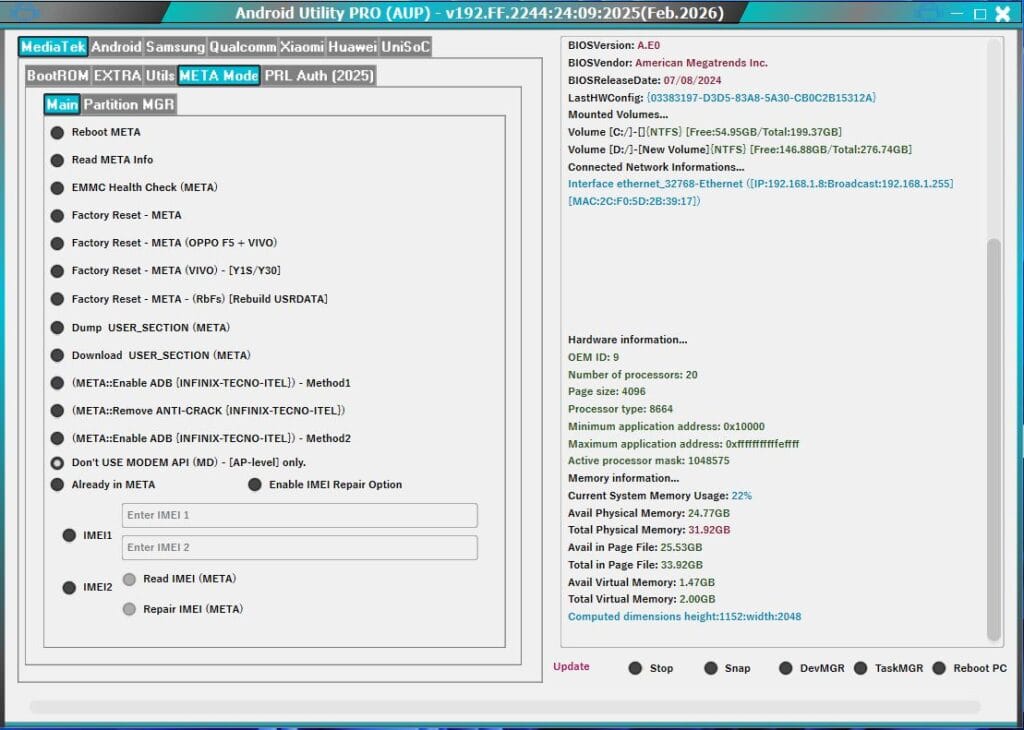
This guide covers everything about Android Utility Tool Pro V200.01.0001. What it does, what’s new, the dongle situation explained honestly, the specific brands you absolutely should not use Meta Mode factory reset on, how to install it, and step by step instructions for every major function.
All download links are at the bottom of this page.
⚠️ Disclaimer
The tools and methods on this page are for educational and informational purposes only. Only use them on devices you personally own or have been given explicit permission to work on. Bypassing FRP, flashing firmware or performing system level operations on a device you don’t own is illegal and can result in serious legal consequences. Always comply with Google’s terms of service and your device manufacturer’s policies. Rise ROM does not support any unauthorized or illegal use of the tools shared here.
What is Android Utility Tool Pro
Android Utility Tool Pro, commonly called AUT Pro or AUP, is a professional all-in-one Android repair and unlocking software designed for mobile technicians and advanced users. It supports a wide range of Android devices including Samsung, Xiaomi, Huawei, MediaTek, Qualcomm and UniSoC platforms. The tool allows flashing, FRP bypass, boot repair, firmware updates and advanced diagnostic functions from a single Windows interface.
What makes Android Utility Tool Pro different from tools like SamFw or ZeroKnox is its breadth. Where SamFw focuses specifically on Samsung and ZeroKnox focuses on Samsung FRP and Knox, AUT Pro covers MediaTek, Qualcomm and Unisoc across multiple brands. It’s the kind of tool repair shops keep installed alongside Samsung-specific tools because it fills the gaps those tools leave.
The V200 series represents a major version milestone. Previous versions in the V100 and V150 series were solid but V200 brought a fundamental rebuild of the core architecture with faster operation handling, better chipset recognition and the offline-first design philosophy that makes V200.01.0001 particularly valuable.
One thing to know upfront about the feature structure: Android Utility Tool Pro has a dongle-based tier and a no-dongle tier. Some advanced functions require a physical smart card dongle to unlock. If you open the tool and see a smart card error it means no dongle is connected and only limited features are available. The standard FRP bypass, Meta Mode and most repair functions work without a dongle in the free tier. We will cover exactly which functions need the dongle and which don’t throughout this guide.
What’s New in V200.01.0001 – Full Changelog Explained
The V200.01.0001 update released on January 1 2026 is a meaningful release with specific targeted improvements. Here’s every change explained clearly:
Samsung Android 16 FRP Support Added
This is the headline feature of V200.01.0001. Android 16 FRP bypass for Samsung devices has been added with one-click solution improvements in both MTP Mode and Download Mode for new security patches from 2025 and 2026. Samsung Android 16 devices were not supported in previous V200 builds and required workarounds or alternative tools. V200.01.0001 brings them into the standard workflow.
Xiaomi 14C and 15C RAM Check Upgraded
The RAM check function for Xiaomi 14C and 15C devices has been upgraded to work without requiring a DA (Download Agent) file. Previously this function needed a specific DA file to communicate with the device which added complexity and potential failure points if the DA file didn’t match the firmware version. The upgrade removes that dependency entirely.
Motorola UniSoC Boot Repair Fixed
Motorola UniSoC boot repair was broken in previous V200 builds and is now fixed and fully functional. Motorola devices running UniSoC chipsets that were stuck in boot loops or partially corrupted boot states can now be repaired through AUT Pro without needing a separate tool.
MediaTek Meta Mode Expanded
The MediaTek Meta Mode function now supports additional device types including Oppo F5, Vivo, Vivo Y1s, Vivo Y30 and the RbFs Rebuild Userdata function alongside Dump Partition Userdata. These additions significantly expand the MediaTek Meta Mode coverage for budget and mid range devices from these brands.
Offline Operation Optimized
V200.01.0001 is specifically optimized for completely offline operation. No internet connection is required for any function. No login is required. No forced updates push during operation. No verification lifetime requirement. The Android Utility Tool Pro is installed once and works indefinitely without needing to check in with any server. This is a deliberate design choice in V200.01.0001 that separates it from cloud-dependent tools.
Performance Improvements
Faster operation handling across all functions with a smoother interface response during chipset detection and operation execution. Internal stability issues from earlier V200 builds have been resolved.
Bug Fixes
Several internal stability issues resolved including connection handling improvements for certain Qualcomm devices in EDL mode and MediaTek device recognition for newer MT6835 and MT6877 based models.
The Locked BootROM Warning – Critical Information
This is the most important safety section in this guide and it’s buried at the bottom of every competing post or missing entirely. Read this before using any factory reset or Meta Mode function.
Do not use factory reset Meta Mode on devices that have locked BootROM such as Blu, Celero 5G, TCL, Revvl and Nokia HMD.
These specific device brands have locked BootROM configurations that respond differently to Meta Mode factory reset commands. Using factory reset Meta Mode on a device with a locked BootROM can cause the device to enter a state where it cannot be recovered through standard methods. The device may show a dm-verify error after format saying the device is corrupted and cannot be trusted. A large part of these affected devices are dedicated to Tracfone and T-Mobile carriers.
If you’re working on a device from these brands and need to perform a factory reset use the standard ADB factory reset method or a firmware flash instead of the Meta Mode approach.
For MediaTek devices from other brands not on this list Meta Mode factory reset works as intended. The warning is specifically for the locked BootROM brands listed above.
Dongle vs No Dongle – What’s Free and What Needs Activation
Android Utility Tool Pro uses a smart card dongle for its highest tier functions. Here’s the honest breakdown:
Available without dongle (free tier):
FRP bypass on supported MediaTek, Qualcomm and Samsung devices. Factory reset through standard methods. Boot repair on supported devices. MediaTek Meta Mode operations. Xiaomi RAM check. Motorola UniSoC boot repair. Device information reading. Basic flashing functions.
Requires dongle (paid tier):
Certain advanced partition management functions. Some IMEI repair operations on specific chipsets. Extended firmware write functions beyond standard flash operations. The exact dongle-required functions are indicated within the Android Utility Tool Pro interface when you attempt to use them. The tool shows a smart card error message when you try to access a dongle-required function without the dongle connected.
Should you buy the dongle?
For repair shops doing high volume work the dongle unlocks capabilities worth having. For technicians using AUT Pro primarily for FRP bypass, boot repair and standard flash operations the free tier handles everything you need. Try the free tier first and only consider the dongle if you consistently hit functions that require it in your daily work.
Full Features Breakdown
Here’s everything Android Utility Tool Pro V200.01.0001 can do organized by chipset and function category:
Samsung Functions:
Remove FRP on Android 8 through 16 including new security patches. One-click FRP removal in MTP Mode. FRP bypass in Download Mode for newer Samsung security patches. Factory reset via ADB. Soft brick fix. Read device information. CSC change on supported models. Screen lock removal on supported Samsung models.
MediaTek Functions:
FRP bypass on MTK based devices. Meta Mode operations including factory reset on supported brands. RbFs Rebuild Userdata for corrupted userdata partitions. Dump Partition Userdata for data recovery scenarios. Boot repair on bricked MediaTek devices. Firmware flash via Scatter file. BROM mode operations. Preloader mode operations. Format userdata and cache. Factory reset in both standard and Meta Mode.
Qualcomm Functions:
FRP bypass on Qualcomm based Android devices. EDL mode operations for deep level repairs. Firmware flash on supported Qualcomm models. Boot repair for Qualcomm devices stuck in bootloops. Factory reset. IMEI repair on supported Qualcomm chipsets (dongle may be required for some models).
UniSoC and SPD Functions:
FRP bypass on UniSoC and SPD chipset devices. Factory reset. Boot repair including the newly fixed Motorola UniSoC boot repair in V200.01.0001. Firmware flash on supported SPD models. Format userdata.
Xiaomi Specific:
FRP bypass on Xiaomi MTK and Qualcomm devices. RAM check for Xiaomi 14C and 15C now without DA file requirement. Mi Account operations on supported models.
Vivo and Oppo Specific:
FRP bypass on Vivo and Oppo MediaTek devices including Oppo F5 and Vivo Y1s and Y30 added in V200.01.0001. Meta Mode access on supported models. Factory reset through Meta Mode.
Motorola Specific:
FRP bypass on Motorola Qualcomm and UniSoC devices. UniSoC Boot Repair now fixed and fully functional in V200.01.0001. Factory reset.
Diagnostic Functions:
RAM checking for supported Xiaomi models. Device information reading including model, IMEI, chipset, firmware version and Android version. Battery information on supported devices. USB connection mode detection.
Supported Brands and Chipsets
Android Utility Tool Pro V200.01.0001 covers a wide ecosystem of Android hardware:
| Brand | Chipset | FRP Bypass | Boot Repair | IMEI Repair | Flash Firmware |
|---|---|---|---|---|---|
| Samsung | Qualcomm, MTK, Exynos (limited) | Yes | Yes | Some models | Some models |
| Xiaomi | Qualcomm, MTK | Yes | Yes | Some models | Yes |
| Oppo | MTK, Qualcomm | Yes | Some models | No | Some models |
| Realme | MTK, Qualcomm | Yes | Some models | No | Some models |
| Vivo | MTK, Qualcomm | Yes | Some models | No | Some models |
| Motorola | Qualcomm, UniSoC | Yes | Yes | Some models | Some models |
| Huawei | MTK | Yes | Some models | No | No |
| Nokia | MTK, UniSoC | Limited | No | No | No |
| Tecno | MTK, UniSoC | Yes | Yes | Some models | Yes |
| Infinix | MTK, UniSoC | Yes | Yes | Some models | Yes |
| Itel | UniSoC, SPD | Yes | Some models | No | Some models |
Supported MediaTek Chipsets:
MT6737, MT6739, MT6750, MT6752, MT6753, MT6755, MT6757, MT6761, MT6762, MT6763, MT6765, MT6768, MT6771, MT6781, MT6785, MT6833, MT6877, MT6893, MT6835 (limited).
Supported Qualcomm Chipsets:
Snapdragon 425, 430, 450, 460, 662, 665, 678, 680, 695, 720G, 730G, 750G, 778G, 888, through EDL 9008 mode.
Supported UniSoC/SPD Chipsets:
SC7731E, SC9832E, SC9863A, T606, T610, T616, T618, T760, T770.
What You Need Before Starting
A Windows PC running Windows 7, 8, 10 or 11. Both 32 bit and 64 bit are supported. Windows 10 or 11 gives the most stable experience. File size is 322MB so make sure you have adequate storage before downloading.
MediaTek, Qualcomm or UniSoC drivers installed. The correct driver depends on your device’s chipset. Download all chipset drivers you need from our drivers page. Install before connecting any device and restart your PC after installation.
A USB data cable that supports data transfer. Not a charging only cable. Replace this first when troubleshooting detection issues before changing drivers or settings.
WinRAR or 7-Zip on your PC. The Android Utility Tool Pro comes as a compressed archive. Extract before running.
Antivirus temporarily disabled. AUT Pro performs deep system level operations and is flagged as suspicious by most antivirus programs. This is a false positive. Disable antivirus before extracting and running the Android Utility Tool Pro. The download password for some sources is mfdl.
No internet connection required. This is one of AUT Pro’s key advantages over cloud-based tools. Once installed and configured V200.01.0001 works entirely offline.
The smart card dongle if needed. For standard FRP bypass and most repair operations no dongle is needed. If you see a smart card error when trying to use a specific function you either need the dongle for that function or need to try a function available in the free tier.
Download Android Utility Tool Pro V200.01.0001
Released January 1 2026. File size 322MB. Works completely offline after installation.
| Version | Release Date | File Size | Download |
|---|---|---|---|
| V200.01.0001 (Latest) | January 1, 2026 | 322 MB | Download |
| V192.00.2124 | September 22, 2025 | Available | Download |
| V187.00.8024 | July 7, 2025 | Available | Download |
If a password is required during extraction use: mfdl
How to Install and Set Up
Step 1: Extract the archive
Locate the downloaded file in your downloads folder. Right click and select Extract Here using WinRAR or 7-Zip. If prompted for a password enter mfdl. Extract to your desktop or C drive. Never run from inside the archive.
Step 2: Disable antivirus
Before opening the extracted folder disable your antivirus or add the folder to exclusions. Some programs delete files during extraction itself not just when you try to run them.
Step 3: Install chipset drivers
Before connecting any device install the correct drivers for your device’s chipset from our drivers page. For MediaTek install MTK VCOM drivers. For Qualcomm install QDLoader 9008 drivers. For UniSoC install SPD drivers. Restart your PC after installation.
Step 4: Run as administrator
Open the extracted folder and find AndroidUtility.exe. Right click and select Run as Administrator. Never double click to open directly. The Android Utility Tool Pro opens showing your system information in the left panel and device brand tabs across the top.
Step 5: Check smart card status
If the Android Utility Tool Pro shows a smart card error on launch this is normal if you don’t have the dongle. The free tier functions are still available. Close the error dialog and proceed to the function you need.
Step 6: Connect your device
Choose your device brand tab at the top of the interface. Samsung, MediaTek, Qualcomm, etc. Connect your Android device via USB. The tool detects it and shows device information in the panel.
Step by Step Guide – Samsung Android 16 FRP Bypass
This is the most searched function in V200.01.0001 since Android 16 FRP support is the headline new feature.
Step 1: Open Android Utility Tool Pro as administrator. Click the Samsung tab at the top of the interface.
Step 2: On the locked Samsung device tap Emergency Call. Type *#0*# to open test mode. Leave this screen open without tapping anything on it.
Step 3: Connect the Samsung to your PC via USB data cable. AUT Pro should detect the device and display the model and Android version.
Step 4: In the Android Utility Tool Pro select Remove FRP Android 16. Confirm MTP Mode or Download Mode is shown as the connection method. For Android 16 Samsung devices Download Mode gives the most reliable results based on community feedback.
Step 5: Click Start. The Android Utility Tool Pro pushes the bypass command. Progress shows in the log panel. Takes 1 to 3 minutes. Do not disconnect during this process.
Step 6: When the log shows success disconnect the USB cable. Hold the Samsung power button until fully off. Count 10 seconds. Power on manually.
Step 7: Complete normal Samsung setup. The Google verification screen should be gone.
Step by Step Guide – MediaTek Meta Mode FRP Bypass
Step 1: Open Android Utility Tool Pro as administrator. Click the MediaTek tab.
Step 2: Power off your MediaTek device completely. Hold Volume Down and connect the USB cable. The device should enter Preloader or Meta Mode. AUT Pro detects it automatically.
Step 3: Check that your device brand is NOT on the locked BootROM list. If your device is Blu, Celero 5G, TCL, Revvl or Nokia HMD do not use Meta Mode factory reset. Use the standard ADB factory reset instead.
Step 4: Select the appropriate Meta Mode function for your device. For Oppo F5 and Vivo devices select the specific model options added in V200.01.0001.
Step 5: Click Start. The Meta Mode operation runs. Progress shows in the log. Takes 2 to 5 minutes depending on the device.
Step 6: When complete disconnect and cold restart the device. Complete normal setup.
Step by Step Guide – Motorola UniSoC Boot Repair
This function was broken in previous V200 builds and is now fixed in V200.01.0001.
Step 1: Open Android Utility Tool Pro as administrator. Navigate to the Motorola or UniSoC section.
Step 2: Power off the Motorola device completely. Hold Volume Down and connect the USB cable to enter EDL or download mode. AUT Pro detects the UniSoC chipset automatically.
Step 3: Select Boot Repair from the function list. The Android Utility Tool Pro will display the current boot state of the device.
Step 4: Click Start. The boot repair pushes corrected boot partition data to the device. This takes 3 to 8 minutes depending on the Motorola model.
Step 5: When the log shows success cold restart the device. On first boot after boot repair the device may take longer than usual to start. Give it 5 minutes before assuming anything went wrong.
Common Errors and Fixes
Smart card error on launch
This is not a real error. It means no dongle is connected and only limited features are available. Click OK or close the dialog and proceed with the free tier functions. Most FRP bypass and repair operations are available without the dongle.
Device not detected after connecting
Install the correct chipset drivers for your device from our drivers page. Restart your PC after installation. Check you’re using a data cable not a charging cable. Run the Android Utility Tool Pro as administrator. Try USB 2.0 port instead of 3.0.
Meta Mode not triggering on MediaTek device
Hold Volume Down before connecting the cable not after. The timing matters more than most people realize. Power the device completely off first and wait 5 seconds before holding Volume Down and connecting. Some MediaTek devices use Volume Up instead so try both if the first doesn’t work.
dm-verify error after Meta Mode factory reset
You used factory reset Meta Mode on a locked BootROM device. Blu, Celero 5G, TCL, Revvl and Nokia HMD devices are affected. A large part of these devices are dedicated to Tracfone and T-Mobile carriers. The dm-verify state can sometimes be resolved by flashing the stock firmware for that specific model. Check our firmware page for available firmware files. If no firmware is available the device may require a service center repair.
Samsung Android 16 FRP failing
Confirm the device is on Android 16 and that you’ve selected the Android 16 specific FRP function not the standard FRP remove. Try switching between MTP Mode and Download Mode. Download Mode gives more reliable results on Android 16 Samsung devices in V200.01.0001.
Motorola UniSoC boot repair failing
Confirm you’re on V200.01.0001 since this function was broken in earlier V200 builds. Check that the UniSoC drivers are installed correctly. Try a different USB cable and USB port.
Xiaomi RAM check failing
The V200.01.0001 upgrade removed the DA file requirement for Xiaomi 14C and 15C. If RAM check is failing confirm you’re on V200.01.0001 and not an older build. Also confirm the device is actually a 14C or 15C since other Xiaomi models may still require DA files for this function.
Antivirus deleting tool after extraction
Set the exclusion on the destination folder before extraction not after. Some antivirus programs scan and delete files during extraction itself. Setting the folder exclusion first prevents this completely.
FAQ
Is Android Utility Tool Pro V200.01.0001 completely free?
The base version with standard FRP bypass, Meta Mode operations, boot repair and flash functions is completely free with no activation required. A smart card dongle is needed for certain advanced functions. If you see a smart card error on launch it’s normal without the dongle and you can still access the majority of functions.
Does it work without internet?
Yes. V200.01.0001 is specifically optimized for completely offline operation. No internet connection is needed for any function. No login required. No forced updates. This is one of its key advantages over cloud-based tools like Z3X SamsTool Online.
Which Samsung Android versions does it support?
FRP bypass is supported from Android 8 through Android 16. Android 16 FRP support was specifically added in V200.01.0001 as the headline new feature.
What is RbFs Rebuild Userdata?
RbFs stands for Rebuild File System on the userdata partition. It reconstructs the userdata partition structure without performing a full wipe in the traditional sense. Useful for devices where the userdata partition has become corrupted causing boot issues or app crashes but where a full factory reset would lose important data. It’s a more surgical approach than full format.
Can I use factory reset Meta Mode on any MediaTek device?
No. Do not use factory reset Meta Mode on Blu, Celero 5G, TCL, Revvl or Nokia HMD devices. These brands have locked BootROM configurations and using Meta Mode factory reset can cause dm-verify errors that are difficult to recover from. Use standard ADB factory reset on these brands instead.
What is the download password?
Some download sources for Android Utility Tool Pro use the password mfdl to extract the archive. If you’re prompted for a password during extraction use mfdl. Not all sources require a password.
Does V200.01.0001 work on Windows 7?
Yes. Android Utility Tool Pro supports Windows XP, 7, 8, 10 and 11. However Windows 10 or 11 gives the most stable driver compatibility and is strongly recommended for reliable USB communication with repair devices.
Related Tools
If Android Utility Tool Pro didn’t cover your specific device or chipset here are other resources on Rise ROM that might help.
FRP Bypass Tools has a full collection of free tools covering Samsung, Motorola, Xiaomi and other brands with different bypass approaches for when AUT Pro isn’t the right fit.
Samsung FRP Tools covers the complete comparison of dedicated Samsung FRP tools including SamFw, ZeroKnox, Prime Tool X and HalabTech for Samsung specific repair scenarios.
OTA Firmware is where to find firmware files for MediaTek, UniSoC and other chipset devices if your repair requires a firmware flash alongside FRP removal.
USB Drivers has MediaTek VCOM drivers, Qualcomm QDLoader 9008 drivers, UniSoC SPD drivers and Samsung USB drivers all in one place for every chipset AUT Pro supports.
la contraseña no funciona