
GSM Flasher ADB Bypass FRP Tool keeps coming up in search results whenever someone is looking for a free PC based way to remove a Google account lock and there is a good reason for that. It has been around for years, it works through ADB which is a genuine low level Android communication protocol, and it costs nothing to download and use for standard FRP removal. This guide covers everything you need to know about it in 2026, what it does, which devices and Android versions it actually works on, what the activation situation means for you, and how to use it step by step.
Download links are at the bottom of this page.⤵
⚠️ Disclaimer
The tools and methods on this page are for educational and informational purposes only. Only use them on devices you personally own or have been given explicit permission to work on. Bypassing FRP on a device you don’t own is illegal and can result in serious legal consequences. Always comply with Google’s terms of service and your device manufacturer’s policies. Rise ROM does not support any unauthorized or illegal use of the tools shared here.
Android Version Reality Check – Read Before Downloading
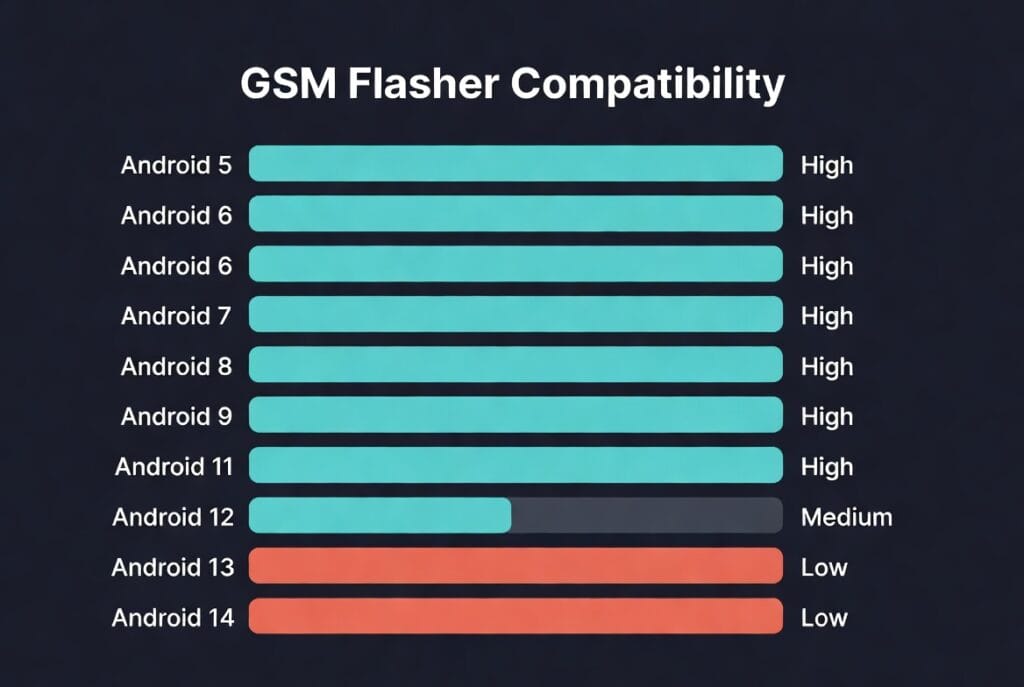
This is the most important thing to know about GSM Flasher ADB Bypass FRP Tool and almost every guide buries it at the bottom or skips it entirely. The tool works best on Android 5.1 through Android 12. On Android 13 and above success rates drop significantly. On Android 14 and 15 the tool is largely ineffective because Google tightened ADB access from the setup screen in those versions.
Check your Android version before spending time on this. Go to Settings, then About Phone, then Android Version. If you’re on Android 12 or below this guide is worth following through. If you’re on Android 13 or above GSM Flasher ADB will likely not work on your device and you’d be better served by ZeroKnox Removal Tool or HalabTech FRP Tool for Samsung, or AMT Tool for other brands. All of those are covered in our FRP Tools page.
This isn’t a flaw specific to GSM Flasher. It’s the reality of where Android security is in 2026. Every ADB based free tool faces this limitation. GSM Flasher is honest about it in its own documentation and so should every guide covering it.
Free vs Activation – What’s Actually Free
There’s a lot of confusion online about whether GSM Flasher ADB Bypass FRP Tool is free or requires payment. Here’s the straight answer.
The core functions are completely free. FRP removal, screen lock bypass and soft brick fix for standard use cases require no payment and no activation key. You download it, install ADB drivers, connect your device and run the bypass. That’s all.
The activation key unlocks advanced features designed for professional repair shops running high volume operations. Things like batch processing which lets you unlock multiple devices simultaneously, advanced device reporting and logging, and certain extended brand support functions. For a technician fixing one device at a time the free version has everything you need.
If you see sites selling an activation key specifically for the standard FRP removal function that’s a scam. You don’t need to pay for what the free version already does. The only legitimate reason to get an activation is if you’re a repair shop that specifically needs batch processing.
Key Features
Here’s what GSM Flasher ADB Bypass FRP Tool can actually do:
FRP Bypass via ADB The primary function. It uses Android Debug Bridge commands to communicate with the locked device and remove the Google account verification that appears after a factory reset. ADB operates at a system level which means it bypasses the setup wizard restrictions that block APK based methods on many devices.
Screen Lock Removal Beyond FRP the tool can remove PIN, pattern and password screen locks on supported devices. This is useful when a device is locked at the lock screen rather than the FRP setup screen. The same ADB connection handles both scenarios.
Emergency Calling Feature (Samsung Only) This is a unique feature most guides don’t mention. On Samsung devices GSM Flasher can bypass the restriction that prevents calls in FRP mode. You enter a phone number in the tool and it enables calling even while the Samsung is sitting on the FRP verification screen. This is primarily a diagnostic feature for repair shops confirming a SIM is active on a locked device.
Soft Brick Fix The tool includes a soft brick recovery function for devices stuck in boot loops or partially corrupted system states. This works on supported brands and Android versions and can save a device that would otherwise need a full firmware flash.
Multi Brand Support While Samsung gets the highest success rate the tool is compatible with Motorola, LG, Huawei, Xiaomi, Lenovo, Lava, Micromax, ZTE and HTC. The ADB protocol is universal across Android which is why the tool can technically support any Android brand even if real world success varies.
Simple Interface The tool is small, around 1.22MB, and has a straightforward interface. There are no complicated module selections or connection mode choices. You connect the device, select the brand and run the bypass. For beginners who find tools like AMT Tool or UMT MTK overwhelming, GSM Flasher’s simplicity is genuinely refreshing.
Supported Brands and Devices
Here’s an honest breakdown of brand support including realistic success rates:
| Brand | FRP Bypass | Screen Lock | Success Rate | Notes |
|---|---|---|---|---|
| Samsung | Yes | Yes | High on Android 8 to 12 | Best overall support |
| Motorola | Yes | Some models | Medium | Moto G and E series work well |
| LG | Yes | Some models | Medium | Older LG models |
| Huawei | Yes | No | Medium | Android 8 to 10 only |
| Xiaomi | Yes | No | Low to Medium | MIUI restrictions limit success |
| Lenovo | Yes | Some models | Medium | A and K series |
| ZTE | Yes | No | Low | Limited model support |
| HTC | Yes | No | Low | Older HTC models only |
| Lava | Yes | No | Medium | Budget Indian market devices |
| Micromax | Yes | No | Medium | Older budget devices |
Samsung is where this tool truly shines. The Galaxy S, A and J series on Android 8 through 12 have the highest bypass success rate and the emergency calling feature adds extra utility for Samsung specifically. For other brands the ADB method works but results vary more by model and firmware version than with Samsung.
Check compatibility➡
What You Need Before Starting
Get all of this ready before downloading the tool:
A Windows PC running Windows 7, 8, 10 or 11. The tool is lightweight and runs on older systems without problems. Windows 10 or 11 gives you the best driver compatibility but any version from the last decade will work.
ADB drivers installed on your PC. This is the most important prerequisite. ADB (Android Debug Bridge) requires its own driver set separate from regular USB drivers. Without ADB drivers the tool cannot communicate with the device even if Windows detects it. Download ADB drivers from our drivers page.
A USB data cable that supports data transfer. The same advice applies here as with every repair tool on this site. A charging only cable will not work. Try a different cable before blaming drivers or the tool when you have detection issues.
USB debugging enabled or accessible on the locked device. This is where things get nuanced. On devices running Android 8 and above USB debugging can’t be enabled normally from a locked device. GSM Flasher works around this by enabling ADB through the setup screen on supported Samsung models using a diagnostic code. On other brands you may need some level of setup screen access to enable it. If your device is fully locked with no setup screen access at all the tool may struggle to establish the ADB connection it needs.
Your device charged to at least 30%. ADB operations involve multiple command exchanges between the PC and device. A device that powers off mid-process can leave things in an incomplete state.
Antivirus temporarily disabled. GSM Flasher is a small unsigned executable that most antivirus programs flag as suspicious. Disable your antivirus before extracting and running the tool. Re-enable it after the bypass is complete.
Download GSM Flasher ADB Bypass FRP Tool
The tool is free and the file is small at around 2.4MB. It comes as a RAR archive named Gsm Flasher Sam FRP Tool Pro.
⚠ Disclaimer!
One thing to be careful about: there is no official developer website for GSM Flasher. It circulates through community sites and mirror downloads. Some sites bundle it with unrelated software or use fake download buttons. The link below is a clean verified build.
Watch out for large advertisement buttons on download pages that look like the actual download link. Scroll carefully and only click a link clearly labeled as the GSM Flasher download.
| Version | File Size | Download |
|---|---|---|
| GSM Flasher ADB Bypass FRP Tool (Latest) | 2.4MB | Download |
How to Install and Set Up
The tool doesn’t have a traditional installer. You extract and run it directly.
Step 1: Install ADB drivers first Before doing anything else install ADB drivers on your PC. Go to our drivers page and download the ADB driver package. Install it and restart your PC before connecting any device.
Step 2: Extract the RAR file Locate the downloaded RAR archive in your downloads folder. Right click and select Extract Here using WinRAR or 7-Zip. Extract to your desktop or C drive. Never run the tool from inside the archive.
Step 3: Disable antivirus Before opening the extracted folder disable your antivirus. Some programs delete the executable the moment you try to open the folder since it’s an unsigned file.
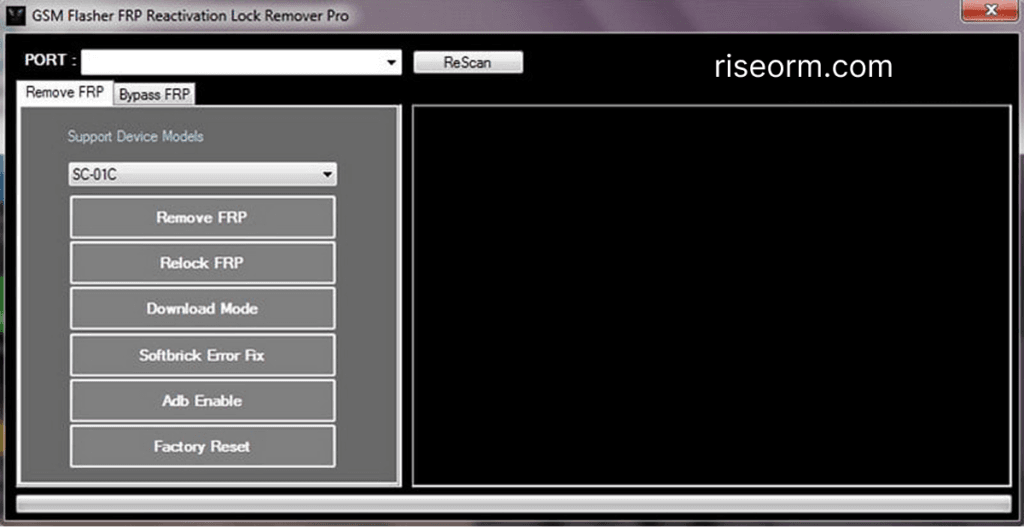
Step 4: Run as administrator Open the extracted folder and find the GSM Flasher executable. Right click it and select Run as Administrator. The tool will open with a simple interface showing brand options and function buttons.
Step 5: Verify ADB connection Before connecting a device the tool may show an ADB status indicator. If it shows ADB not found after you connect a device go back and reinstall the ADB drivers. Make sure you restarted your PC after driver installation.
That is the entire setup. No account login, no activation for standard use, no server authentication. You are ready to start.
Step by Step FRP Bypass Guide
This covers the most common use case which is Samsung FRP removal. The process for other brands follows the same general flow with minor variations.
Step 1: Open GSM Flasher as administrator Always start here. Right click the executable and select Run as Administrator before doing anything else.
Step 2: Enable USB debugging on the locked device On the Samsung FRP setup screen tap Emergency Call. Type the code *#0*# on the dialer. Samsung’s hardware test mode will open. Do not tap anything on the test screen, just leave it open. The tool will use this as an entry point to enable ADB.
Step 3: Connect the device Plug your Samsung into the PC via USB data cable. The tool should detect the device and show it as connected. If it doesn’t detect within 30 seconds try a different USB port and confirm you’re using a data cable not a charging only one.
Step 4: Select your device brand In the GSM Flasher interface select Samsung from the brand options. The tool will load the Samsung specific functions including the ADB enable and FRP remove buttons.
Step 5: Enable ADB Click the Enable ADB button. The tool sends the command to the device through the test mode entry point. Wait for the confirmation message before moving to the next step. This usually takes 10 to 30 seconds.
Step 6: Remove FRP Once ADB is enabled click Remove FRP. The tool pushes the bypass commands to the device. You will see a progress log updating in the tool interface. The entire operation usually takes 1 to 3 minutes. Do not disconnect the cable during this process.
Step 7: Cold restart When the tool shows a success message disconnect the cable and hold the power button until the device fully shuts down. Wait 10 seconds then power it on manually. Never let the tool trigger an automatic restart.
Step 8: Complete setup Go through the normal device setup process. The Google verification screen should be gone. Add any Google account you have access to and you are in.
For other brands (Motorola, LG, Huawei etc.) The process is similar but the ADB enable step works differently since other brands don’t have the Samsung *#0*# test mode. On Motorola and LG devices you may need to access the setup screen’s accessibility options to reach a pathway where the tool can push the ADB enable command. If the tool fails to enable ADB on a non-Samsung device try our FRP Bypass APK method as an alternative since it doesn’t rely on ADB.
Errors and Fixes
Tool opens but shows ADB not found or ADB error ADB drivers are either not installed or not installed correctly. Go to our drivers page, download the ADB driver package and reinstall. Restart your PC after installation before opening the tool again.
Device not detected after connecting Work through this in order. Is the cable a data cable not charging only. Are ADB drivers installed and showing correctly in Device Manager. Is the tool running as administrator. Did you restart your PC after driver installation. Is the device actually in a state where the tool can reach it, meaning the test mode or setup screen is open and accessible. These five things cover the overwhelming majority of detection failures.
Test mode code does not work on Samsung Try #0# without the asterisk at the beginning. On some Samsung models the code variation differs slightly. If neither version opens test mode your firmware version may have patched this entry point. In that case try ZeroKnox Removal Tool which offers three different ADB enable methods and handles a wider range of Samsung firmware versions. Read our ZeroKnox guide for the full process.
ADB enabled but Remove FRP button does nothing Close the tool completely, restart it as administrator and try again without disconnecting the device. Sometimes the ADB session drops between the enable step and the FRP remove step. Keeping the test mode screen open on the Samsung during the entire process helps maintain the ADB session.
FRP removal completes but verification screen still appears Do a proper cold restart. Hold the power button until the device shuts down completely, count 10 seconds, then power it on manually. The forced cold boot is important. Auto restart from the tool sometimes doesn’t fully commit the partition changes. If the screen still appears after a clean cold boot try running Remove FRP a second time.
Antivirus keeps removing the tool after extraction Set your antivirus folder exclusion on the destination folder before extracting the archive not after. Some antivirus programs scan and delete files during the extraction process itself, not just when you try to run them. Setting the exclusion first prevents this.
Tool works on Samsung but fails on Motorola or other brand This is expected behavior. Samsung has significantly higher success rates with GSM Flasher than other brands because the tool was primarily built around Samsung’s diagnostic mode. For non-Samsung devices an APK based method or AMT Tool with credits will give you a higher success rate. Check our FRP tools page for brand specific alternatives.
FAQ
Is GSM Flasher ADB Bypass FRP Tool completely free?
The core functions including FRP removal and screen lock bypass are completely free with no activation key required. Activation only unlocks batch processing and advanced reporting features designed for high volume repair shop use. For a single device repair you need nothing beyond the free download.
Does it work on Android 13 and 14?
Realistically no in most cases. The tool was built around ADB access methods that Google patched in Android 12 and above. Android 13 and 14 devices have very limited success rates with this tool. For those Android versions ZeroKnox Removal Tool, HalabTech FRP Tool or AMT Tool are more reliable options. All three are covered on our FRP tools page.
Is GSM Flasher safe to use?
The tool itself is safe and has been used in repair shops for years. The main risk is downloading a modified version from an untrusted site that has malware bundled inside. Only download from the link on this page which we have verified. Run your antivirus on the downloaded file before extracting if you want extra confirmation.
Does it work without enabling USB debugging manually?
For Samsung devices yes. The tool uses the *#0*# diagnostic mode as an entry point to enable ADB without you needing to manually enable USB debugging in developer settings. For other brands you may need some level of setup screen access to enable ADB, which is why Samsung has the highest success rate with this tool.
Can I use it alongside other FRP tools?
Yes. There is no conflict from trying multiple tools on the same device. If GSM Flasher doesn’t work try ZeroKnox or SamFw next. Each tool uses a slightly different approach and sometimes one works where another fails on the same device.
Will this delete my data?
If the device has already been factory reset there is no data left to delete. The FRP bypass itself does not perform another wipe. You are just removing the verification step that is blocking you from completing setup after a reset that already happened.
Related Tools
If GSM Flasher didn’t work on your device or your Android version is too new for ADB based methods, here are the resources on Rise ROM most likely to help next.
SamFw FRP Tool is the most widely used free Samsung FRP tool and worth trying on Samsung devices where GSM Flasher’s ADB method failed.
ZeroKnox Removal Tool covers Samsung Android 13 through 16 and handles Knox Guard removal in addition to FRP. Three different ADB enable methods give you more options than GSM Flasher.
FRP Bypass APK covers APK based no-PC methods for all Android versions if you don’t have access to a Windows PC.
OTA Firmware is where to go if your device needs a firmware flash to restore it to a patch level where free tools work again.
USB Drivers has ADB drivers alongside all other chipset drivers your repair tools need.