
SamFw FRP Tool just became the most important free Samsung repair utility available in 2026 and version 5.8 is the reason why. For years SamFw FRP Tool was the go-to solution for Samsung Qualcomm devices but it had one major blind spot: Samsung Exynos. Every Samsung sold in Europe, the Middle East, parts of Asia and several other regions runs an Exynos chipset and repair shops in those regions had no reliable free tool for FRP removal. Starting with V5.5.1 that changed. SamFw FRP Tool added Exynos FRP support for the first time, and V5.8 refines and expands that support significantly alongside Android 16 optimization, USA model unlocks and a stack of bug fixes that make the tool more stable than any previous version.
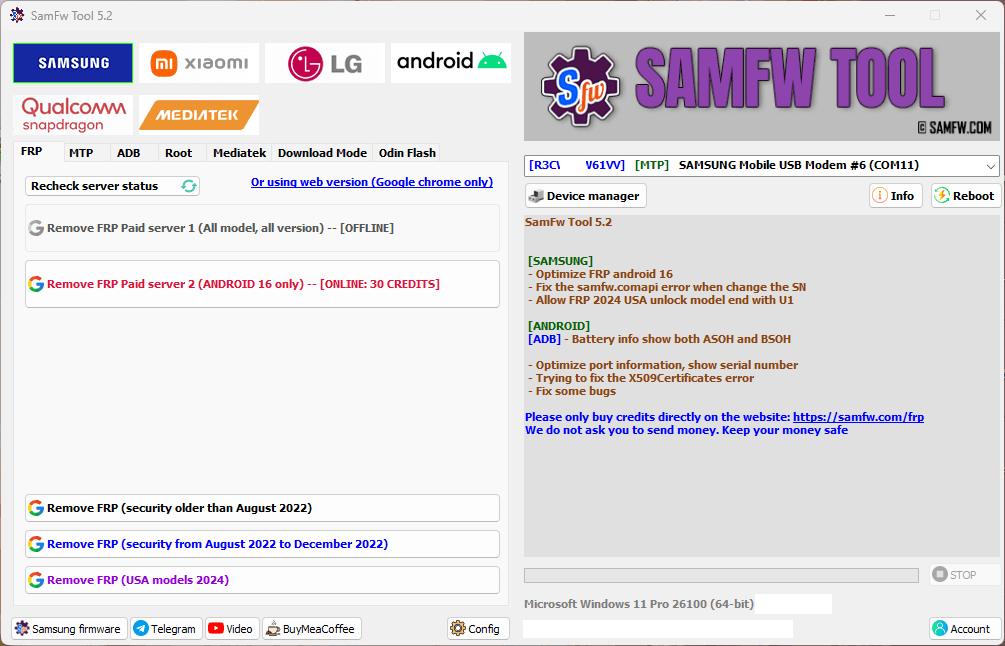
This guide covers everything about SamFw FRP Tool in 2026. The complete version history from V5.4 to V5.8, what the Exynos addition actually means for your repair work, the honest free versus paid breakdown, which Samsung models are now supported, how to download safely, and full step by step instructions for both Qualcomm and Exynos FRP bypass.
All download links are at the bottom of this page.➡
⚠️ Disclaimer
The tools and methods on this page are for educational and informational purposes only. Only use them on devices you personally own or have been given explicit permission to work on. Bypassing FRP on a device you don’t own is illegal and can result in serious legal consequences. Always comply with Google’s terms of service and Samsung’s device policies. Rise ROM does not support any unauthorized or illegal use of the tools shared here.
Why This Update Is a Big Deal – Exynos Changes Everything
To understand why V5.5.1 through V5.8 matter so much you need to know the Samsung chipset situation. Samsung produces two versions of most of its flagship and mid range devices. One version uses a Qualcomm Snapdragon processor. The other uses Samsung’s own Exynos processor. Which version you get depends entirely on where the phone was purchased.
Qualcomm Samsung devices dominate North America, parts of South America, China and a few other markets. Exynos Samsung devices are what you find in Europe, the United Kingdom, the Middle East, Africa, Australia and most of Asia. If you live in Pakistan, India, the UAE, the UK, Germany or any of dozens of other countries, the Samsung devices coming into your repair shop are almost certainly Exynos.
Before V5.5.1 SamFw FRP Tool had no Exynos support. Repair shops in Exynos markets had to rely on paid boxes, dongle based tools or expensive professional software to handle Samsung FRP on those devices. The free SamFw tool that Qualcomm market technicians relied on daily was simply unavailable to them for their most common Samsung models.
SamFw Tool v5.5.1 introduced Samsung Exynos FRP Beta support, making it easier to remove Factory Reset Protection from supported Exynos powered Samsung smartphones. V5.6 then optimized that Exynos unlock with auto USB debugging acceptance. V5.8 further refined it by fixing status check bugs, adding Visual C++ detection for Exynos operations, and resolving the Android 16 always returning unsupported error on Exynos devices.
This is the single biggest expansion in SamFw FRP Tool’s history. The tool went from serving one half of the Samsung repair market to genuinely covering both.
Free vs Paid – The Honest Exynos Reality
This is the section every other guide skips and it’s what you need to know before downloading anything.
SamFw FRP Tool has two tiers. The free version and the paid credits system. Here’s what each actually covers in V5.8:
What is completely free: SamFw FRP Tool free version handles Samsung Qualcomm devices with security patches dated before December 2022. This covers a large volume of older Samsung A series, M series, J series and some S series devices still in active repair circulation. No account required, no credits, no server authentication. The tool detects your patch date immediately after connecting the device so you know within seconds whether the free method applies.
What requires paid credits: Qualcomm Samsung devices with security patches from December 2022 onwards require credits. Exynos FRP support, which is the headline new feature from V5.5.1 through V5.8, is also in the paid credits tier. This is the honest reality that most guides don’t mention. The Exynos breakthrough is real but it’s not free. You need a SamFw account with credits to use Exynos FRP removal.
Is it worth paying? For repair shops in Exynos markets, absolutely. The Samsung Galaxy S series, A series and M series sold in Europe and the Middle East have been a gap in every free tool’s coverage for years. Having server supported Exynos FRP removal through a tool as established as SamFw is a genuine upgrade to what was previously available even in the paid tier at comparable price points.
Decision framework: If your device is Samsung Qualcomm with a patch before December 2022 — free version works, download and start. If your device is Samsung Qualcomm with a patch from December 2022 onwards — credits required. If your device is Samsung Exynos regardless of patch date — credits required, V5.8 is your best current option.
Complete Version History – V5.4 to V5.8
Understanding what changed across versions helps you decide which one to download and helps you troubleshoot if an older version is giving you better results on a specific device.
SamFw Tool V5.4 The previous stable release before the Exynos era. Covered Qualcomm Samsung across Android 8 through 16 with the free versus paid credit split at December 2022 patches. Android 16 FRP was added in this version as was the Xiaomi Micloud bypass and LG functions that made SamFw more than just a Samsung only tool. V5.4 remains a solid choice for Qualcomm Samsung on older patches.
SamFw FRP Tool V5.5.1 V5.5.1 added Samsung Exynos FRP Beta support, Android 16 FRP Server 2, fixed upload data issues from previous versions, repaired serial numbers in Samsung Download Mode, and fixed an internal backend bug. This was the version that opened Exynos markets to SamFw for the first time. The Beta label on Exynos support indicated it was new and being actively refined, which is exactly what V5.6 and V5.8 continued to do.
SamFw FRP Tool V5.6 V5.6 optimized Exynos unlock with auto accept USB debugging, fixed reboot Download mode on older devices, and added EDL 9008 support for ten new Samsung models including Galaxy S24 series, S23 Ultra, Z Fold 5 and Galaxy Tab S7 FE across multiple bit versions. The auto USB debugging acceptance removed a manual step from the Exynos process that was causing failures for users who didn’t know they needed to accept the debugging prompt on the device screen during the operation. This single improvement significantly increased Exynos success rates compared to V5.5.1.
SamFw FRP Tool V5.8 The current latest release as of July 2026. V5.8 optimized Android 16 FRP, fixed the samfw.comapi error when changing serial numbers, allowed FRP removal on 2024 USA models ending with U1, fixed FRP Android 16 always returning unsupported error on some devices, added automated Visual C++ checks for Exynos operations, fixed the X509 certificate error, added auto write log to file functionality and resolved random crash bugs on certain PC configurations.
The USA model U1 unlock is particularly significant. Many Samsung devices sold through US carriers have model numbers ending in U1 which previously required different handling from standard unlocked variants. V5.8 brings those into the standard FRP removal workflow.
Full Features of SamFw FRP Tool V5.8
SamFw Tool V5.8 supports Samsung, Xiaomi, LG, Qualcomm, and MediaTek devices with functions including FRP removal, device information reading, CSC changing, ADB functions, Samsung firmware flashing through built-in Odin, and Android application management.
Here’s the complete function list organized by category:
Samsung FRP Functions: Remove FRP standard, Remove FRP new security, Remove FRP 2024 USA models including U1 variants, Remove FRP Android 16, Exynos FRP removal (paid credits), Block CSC change when SIM is swapped.
Samsung MTP Mode: Factory reset (Test mode), Disable Knox (Test mode), Disable Factory mode, KG Unlock (Untest), Factory reset standard, Enable secret code for Verizon.
Samsung ADB Mode: Change CSC, Change serial number (Beta), Remove Samsung account (Settings only, not locked state), Enable mobile data toggle for AT&T phones, Change CSC root mode.
Samsung Download Mode: Exit Download mode, Soft brick fix, FRP Android 5 and 6 on supported models.
Odin Flash: Save recent flash files, Auto detect file and slot selection, Auto extract ZIP files, Ignore MD5 checksum for problematic files.
Xiaomi Functions: Bypass Micloud Android 8.1, Enable Diag (Root), Fastboot FRP removal on unlocked devices, Sideload factory reset and FRP removal, Qualcomm Micloud anti-relock bypass, Read offline Micloud information, EDL 9008 factory reset and FRP reset.
LG Functions: Factory reset via MTP, EDL FRP removal on supported models including G5, G6, G7, G8, V30, V40, V50 and more, Flash LG KDZ files via LG UP.
General Android ADB: Battery information with ASOH and BSOH readings, Disable and enable OTA updates, Set language, Factory reset, Hide developer options, Open network settings, Bypass Micloud Android 8.1, Enable Diag Root.
Misc: Driver signature enforcement check, Disable and enable driver signature enforcement, Install Samsung USB driver, Install VC++ 2015, Automated Visual C++ detection for Exynos operations (new in V5.8), Auto write log to file (new in V5.8).
Supported Samsung Models and Chipsets
SamFw FRP Tool V5.8 covers both Qualcomm and Exynos Samsung devices. Here’s the breakdown:
Qualcomm Samsung (Free and Paid)
| Series | Android Version | Free (Pre Dec 2022 Patch) | Paid Credits (Post Dec 2022) |
|---|---|---|---|
| Galaxy A Series (2019 to 2021) | Android 9 to 12 | Yes | N/A |
| Galaxy A Series (2022 to 2024) | Android 12 to 15 | Some models | Yes |
| Galaxy M Series | Android 10 to 15 | Some models | Yes |
| Galaxy J Series | Android 8 to 11 | Yes | N/A |
| Galaxy S Series (Qualcomm USA) | Android 12 to 16 | No | Yes |
| Galaxy Z Fold and Flip (USA) | Android 12 to 16 | No | Yes |
| Galaxy Tab (Qualcomm) | Android 10 to 16 | Some models | Yes |
New Qualcomm EDL Models Added in V5.6 and V5.8: SM-A057G, SM-A057F, SM-A736B, SM-E145F, SM-F731N, SM-F741U, SM-F936B, SM-F946B, SM-F946U, SM-F956U, SM-G990B, SM-G990U, SM-G990U2, SM-G9910, SM-S901U, SM-S918B, SM-S921U, SM-S928B, SM-T630.
Exynos Samsung (Paid Credits Only)
| Series | Region | Android Version | Support Status |
|---|---|---|---|
| Galaxy S Series (Exynos) | Europe, Middle East, Africa | Android 12 to 16 | Active, optimized in V5.8 |
| Galaxy A Series (Exynos) | Europe, Asia | Android 11 to 15 | Active |
| Galaxy M Series (Exynos) | Asia, Middle East | Android 11 to 14 | Active |
| Galaxy Tab (Exynos) | Global Exynos variants | Android 11 to 15 | Active |
SamFw Tool V5.8 fixed the Exynos FRP status check bug for Android 15 and below, added Visual C++ checking specifically for Exynos operations, and resolved the Android 16 always returning unsupported error on Exynos devices. This means Exynos support in V5.8 is meaningfully more reliable than the Beta that launched in V5.5.1.
One important note on Exynos model identification. If you’re not sure whether your Samsung is Qualcomm or Exynos check Settings, then About Phone, then Processor. Qualcomm devices show Snapdragon. Exynos devices show Exynos. Alternatively check the model number. Samsung devices sold in North America typically end in U or U1. European and other Exynos market models use different suffixes like B, F, or no regional suffix at all.
Safe Download Warning – Read Before You Download
This section exists because something is circulating in the repair community that you should know about before downloading SamFw FRP Tool from any source.
It has been reported in repair community forums that the SamFw developer was allegedly caught with a hidden trojan inside the tool that was stealing cryptocurrency from users’ wallets. This is a serious allegation that has been discussed openly in repair forums including Samsung community boards.
We are presenting this factually and not as confirmed. Tool developers in this niche are often anonymous and tools that require system level access to communicate with device firmware have the technical capability to run background processes if deliberately built to do so. Whether this specific allegation is accurate we cannot confirm independently.
What we can tell you is this. Download SamFw FRP Tool only from verified trusted sources. Do not download it from random Telegram channels, obscure mirror sites or any source where the file has been modified or repackaged. Run a virus scan on the downloaded file before extracting. Do not run any repair tool with administrator rights on a PC that has cryptocurrency wallets, banking applications or sensitive personal data if you have any concerns about the software’s integrity.
The link at the bottom of this page is a clean verified build from a source we trust. We recommend reading community discussion about any tool before downloading, keeping your download source consistent, and staying alert to any unexpected behavior from your PC after running new repair software.
Your security matters more than any bypass operation.
Writing sections 9 through 16 now, taking my time with each one:
What You Need Before Starting
Get everything ready before downloading or running anything. SamFw FRP Tool V5.8 has specific requirements that affect whether the tool works at all, so go through this list carefully:
A Windows PC running Windows 7, 8, 10 or 11. SamFw FRP Tool is a Windows only application. It has no Mac or Linux version. Windows 10 or 11 is strongly recommended for the best driver compatibility and most stable experience. Windows 7 works for basic operations but some newer features in V5.8 may behave inconsistently on older Windows versions.
Samsung USB drivers installed. Without Samsung USB drivers your PC cannot communicate with the device regardless of which function you’re trying to use. SamFw Tool V5.8 includes a one click Samsung USB driver installer in the Misc tab so you don’t need to find them separately. Alternatively download them from our drivers page. Restart your PC after installation.
Microsoft Visual C++ 2015 or above. V5.8 specifically added automated Visual C++ detection because missing runtime libraries were causing Exynos operations to fail silently on some systems. If the tool shows a Visual C++ warning on launch download and install it free from Microsoft’s official site before proceeding.
A USB data cable that supports data transfer. Not a charging only cable. This single factor causes more SamFw detection failures than anything else. If the tool isn’t detecting your Samsung the cable is always the first thing to check and replace before touching drivers or settings.
A SamFw account for paid operations. If your device needs credits for FRP removal, which includes all Exynos Samsung devices and Qualcomm Samsung devices with patches from December 2022 onwards, you need a registered SamFw account with sufficient credit balance. Create a free account at samfw.com before starting. Check your credit balance in the tool dashboard before initiating any paid operation since credits are deducted whether the operation succeeds or fails.
Wi-Fi connected on the locked Samsung device. Some bypass methods including Exynos FRP operations require the device to have an active internet connection during the process. Connect the locked Samsung to your Wi-Fi network on the setup screen before plugging in the USB cable.
Your device charged to at least 30%. FRP operations involve device restarts and mode changes. A device that shuts down mid-operation can leave things in an incomplete state that requires starting over.
Antivirus temporarily disabled. SamFw FRP Tool communicates with Samsung device firmware at a system level and is flagged as suspicious by most antivirus programs. This is a false positive for the standard tool functions. Disable your antivirus before extracting and running the tool. Re-enable it after the operation is complete.
Download SamFw FRP Tool
SamFw Tool 5.8 is the latest official release as of July 2026. Always download the latest version since each update brings expanded device support, bug fixes and improved Exynos and Android 16 handling that older versions don’t have.
Before downloading read the safe download warning in the previous section. Download only from the links below which are verified clean builds. Watch out for fake download buttons on mirror sites. These pages frequently surround the real download link with large advertisement buttons that look identical to the actual download. Scroll carefully and only click a link clearly labeled as the SamFw download.
Some download sources require a password to extract the ZIP archive. If prompted the password is usually listed on the same page as the download link.
| Version | Key Addition | Download |
|---|---|---|
| V5.8 (Latest) | Android 16 optimized, Exynos refined, USA U1 unlock | Download |
| V5.6 | Exynos auto USB debugging, 10 new EDL models | Download |
| V5.5.1 | Exynos FRP Beta first release, Android 16 Server 2 | Download |
| V5.4 | Android 16 added, Xiaomi and LG functions | Download |
How to Install and Set Up
SamFw FRP Tool is a portable application. No traditional Windows installer, no registry modifications. You extract and run directly.
Step 1: Extract the archive Locate the downloaded ZIP file in your downloads folder. Right click and select Extract Here using WinRAR or 7-Zip. Extract to a folder on your desktop or C drive. Never run the tool directly from inside the ZIP archive. If a password is required enter it before extraction begins.
Step 2: Disable antivirus before opening Before opening the extracted folder disable your antivirus completely or add the folder to your exclusion list. Some antivirus programs delete flagged files during extraction itself not just when you try to run them. Setting the exclusion before extracting is the safest approach.
Step 3: Run as administrator Open the extracted folder and find SamFw Tool.exe or the similarly named executable. Right click it and select Run as Administrator every single time you open it. Never double click to open directly. Running without admin rights causes device detection failures and certain functions including driver signature management won’t work correctly without elevation.
Step 4: Install Samsung USB drivers Once the tool opens navigate to the Misc tab at the top of the interface. Click Install Samsung USB Driver. The tool handles the installation automatically. If you already have Samsung drivers installed from a previous tool installation this step is optional but reinstalling doesn’t cause conflicts.
Step 5: Install Visual C++ if prompted V5.8 checks for Visual C++ automatically on launch. If it shows a warning click the Install VC++ 2015 button in the Misc tab. This is particularly important for Exynos operations which require the runtime library to function correctly.
Step 6: Log in to your SamFw account Click the Login button in the tool and enter your SamFw account credentials. Your credit balance will appear in the dashboard. If your operation requires credits confirm you have sufficient balance before proceeding. For free operations on older patch Qualcomm Samsung devices no login is required.
Step 7: Connect your Samsung Plug your Samsung device into the PC via USB data cable. The tool detects it automatically and displays the model number, chipset type (Qualcomm or Exynos), Android version, and security patch date. The patch date is what determines whether the free method or credits are required for your specific device.
Step by Step FRP Bypass Guide
The bypass process differs between Qualcomm and Exynos Samsung devices. Both are covered separately below.
Qualcomm Samsung FRP Bypass
This method uses Samsung’s diagnostic test mode accessed through the emergency dialer to enable ADB and then push the FRP removal command. It works on Qualcomm Samsung devices across the supported Android and patch date range.
Step 1: Open SamFw FRP Tool as administrator and confirm your Samsung is detected with the correct model shown in the dashboard.
Step 2: On the locked Samsung device tap Emergency Call. On the dialer type *#0*#. Samsung’s hardware test mode screen will open. Leave this screen open and do not tap anything on it. This is the entry point the tool uses to enable ADB.
Step 3: Once test mode is open on the Samsung device click Enable ADB in SamFw Tool on your PC. The tool sends the ADB activation command through the diagnostic connection. Wait for the confirmation message before moving to the next step. This takes 10 to 30 seconds on most devices.
Step 4: Once ADB is enabled click Remove FRP. The tool pushes the bypass command to the device. Watch the progress log at the bottom of the tool window. The operation typically takes 1 to 3 minutes. Do not disconnect the USB cable during this process.
Step 5: When the tool shows FRP removed or a success confirmation disconnect the USB cable from the Samsung. Hold the power button until the device fully shuts down. Wait 10 seconds. Power it on manually. Do not let the tool trigger an automatic restart.
Step 6: Go through the normal Samsung setup process. The Google account verification screen should be gone. Add any Google account you have access to and complete setup.
Exynos Samsung FRP Bypass
The Exynos method introduced in V5.5.1 and optimized in V5.6 and V5.8 works differently from the Qualcomm method. It does not use the *#0*# test mode. Instead it communicates with the Exynos device through a different connection pathway.
Step 1: Open SamFw FRP Tool as administrator. Confirm your credit balance is sufficient for an Exynos FRP operation. Log in to your SamFw account if not already logged in.
Step 2: Make sure the locked Samsung Exynos device is connected to Wi-Fi on the FRP setup screen. This is more important for Exynos than Qualcomm. The Exynos FRP bypass requires active internet on the device during the operation.
Step 3: Connect the Samsung Exynos device to your PC via USB. The tool should detect it and display Exynos in the chipset field. If it shows Unknown check your Samsung USB drivers and try a different USB port.
Step 4: Navigate to the Exynos FRP section in the tool. Click Remove FRP Exynos. The tool will initiate the server connection using your credit account.
Step 5: A prompt may appear on the Samsung device screen asking to accept USB debugging. In V5.6 and V5.8 this auto-accepts without requiring manual input on the device screen. On V5.5.1 you may need to tap Accept on the Samsung screen when this prompt appears. V5.6’s auto USB debugging acceptance feature removed this manual step which was causing failures when users missed the prompt.
Step 6: The FRP removal process runs through the server connection. Progress shows in the tool log. This typically takes 2 to 5 minutes depending on the device and server response time.
Step 7: When the operation completes disconnect the USB cable. Cold restart the Samsung by holding the power button until it fully shuts down, waiting 10 seconds and powering on manually.
Step 8: Complete the normal Samsung setup. The FRP verification screen should be resolved. If the verification screen still appears after a clean cold boot check your credit account to confirm the operation completed successfully server-side before trying again.
Errors and Fixes
Device not detected after connecting Install Samsung USB drivers through the Misc tab and restart your PC. Confirm you’re using a data cable not a charging only cable. Make sure the tool is running as administrator. Try a different USB port, preferably USB 2.0. If the device appears briefly in Device Manager and then disappears the cable is almost certainly the problem not the drivers.
Visual C++ error on launch Click Install VC++ 2015 in the Misc tab. V5.8 checks for this automatically but you still need to install it manually if it’s missing. Download directly from Microsoft’s official site if the tool’s installer fails.
Test mode code not working on Samsung Try #0# without the asterisk at the beginning. On some Samsung firmware variants the code differs slightly. If neither works your Samsung firmware may have patched this entry point. Try ZeroKnox Removal Tool which offers three different ADB enable methods as an alternative.
ADB enabled but Remove FRP shows error Close the tool completely, restart it as administrator, reconnect the device and try Remove FRP again without going through Enable ADB again. Sometimes the ADB session drops between steps and a fresh tool session resolves it.
Exynos FRP shows unsupported V5.8 specifically fixed the Android 16 always returning unsupported error on Exynos devices. If you’re running an older version update to V5.8. Also confirm Visual C++ is installed since V5.8 added automated checking for this specifically for Exynos operations.
samfw.comapi error when changing serial number This was a known bug fixed in V5.8. Update to V5.8 if you’re seeing this error. The fix is specifically listed in the V5.8 changelog.
X509 certificate error V5.8 includes a fix for X509 certificate errors. Update to V5.8 if you’re on an older version experiencing this. If the error persists on V5.8 check your system date and time are correct since certificate validation is time-sensitive.
USA model ending in U1 not unlocking U1 model FRP unlock was specifically added in V5.8. If you’re on V5.6 or earlier this won’t work on U1 variants. Update to V5.8 and confirm you have sufficient credits since USA model unlocks are in the paid tier.
Credits deducted but FRP not removed This can happen when the operation completes server side but a connection issue prevents the final command from reaching the device. Contact SamFw support through your account portal. In most cases credits are refunded for server-verified failures. Document the operation log which V5.8 now auto-saves to a file for exactly this scenario.
FRP removal completes but verification screen still appears Do a proper cold restart. Hold power until the device shuts down completely, count 10 seconds, power on manually. If the screen persists after a clean cold boot run the operation a second time. Some Samsung models need two passes before the FRP flag clears fully from all relevant partitions.
SamFw V5.8 vs Other Free Samsung FRP Tools
Now that SamFw V5.8 covers both Qualcomm and Exynos it’s worth seeing how it stacks up against the other major free Samsung tools in an honest comparison:
| Tool | Exynos Support | Android 16 | Credits Required | Best For | Success Rate 2026 |
|---|---|---|---|---|---|
| SamFw FRP Tool V5.8 | Yes (paid) | Yes | Free up to Dec 2022, paid after | All Samsung Qualcomm and Exynos | Very High with credits |
| ZeroKnox Removal 2.4 | No | Yes | Free | Samsung FRP and Knox Guard | High on mid range |
| Prime Tool X V9.0 | No | Yes | Free | Budget Samsung A and M series | Good on supported models |
| HalabTech FRP Tool | No | Yes | Free | Samsung pre-Jan 2026 firmware | Good via MTP mode |
| King Tool | No | No | Free | Samsung Android 8 to 12 | Medium on supported models |
| GSM Flasher ADB | No | No | Free | Samsung Android 8 to 12 | Medium on older patches |
The Exynos column tells the real story. SamFw V5.8 is currently the only tool in this comparison with any Exynos Samsung support. For repair shops in Exynos markets this isn’t a close comparison at all. For Qualcomm Samsung with older patches ZeroKnox and Prime Tool X are solid free alternatives that don’t require any credits.
FAQ
Does SamFw FRP Tool V5.8 work on Samsung Exynos for free?
No. Exynos FRP support introduced in V5.5.1 and refined through V5.8 requires paid SamFw credits. The free version of SamFw Tool covers Qualcomm Samsung devices with security patches dated before December 2022 only. All Exynos operations and Qualcomm devices with newer patches require credits.
How do I know if my Samsung is Qualcomm or Exynos?
Go to Settings, then About Phone, then Processor or Chipset. Qualcomm devices show Snapdragon. Exynos devices show Exynos. You can also check by model number. Samsung devices sold in North America typically end in U or U1 and are Qualcomm. Devices sold in Europe, Middle East and most of Asia use different suffixes and are usually Exynos.
What changed from V5.4 to V5.8 in simple terms?
V5.4 was Qualcomm only. V5.5.1 added Exynos for the first time as a Beta. V5.6 optimized Exynos with auto USB debugging and added 10 new Samsung EDL models. V5.8 fixed Android 16 Exynos errors, resolved the samfw.comapi serial number bug, added USA U1 model support, fixed X509 certificate errors and added auto log saving. Each version made Exynos more reliable and expanded the Samsung model coverage.
Is the trojan allegation about SamFw real?
There are allegations circulating in the repair community about this. We cannot confirm or deny them independently. What we can say is download only from trusted verified sources, scan downloaded files before running, and be cautious about running repair tools with administrator rights on PCs containing sensitive financial information.
Does SamFw V5.8 work on Samsung Android 16?
Yes. V5.8 specifically optimized Android 16 FRP removal and fixed the bug where Android 16 Exynos devices were always returning an unsupported error. Android 16 support on Qualcomm Samsung was added earlier and is also refined in V5.8.
What does the USA U1 model unlock in V5.8 mean?
Many Samsung devices sold through US carriers have model numbers ending in U1 rather than just U. These variants had different FRP handling that previous SamFw versions didn’t cover correctly. V5.8 adds explicit support for U1 model FRP removal which means carrier-purchased Samsung devices in the US that previously failed can now be processed through SamFw.
Related Tools
SamFw FRP Tool V5.8 is the most comprehensive Samsung FRP tool available right now but depending on your specific situation one of the following may serve you better or work alongside it.
ZeroKnox Removal Tool handles both FRP and Knox Guard removal on Samsung Android 8 through 16 completely free. If your Samsung also has a KG lock use ZeroKnox first before attempting FRP removal.
Prime Tool X is the most beginner friendly free Samsung tool for budget A and M series devices on Android 12 through 16 with no credits required.
HalabTech FRP Tool covers Samsung Android 15 and 16 through MTP mode on devices with firmware before January 2026. No boot mode required, no credits.
Samsung FRP Tools is our complete 2026 comparison of every major free Samsung FRP tool with honest success rates, Android version coverage and credit requirements all in one place.
USB Drivers has Samsung USB drivers alongside all other chipset drivers your repair tools need.
OTA Firmware is where to go if your Samsung needs a firmware flash before or after FRP removal.