
Prime Tool X is one of the most straightforward free FRP bypass tools available right now for Samsung and Xiaomi devices, and V9.0 is the best version yet. If you’re stuck on the Google account verification screen after a factory reset and you want a clean, simple fix without paying for credits or subscriptions, this is the tool most repair technicians reach for first. This guide covers everything about Prime Tool X V9.0, what it does, which devices it actually supports, how to install it, and how to use it properly.
Disclaimer
The tools and methods shared on this page are provided for educational purposes only. Please make sure you’re using them on a device that you own or have permission to work on.
Bypassing FRP or removing a Google account from a device that isn’t yours can be illegal and may lead to serious consequences. Always follow Google’s policies and your device manufacturer’s guidelines when performing any kind of modification.
Rise ROM does not encourage or support any misuse of these tools. Use them responsibly.
All download links are at the bottom of this page.⬇
What is Prime Tool X
Prime Tool X is a free Windows-based FRP bypass tool developed by GSM Prime. It’s designed specifically for Samsung and select Xiaomi devices, and unlike many tools in this space, it doesn’t require credits, subscriptions, or server authentication to work. You download it, install the drivers, connect your phone, and you’re done.
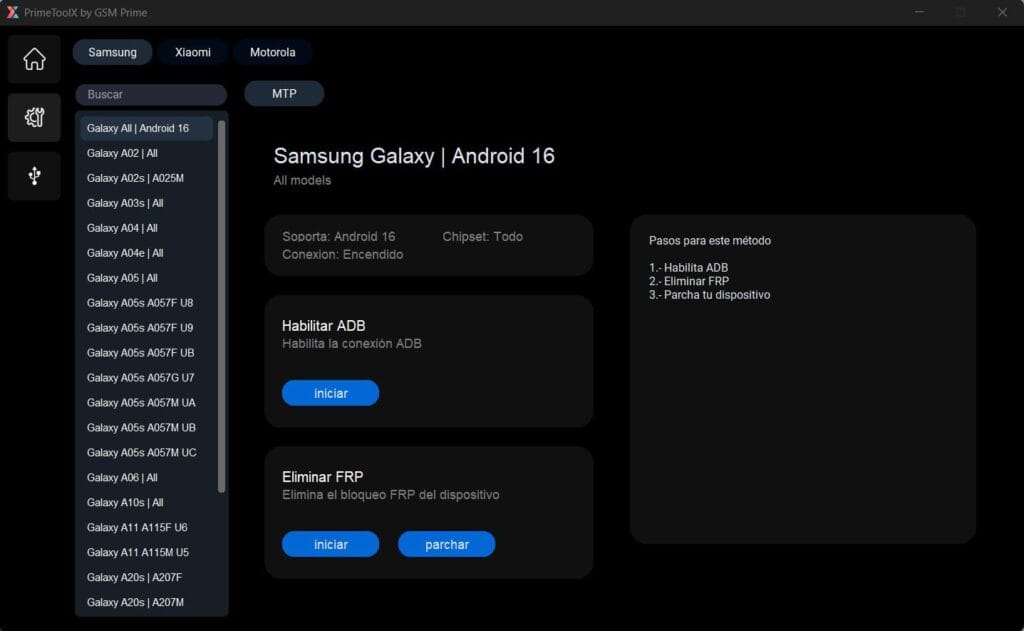
The tool works at a low level by accessing the device through Preloader and Brom mode, which are the early boot states of MediaTek chipsets. This gives it direct access to the device before Android fully loads, which is exactly what makes FRP bypass possible on devices where software-level methods have stopped working.
What makes V9.0 stand out from earlier versions is the addition of Android 16 FRP support, improved Qualcomm handling that no longer requires the Zadig driver workaround, and a cleaner interface that makes the whole process faster for both beginners and experienced technicians.
One thing to know before downloading: Prime Tool X supports Samsung across a wide range of models, but Xiaomi support is limited to the Redmi A3 only. If you have a different Xiaomi model, you’ll need a different tool. We’ll cover alternatives in the related tools section.
V9.0 vs V26: Which Version Do You Actually Need
This is the question most people have, and nobody answers it clearly, so here it is straight.
Prime Tool X has two versions available right now. V9.0 is the free version, and V26 is the rebuilt professional version. They share the same name, but they’re actually quite different.
V9.0 is what most people need. It’s completely free, covers Samsung and Xiaomi Redmi A3, works in Preloader and Brom mode, and handles Android 12 through 16. There are no credits, no account registration, and no server dependency. You just run it, and it works on supported devices. This is the version this guide covers.
V26 is a full rebuild of the tool from the ground up. It has a completely new interface, an advanced mode for deeper operations, a larger device database covering more brands beyond just Samsung and Xiaomi, and additional features like SysteBone mode, Honor support and expanded Motorola capabilities. It’s aimed at professional repair shops that need more than what V9.0 offers. V26 may have paid components depending on the operation so if you’re looking for a completely free solution, V9.0 is the right choice.
The simple rule is: if you have a Samsung or Xiaomi Redmi A3 and need a free FRP bypass tool, use V9.0. If you need something more capable for a wider range of devices or more advanced operations, look into V26.
What’s New in Prime Tool X V9.0
V9.0 was released on February 25, 2026, and brought several meaningful updates over the previous versions. Here’s what actually changed:
Android 16 FRP Bypass Added. This is the headline addition. Android 16 is the latest Android version, and most tools hadn’t caught up yet at the time V9.0 dropped. Samsung devices running Android 16 with the latest security patches can now be bypassed through Prime Tool X without needing a separate workaround. This is a big deal for repair shops starting to see flagship Samsung devices on the latest OS coming in for service.
Samsung Qualcomm New Bit Support: Samsung devices running Qualcomm chipsets with newer security bits are now supported. Previous versions of the tool would fail on these devices at the detection stage. V9.0 handles them cleanly through the Qualcomm HS-USB QDLoader 9008 connection without requiring the Zadig driver setup that older versions needed.
No More Zadig for Qualcomm Devices This deserves its own mention because it was a constant pain point. Zadig is a driver utility that older versions of Prime Tool X required for Qualcomm-based Samsung devices. Setting it up correctly was confusing, especially for beginners, and it caused a lot of detection failures. V9.0 removes that requirement entirely. You just connect via the QDLoader 9008 port and the tool handles everything directly.
New Community Tab: A community ranking tab has been added to the interface, where users can see how they rank among other Prime Tool X users based on usage. It’s a minor addition but it shows the developer is actively maintaining and growing the tool rather than leaving it stagnant.
Bug Fixes and Stability: General stability improvements across the board with better device detection reliability and a smoother FRP removal process on models that were occasionally failing in V8.8.
Key Features of Prime Tool X V9.0
Here’s a full breakdown of everything the tool can do in its current version:
FRP Bypass One click FRP removal on supported Samsung models across the A, M, F, S, and Note series. Works on Android 12 through 16, including the latest 2026 security patches on supported models. Xiaomi FRP bypass is also available but only for the Redmi A3.
Multiple Boot Modes The tool works in Preloader mode and Brom mode for MediaTek-based devices. For Qualcomm Samsung devices, it connects through the HS-USB QDLoader 9008 port without requiring Zadig. For certain Samsung models, it also uses Test Mode via the secret code to enable ADB and complete the bypass from there.
ADB One Click Method For Samsung devices that support it, the tool offers a one-click ADB enable method. This activates USB debugging on the locked device, which then allows the FRP removal to proceed through ADB commands automatically. It simplifies what used to be a multi-step manual process into a single button press.
Built In Driver Installation Prime Tool X includes MediaTek and UsbDk drivers directly within the tool interface. You don’t need to find and install drivers separately. Just open the Drivers tab, click install next to each driver and the tool handles the rest. This is one of the things that makes it genuinely beginner friendly.
Patch Device Function After FRP removal the tool includes a patch option that stabilizes ADB and finalizes the bypass. This extra step ensures the device doesn’t re-trigger the FRP screen after the first reboot which was a problem on some models with older bypass methods.
Simple Modern Interface The interface is clean and organized. Samsung and Xiaomi are separated clearly at the top. Supported models appear in a sidebar on the left. The main functions are grouped logically, so you’re never hunting for where things are. For a free tool, the UI is genuinely well thought out.
Supported Devices
“Prime Tool X v9.0 focuses mainly on Samsung and select Xiaomi/Redmi devices. Here is the complete official supported list:”
Samsung Support in Prime Tool X v9.0 (Strongest Support)
Prime Tool X v9.0 has excellent coverage for budget and mid-range Samsung Galaxy models, including full Android 16 FRP bypass on many devices.
| Model | Variant / Bit Support | Android Version |
|---|---|---|
| Galaxy A02 | All variants – Full Bit | 11–13 |
| Galaxy A02s | A025M – Bit 9 | 11–13 |
| Galaxy A03s | All variants – Full Bit | 12–14 |
| Galaxy A04 / A04e | All variants – Full Bit | 12–14 |
| Galaxy A05 | All variants – Full Bit | 13–15 |
| Galaxy A05s | A057F (Bit 8/9), A057M (UA/UB/UC), A057G (Bit U7) | 13–15 |
| Galaxy A06 | All variants – Full Bit | 14–15 |
| Galaxy A10s | All variants – Full Bit | 11–13 |
| Galaxy A11 | A115F (Bit 5/6), A115M (Bit 4) | 11–13 |
| Galaxy A20s | A207F / A207M | 11–13 |
| Galaxy A23 | A235F (Bit UA), A235M (Bit UB), A235N (Bit U9) | 13–15 |
| Galaxy A32 | All variants – Full Bit | 11–13 |
| Galaxy S20 FE | G780G (Bit UH) | 13–15 |
Note: Full Android 16 FRP bypass added in v9.0 for supported models.
Xiaomi / Redmi Support in Prime Tool X v9.0 (Limited)
As you mentioned earlier, support is currently restricted to the budget Redmi A-series and a few older models.
| Model | Android Version |
|---|---|
| Redmi 9A | Android 11 |
| Redmi A1 | Android 12 |
| Redmi A2 | Android 13 |
| Redmi A3 | Android 15 |
| Redmi 10 (2022) | Android 13 |
| Redmi 12C | Android 15 |
| Redmi 13C | Android 15 |
| Redmi 14C | Android 14 |
| Redmi Note 12S | Android 15 |
Important: Higher-end Xiaomi, POCO, or Mi series devices are not supported yet. Use the AMT Tool or other alternatives for those.
Other Devices Supported in Prime Tool X v9.0
| Brand | Model | Notes |
|---|---|---|
| Motorola | Moto E22 | Android 12 |
| Motorola | Moto E22i | Android 12 |
| Motorola | Moto G05 | Android 15 |
| Motorola | Moto G15 | Android 15 |
| Honor | Select recent models | One-click FRP (limited) |
What You Need Before Starting
Nothing complicated here. Get these ready before you download or run anything:
A Windows PC running Windows 10 or 11. The tool works on older Windows versions too, but 10 and 11 give you the best driver compatibility and the smoothest experience overall.
A USB data cable. Not a charging-only cable. This is the single most common reason people think the tool is broken when it actually isn’t. If your PC isn’t detecting the phone, the cable is the first thing to check.
MediaTek and UsbDk drivers. The good news is you don’t need to hunt for these separately. Prime Tool X includes a Drivers tab inside the application where you can install both with a single click. We’ll cover this in the installation section.
For Qualcomm Samsung devices, you’ll need the Qualcomm HS-USB QDLoader 9008 driver. This is also available on our drivers page if you need it separately.
Your device is charged to at least 30%. The bypass process involves putting the phone into a special boot mode and restarting it. You don’t want it dying halfway through.
Antivirus temporarily disabled. Some antivirus programs flag Prime Tool X during extraction or launch because of how it communicates with device firmware at a low level. This is a false positive. Disable it temporarily while installing and running the tool then re-enable it afterward.
Prime Tool X v7.0.6
Prime Tool x is a proficient GSM repair tool that can quickly bypass FRP locks. Unlocking factory reset protection (FRP) locks on Xiaomi and Samsung devices is made easy with this tool. Because PrimeTool X supports FRP removal in both Preloader and Brom modes, it offers you versatility.


Prime Tool X v7.0.6 FRP BYPASS (Factory Reset Protection)
Samsung Galaxy model
- Samsung A05s | A057M Bit 9
- Samsung A05s | A057F Bit 8
- Samsung A06 All Bit
- Samsung A32 All Bit
- Samsung A05 | All Bit
- Samsung A04e All Bit
- Samsung A04 All Bit
- Samsung A03s All Bit
- Samsung A02 | A025M Bit 9
- Samsung A11 | A115M
- Samsung A11 | A115F
- Samsung A10s All Bit
Motorola
- Moto G15 | Android 15
- Moto G05 | Android 15
- Moto E22 | Android 12
- Moto E22i | Android 12
Redmi
- Redmi 12C | Android 15
- Redmi Note 12S | Android 15
- Redmi 13C | Android 15
- Redmi A3 | Android 15
- Redmi A2 | Android 13
- Redmi A1 | Android 12
- Redmi 9a | Android 11
- Redmi 10 2022. | Android 13
About Software:
- Software Name: PrimeToolX
- File Size: 147Mb
- Developer: GSM Prime
- File Type: Zip
- Compatible : Win 7 / Win 8 / Win 8.1 / Win 10 / Win 11
Download Prime ToolX v7.0.6 🅽🅴🆆 2025
Download Prime Tool X
The latest version is V9.0, released February 25, 2026. File size is 160.43 MB, and it comes as a ZIP archive.
Before downloading, make sure your device is in the supported models list. There’s no point downloading a 160MB file if your specific Samsung model isn’t supported yet.
One important note: the official download pages for Prime Tool X often have advertisement buttons that look exactly like download buttons. Do not click those. Scroll carefully and only click the link specifically labeled as the download link. This trips up a lot of people on their first visit.
| Version | Release Date | Download |
|---|---|---|
| V9.0 (Latest) | February 25, 2026 | Download |
| Download Prime ToolX v7.0.6 | Various | Download |
Some download sources require a password to extract the ZIP file. If prompted use the password provided on the download page of the site you downloaded from.
How to Install and Set Up
Step 1: Extract the ZIP file Once the download finishes locate the ZIP file in your downloads folder. Right click it and extract using WinRAR or 7-Zip. Never run the tool directly from inside the ZIP archive. Always extract first.
Step 2: Run as administrator Open the extracted folder and find the Prime Tool X executable. Right click it and select Run as Administrator. This is not optional. Running without admin rights causes detection failures that look like driver problems but actually aren’t.
Step 3: Install the drivers Once the tool opens navigate to the Drivers tab at the top of the interface. You’ll see two options: Driver MediaTek and Driver UsbDk. Click the install button next to each one and wait for each to complete before moving to the next. These are the core drivers the tool needs to communicate with your device.
If you have a Qualcomm based Samsung device you’ll also need the Qualcomm QDLoader 9008 driver. Download it from our drivers page and install it separately through Device Manager.
Step 4: Restart your PC After installing the drivers restart your PC before connecting any device. This ensures Windows properly registers the new drivers.
Step 5: You’re ready That’s genuinely everything. No account registration, no credits, no activation. Open the tool, select your brand from the top menu, find your model in the left sidebar and you’re set to start.
Step by Step FRP Bypass Guide
The process works slightly differently for Samsung and Xiaomi so here’s both covered clearly.
For Samsung Devices
Step 1: Open Prime Tool X as administrator and select Samsung from the top menu. A list of supported Samsung models will appear in the left sidebar.
Step 2: Find your exact model in the sidebar and click on it. The main window will display the device details and the available functions for that model.
Step 3: Power off your Samsung device completely. For MediaTek based Samsung devices hold Volume Down and connect the USB cable to enter Preloader mode. For Qualcomm based Samsung devices hold Volume Down plus Volume Up and connect the cable to enter EDL mode through the QDLoader 9008 port.
Step 4: Once the tool detects your device the connected status will show in the main window. If it doesn’t detect within 30 seconds try a different USB port or cable.
Step 5: Click Enable ADB first. This activates USB debugging on the locked device in one click. Wait for it to complete.
Step 6: Click Remove FRP. The tool will push the bypass commands to the device. You’ll see progress updates in the log area. This usually takes 1 to 3 minutes depending on the model.
Step 7: Click Patch Device once the FRP removal completes. This final step stabilizes ADB and finalizes the bypass so the device doesn’t re-trigger the FRP screen after restarting.
Step 8: Disconnect the device and restart it by holding the power button. Go through the normal setup process. The Google verification screen should be gone.
For Xiaomi Redmi A3
Step 1: Open Prime Tool X as an administrator and select Xiaomi from the top menu. The Redmi A3 will appear in the sidebar.
Step 2: Click on Redmi A3 in the sidebar. Power off the device completely.
Step 3: Hold Volume Down and connect the USB cable to enter Preloader mode. The tool should detect the device automatically.
Step 4: Click Remove FRP and wait for the process to complete. The Xiaomi FRP reset works through the same Preloader mode and usually finishes faster than Samsung operations.
Step 5: Restart the device and complete the normal setup. The Mi account verification screen should no longer appear.
Errors and Fixes
Device not detected after connecting Work through these in order. Is your cable a data cable not just a charging one? Are the MediaTek and UsbDk drivers installed from the Drivers tab inside the tool? Is the tool running as administrator? Are you using a USB 2.0 port rather than a 3.0. On some older MediaTek Samsung devices, USB 3.0 ports cause connection issues. If you’re on a Qualcomm Samsung device, make sure the QDLoader 9008 driver is installed separately.
Model not showing in the sidebar Your specific device model may not be supported in V9.0 yet. Check the official Prime Tool X channel for the latest supported model list. If your model isn’t there, try an alternative method from our FRP tools page.
Enable ADB button does nothing This usually means the device didn’t enter the correct boot mode. Power off completely and try the button combination again. For MediaTek devices, make sure you’re holding Volume Down before connecting the cable not after. The timing matters more than most people realize.
FRP removal completes, but the verification screen still appears Do a full power cycle. Hold the power button until the device shuts down completely, wait 10 seconds, then power it back on manually. Don’t let it auto-restart from the tool. If the screen still appears after a clean boot, run the Patch Device function again before trying the full process a second time.
Antivirus deleting the tool files after extraction Disable your antivirus before extracting the ZIP file not just before running it. Some antivirus programs delete flagged files during extraction before you even get a chance to run anything. Add the extracted folder to your antivirus exclusion list if the problem keeps happening.
Tool crashes immediately on launch Make sure you extracted the tool from the ZIP before running it. Running directly from inside a ZIP archive causes immediate crashes on most systems. Also check that you have Microsoft Visual C++ 2015 or above installed. Download it free from Microsoft’s official site if it’s missing.
Samsung A04e and A06 not working Based on real user reports, these specific models have had inconsistent results in V9.0. The A04e running Android 14 in particular has been flagged by multiple users as not working. Try the FRP bypass APK method for these models instead. Check our FRP tools page for the best alternative.
FAQ
Is Prime Tool X completely free?
Yes. V9.0 is completely free to download and use with no credits, no subscriptions and no account registration required. You just download, install the drivers and run it.
Which Samsung models does Prime Tool X support?
It supports Samsung across the A, M, F, S, J, and Note series. The exact model list changes with every update. Open the tool after installing and check the left sidebar for your specific model. If it’s not listed it isn’t supported in the current version.
Does it work on Samsung Android 16?
Yes. Android 16 FRP support was specifically added in V9.0. This was one of the headline features of this update and covers the latest Samsung security patches for Android 16 devices.
Can I use Prime Tool X on Xiaomi devices other than the Redmi A3?
No. V9.0 officially supports only the Xiaomi Redmi A3. For other Xiaomi models, you’ll need a different tool. Our FRP tools page has alternatives that cover a broader range of Xiaomi devices.
What is the difference between Enable ADB, Remove FRP, and Patch Device?
These are three separate steps that work together. Enable ADB to activate USB debugging on the locked device. Remove FRP, then use that ADB connection to push the bypass commands. Patch Device finalizes everything and stabilizes the ADB state so the FRP doesn’t come back after the first restart. Always run all three in that order.
My device isn’t being detected. Is the tool broken?
Almost certainly not. Detection failures are almost always caused by one of four things: a charging-only cable being used instead of a data cable, missing drivers, the tool not running as an administrator, or the device not being in the correct boot mode. Work through those four before assuming the tool has a problem.
Does Prime Tool X work without an internet connection?
Yes. Unlike credit-based tools that require server authentication, Prime Tool X V9.0 works entirely offline. No internet connection is needed for any part of the process.
Related Tools
If Prime Tool X didn’t solve your specific problem or your device model isn’t supported yet, here are some other resources on Rise ROM that might help.
FRP Bypass Tools has a full collection of free APK-based methods that work directly on the device without needing a PC at all.
OTA Firmware is where to go if your device needs a firmware flash to recover from something deeper than what FRP removal can fix.
USB Drivers has all the MediaTek, Qualcomm, and UsbDk drivers you need for Prime Tool X and other repair tools to detect your device properly.
Also Read:
Android Utility Pro v134.00.3444
Unlock device
goggle account bypass